- Selenium - Home
- Selenium - Overview
- Selenium - Components
- Selenium - Automation Testing
- Selenium - Environment Setup
- Selenium - Remote Control
- Selenium - IDE Introduction
- Selenium - Features
- Selenium - Limitations
- Selenium - Installation
- Selenium - Creating Tests
- Selenium - Creating Script
- Selenium - Control Flow
- Selenium - Store Variables
- Selenium - Alerts & Popups
- Selenium - Selenese Commands
- Selenium - Actions Commands
- Selenium - Accessors Commands
- Selenium - Assertions Commands
- Selenium - Assert/Verify Methods
- Selenium - Locating Strategies
- Selenium - Script Debugging
- Selenium - Verification Points
- Selenium - Pattern Matching
- Selenium - JSON Data File
- Selenium - Browser Execution
- Selenium - User Extensions
- Selenium - Code Export
- Selenium - Emitting Code
- Selenium - JavaScript Functions
- Selenium - Plugins
- Selenium WebDriver Tutorial
- Selenium - Introduction
- Selenium WebDriver vs RC
- Selenium - Installation
- Selenium - First Test Script
- Selenium - Driver Sessions
- Selenium - Browser Options
- Selenium - Chrome Options
- Selenium - Edge Options
- Selenium - Firefox Options
- Selenium - Safari Options
- Selenium - Double Click
- Selenium - Right Click
- HTML Report in Python
- Handling Edit Boxes
- Selenium - Single Elements
- Selenium - Multiple Elements
- Selenium Web Elements
- Selenium - File Upload
- Selenium - Locator Strategies
- Selenium - Relative Locators
- Selenium - Finders
- Selenium - Find All Links
- Selenium - User Interactions
- Selenium - WebElement Commands
- Selenium - Browser Interactions
- Selenium - Browser Commands
- Selenium - Browser Navigation
- Selenium - Alerts & Popups
- Selenium - Handling Forms
- Selenium - Windows and Tabs
- Selenium - Handling Links
- Selenium - Input Boxes
- Selenium - Radio Button
- Selenium - Checkboxes
- Selenium - Dropdown Box
- Selenium - Handling IFrames
- Selenium - Handling Cookies
- Selenium - Date Time Picker
- Selenium - Dynamic Web Tables
- Selenium - Actions Class
- Selenium - Action Class
- Selenium - Keyboard Events
- Selenium - Key Up/Down
- Selenium - Copy and Paste
- Selenium - Handle Special Keys
- Selenium - Mouse Events
- Selenium - Drag and Drop
- Selenium - Pen Events
- Selenium - Scroll Operations
- Selenium - Waiting Strategies
- Selenium - Explicit/Implicit Wait
- Selenium - Support Features
- Selenium - Multi Select
- Selenium - Wait Support
- Selenium - Select Support
- Selenium - Color Support
- Selenium - ThreadGuard
- Selenium - Errors & Logging
- Selenium - Exception Handling
- Selenium - Miscellaneous
- Selenium - Handling Ajax Calls
- Selenium - JSON Data File
- Selenium - CSV Data File
- Selenium - Excel Data File
- Selenium - Cross Browser Testing
- Selenium - Multi Browser Testing
- Selenium - Multi Windows Testing
- Selenium - JavaScript Executor
- Selenium - Headless Execution
- Selenium - Capture Screenshots
- Selenium - Capture Videos
- Selenium - Page Object Model
- Selenium - Page Factory
- Selenium - Record & Playback
- Selenium - Frameworks
- Selenium - Browsing Context
- Selenium - DevTools
- Selenium Grid Tutorial
- Selenium - Overview
- Selenium - Architecture
- Selenium - Components
- Selenium - Configuration
- Selenium - Create Test Script
- Selenium - Test Execution
- Selenium - Endpoints
- Selenium - Customizing a Node
- Selenium Reporting Tools
- Selenium - Reporting Tools
- Selenium - TestNG
- Selenium - JUnit
- Selenium - Allure
- Selenium & Other Technologies
- Selenium - Java Tutorial
- Selenium - Python Tutorial
- Selenium - C# Tutorial
- Selenium - Javascript Tutorial
- Selenium - Kotlin Tutorial
- Selenium - Ruby Tutorial
- Selenium - Maven & Jenkins
- Selenium - LogExpert Logging
- Selenium - Log4j Logging
- Selenium - Robot Framework
- Selenium - Github Tutorial
- Selenium - IntelliJ
- Selenium - XPath
- Selenium Miscellaneous Concepts
- Selenium - IE Driver
- Selenium - Automation Frameworks
- Selenium - Keyword Driven Framework
- Selenium - Data Driven Framework
- Selenium - Hybrid Driven Framework
- Selenium - SSL Certificate Error
- Selenium - Alternatives
Selenium - Capture Screenshots
This functionality helps to grab screenshots at run time when required, in particularly when a failure happens. With the help of screenshots and log messages, we will be able to analyze the results better.
Screenshots are configured differently for local executions and Selenium Grid(remote) executions. Let us take a look at each one them with an example.
Localhost Execution
In the following example, we will take a screenshot after calculating the percentage. Ensure that you give a valid path to save the screenshot.
import java.io.File;
import java.io.IOException;
import java.util.concurrent.TimeUnit;

import org.apache.commons.io.FileUtils;
import org.openqa.selenium.*;
import org.openqa.selenium.firefox.FirefoxDriver;

public class WebdriverDemo {
   public static void main(String[] args) throws IOException {

      WebDriver driver = new FirefoxDriver();

      // Puts an Implicit wait, Will wait for 10 seconds before throwing exception
      driver.manage().timeouts().implicitlyWait(10, TimeUnit.SECONDS);

      // Launch website
      driver.navigate().to("http://www.calculator.net/");

      // Maximize the browser
      driver.manage().window().maximize();

      // Click on Math Calculators
      driver.findElement(By.xpath(".//*[@id = 'menu']/div[3]/a")).click();

      // Click on Percent Calculators
      driver.findElement(By.xpath(".//*[@id = 'menu']/div[4]/div[3]/a")).click();

      // Enter value 10 in the first number of the percent Calculator
      driver.findElement(By.id("cpar1")).sendKeys("10");

      // Enter value 50 in the second number of the percent Calculator
      driver.findElement(By.id("cpar2")).sendKeys("50");

      // Click Calculate Button
      driver.findElement(By.xpath(".//*[@id = 'content']/table/tbody/tr/td[2]/input")).click();

      // Get the Result Text based on its xpath
      String result =
         driver.findElement(By.xpath(".//*[@id = 'content']/p[2]/span/font/b")).getText();

      File screenshot = ((TakesScreenshot)driver).getScreenshotAs(OutputType.FILE);

      FileUtils.copyFile(screenshot, new File("D:\\screenshots\\screenshots1.jpg"));

      // Print a Log In message to the screen
      System.out.println(" The Result is " + result);

      //Close the Browser.
      driver.close();
   }
}
Output
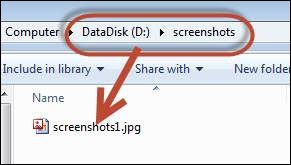
Upon executing the script, the screenshot is saved in the 'D:\screenshots' folder with the name 'screenshots1.jpg' as shown below.
Selenium Grid Screenshot Capture
While working with Selenium Grids, we should ensure that we are taking the screenshots correctly from the remote system. We will use augmented driver.
Example
We will execute the script on a Firefox node attached to a hub. For more on configuring hub and nodes, please refer the Selenium Grids chapter.
package TestNG;

import org.openqa.selenium.remote.Augmenter;
import org.openqa.selenium.remote.DesiredCapabilities;
import org.openqa.selenium.TakesScreenshot;
import org.openqa.selenium.*;

import org.testng.annotations.AfterTest;
import org.testng.annotations.BeforeTest;
import org.testng.annotations.Parameters;
import org.testng.annotations.Test;

import org.apache.commons.io.FileUtils;
import org.openqa.selenium.remote.RemoteWebDriver;

import java.util.concurrent.TimeUnit;
import java.io.File;
import java.net.URL;
import java.net.MalformedURLException;
import java.io.IOException;

public class TestNGClass {
   public WebDriver driver;
   public String URL, Node;
   protected ThreadLocal<RemoteWebDriver> threadDriver = null;

   @Parameters("browser")
   @BeforeTest
   public void launchapp(String browser) throws MalformedURLException {
      String URL = "http://www.calculator.net";

      if (browser.equalsIgnoreCase("firefox")) {
         System.out.println(" Executing on FireFox");
         String Node = "http://10.112.66.52:5555/wd/hub";
         DesiredCapabilities cap = DesiredCapabilities.firefox();
         cap.setBrowserName("firefox");
         driver = new RemoteWebDriver(new URL(Node), cap);

         // Puts an Implicit wait, Will wait for 10 seconds
         // before throwing exception
         driver.manage().timeouts().implicitlyWait(10, TimeUnit.SECONDS);

         // Launch website
         driver.navigate().to(URL);
         driver.manage().window().maximize();
      } else {
         throw new IllegalArgumentException("The Browser Type is Undefined");
      }
   }

   @Test
   public void calculatepercent() throws IOException {
      // Click on Math Calculators
      driver.findElement(By.xpath(".//*[@id = 'menu']/div[3]/a")).click();

      // Click on Percent Calculators
      driver.findElement(By.xpath(".//*[@id = 'menu']/div[4]/div[3]/a")).click();

      // Make use of augmented Driver to capture Screenshots.
      WebDriver augmentedDriver = new Augmenter().augment(driver);
      File screenshot = ((TakesScreenshot)augmentedDriver).getScreenshotAs(OutputType.FILE);
      FileUtils.copyFile(screenshot, new File("D:\\screenshots\\remotescreenshot1.jpg"));

      // Screenshot would be saved on the system where the script is executed and NOT on remote machine.

      // Enter value 10 in the first number of the percent Calculator
      driver.findElement(By.id("cpar1")).sendKeys("10");

      // Enter value 50 in the second number of the percent Calculator
      driver.findElement(By.id("cpar2")).sendKeys("50");

      // Click Calculate Button
      driver.findElement(By.xpath(".//*[@id = 'content']/table/tbody/tr/td[2]/input")).click();

      // Get the Result Text based on its xpath
      String result = driver.findElement(By.xpath(".//*[@id = 'content']/p[2]/span/font/b")).getText();

      // Print a Log In message to the screen
      System.out.println(" The Result is " + result);


      if(result.equals("5")) {
         System.out.println(" The Result is Pass");
      } else {
         System.out.println(" The Result is Fail");
      }
   }

   @AfterTest
   public void closeBrowser() {
      driver.quit();
   }
}
Output
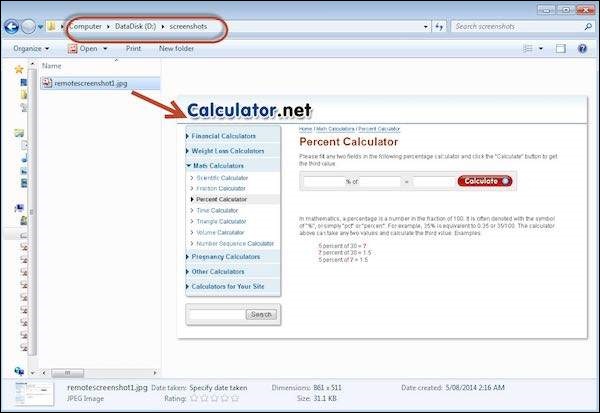
Upon executing the script, the screenshot is captured and saved in the specified location as shown below.