- JavaFX - Environment
- JavaFX - Installation Using Netbeans
- JavaFX - Installation Using Eclipse
- JavaFX - Installation using Visual Studio Code
- JavaFX - Architecture
- JavaFX - Application
- JavaFX 2D Shapes
- JavaFX - 2D Shapes
- JavaFX - Drawing a Line
- JavaFX - Drawing a Rectangle
- JavaFX - Drawing a Rounded Rectangle
- JavaFX - Drawing a Circle
- JavaFX - Drawing an Ellipse
- JavaFX - Drawing a Polygon
- JavaFX - Drawing a Polyline
- JavaFX - Drawing a Cubic Curve
- JavaFX - Drawing a Quad Curve
- JavaFX - Drawing an Arc
- JavaFX - Drawing an SVGPath
- JavaFX Properties of 2D Objects
- JavaFX - Stroke Type Property
- JavaFX - Stroke Width Property
- JavaFX - Stroke Fill Property
- JavaFX - Stroke Property
- JavaFX - Stroke Line Join Property
- JavaFX - Stroke Miter Limit Property
- JavaFX - Stroke Line Cap Property
- JavaFX - Smooth Property
- Operations on 2D Objects
- JavaFX - 2D Shapes Operations
- JavaFX - Union Operation
- JavaFX - Intersection Operation
- JavaFX - Subtraction Operation
- JavaFX Path Objects
- JavaFX - Path Objects
- JavaFX - LineTo Path Object
- JavaFX - HLineTo Path Object
- JavaFX - VLineTo Path Object
- JavaFX - QuadCurveTo Path Object
- JavaFX - CubicCurveTo Path Object
- JavaFX - ArcTo Path Object
- JavaFX Color and Texture
- JavaFX - Colors
- JavaFX - Linear Gradient Pattern
- JavaFX - Radial Gradient Pattern
- JavaFX Text
- JavaFX - Text
- JavaFX Effects
- JavaFX - Effects
- JavaFX - Color Adjust Effect
- JavaFX - Color input Effect
- JavaFX - Image Input Effect
- JavaFX - Blend Effect
- JavaFX - Bloom Effect
- JavaFX - Glow Effect
- JavaFX - Box Blur Effect
- JavaFX - GaussianBlur Effect
- JavaFX - MotionBlur Effect
- JavaFX - Reflection Effect
- JavaFX - SepiaTone Effect
- JavaFX - Shadow Effect
- JavaFX - DropShadow Effect
- JavaFX - InnerShadow Effect
- JavaFX - Lighting Effect
- JavaFX - Light.Distant Effect
- JavaFX - Light.Spot Effect
- JavaFX - Point.Spot Effect
- JavaFX - DisplacementMap
- JavaFX - PerspectiveTransform
- JavaFX Transformations
- JavaFX - Transformations
- JavaFX - Rotation Transformation
- JavaFX - Scaling Transformation
- JavaFX - Translation Transformation
- JavaFX - Shearing Transformation
- JavaFX Animations
- JavaFX - Animations
- JavaFX - Rotate Transition
- JavaFX - Scale Transition
- JavaFX - Translate Transition
- JavaFX - Fade Transition
- JavaFX - Fill Transition
- JavaFX - Stroke Transition
- JavaFX - Sequential Transition
- JavaFX - Parallel Transition
- JavaFX - Pause Transition
- JavaFX - Path Transition
- JavaFX Images
- JavaFX - Images
- JavaFX 3D Shapes
- JavaFX - 3D Shapes
- JavaFX - Creating a Box
- JavaFX - Creating a Cylinder
- JavaFX - Creating a Sphere
- Properties of 3D Objects
- JavaFX - Cull Face Property
- JavaFX - Drawing Modes Property
- JavaFX - Material Property
- JavaFX Event Handling
- JavaFX - Event Handling
- JavaFX - Using Convenience Methods
- JavaFX - Event Filters
- JavaFX - Event Handlers
- JavaFX UI Controls
- JavaFX - UI Controls
- JavaFX - ListView
- JavaFX - Accordion
- JavaFX - ButtonBar
- JavaFX - ChoiceBox
- JavaFX - HTMLEditor
- JavaFX - MenuBar
- JavaFX - Pagination
- JavaFX - ProgressIndicator
- JavaFX - ScrollPane
- JavaFX - Separator
- JavaFX - Slider
- JavaFX - Spinner
- JavaFX - SplitPane
- JavaFX - TableView
- JavaFX - TabPane
- JavaFX - ToolBar
- JavaFX - TreeView
- JavaFX - Label
- JavaFX - CheckBox
- JavaFX - RadioButton
- JavaFX - TextField
- JavaFX - PasswordField
- JavaFX - FileChooser
- JavaFX - Hyperlink
- JavaFX - Tooltip
- JavaFX - Alert
- JavaFX - DatePicker
- JavaFX - TextArea
- JavaFX Charts
- JavaFX - Charts
- JavaFX - Creating Pie Chart
- JavaFX - Creating Line Chart
- JavaFX - Creating Area Chart
- JavaFX - Creating Bar Chart
- JavaFX - Creating Bubble Chart
- JavaFX - Creating Scatter Chart
- JavaFX - Creating Stacked Area Chart
- JavaFX - Creating Stacked Bar Chart
- JavaFX Layout Panes
- JavaFX - Layout Panes
- JavaFX - HBox Layout
- JavaFX - VBox Layout
- JavaFX - BorderPane Layout
- JavaFX - StackPane Layout
- JavaFX - TextFlow Layout
- JavaFX - AnchorPane Layout
- JavaFX - TilePane Layout
- JavaFX - GridPane Layout
- JavaFX - FlowPane Layout
- JavaFX CSS
- JavaFX - CSS
- Media with JavaFX
- JavaFX - Handling Media
- JavaFX - Playing Video
- JavaFX Useful Resources
- JavaFX - Quick Guide
- JavaFX - Useful Resources
- JavaFX - Discussion
JavaFX - Linear Gradient Pattern
Apart from solid colors, you can also display a color gradient in JavaFX. A color gradient, in color science, is defined as the progression of colors depending on their positions. Hence, a color gradient is also known as color ramp or color progression.
Traditionally, a color gradient contains colors arranged sequentially or linearly. However, in a linear gradient pattern, the colors are flowing in a single direction. Even if the shape to be coloured is not linear, like a circle or an ellipse, the colors would still be arranged in one direction.
Let us learn how to apply the linear gradient pattern on 2D shapes in this chapter.
Applying Linear Gradient Pattern
To apply a Linear Gradient Pattern to the nodes, instantiate the LinearGradient class and pass its object to the setFill(), setStroke() methods.
The constructor of this class accepts five parameters namely −
startX, startY − These double properties represent the x and y coordinates of the starting point of the gradient.
endX, endY − These double properties represent the x and y coordinates of the ending point of the gradient.
cycleMethod − This argument defines how the regions outside the color gradient bounds, defined by the starting and ending points, should be filled.
proportional − This is a Boolean Variable; on setting this property to true, the start and end locations are set to a proportion.
Stops − This argument defines the color-stop points along the gradient line.
//Setting the linear gradient
Stop[] stops = new Stop[] {
   new Stop(0, Color.DARKSLATEBLUE),
   new Stop(1, Color.DARKRED)
};
LinearGradient linearGradient =
   new LinearGradient(0, 0, 1, 0, true, CycleMethod.NO_CYCLE, stops);
Example 1
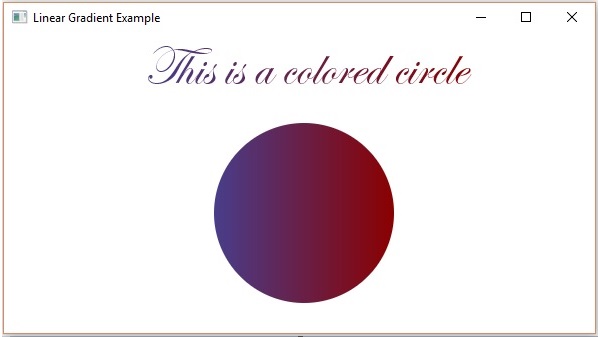
Following is an example which demonstrates how to apply a gradient pattern to the nodes in JavaFX. Here, we are creating a circle and a text nodes and applying linear gradient pattern to them.
Save this code in a file with name LinearGradientExample.java.
import javafx.application.Application;
import javafx.scene.Group;
import javafx.scene.Scene;

import javafx.scene.paint.Color;
import javafx.scene.paint.CycleMethod;
import javafx.scene.paint.LinearGradient;
import javafx.scene.paint.Stop;

import javafx.stage.Stage;
import javafx.scene.shape.Circle;
import javafx.scene.text.Font;
import javafx.scene.text.Text;

public class LinearGradientExample extends Application {
   @Override
   public void start(Stage stage) {
      //Drawing a Circle
      Circle circle = new Circle();

      //Setting the properties of the circle
      circle.setCenterX(300.0f);
      circle.setCenterY(180.0f);
      circle.setRadius(90.0f);

      //Drawing a text
      Text text = new Text("This is a colored circle");

      //Setting the font of the text
      text.setFont(Font.font("Edwardian Script ITC", 55));

      //Setting the position of the text
      text.setX(140);
      text.setY(50);

      //Setting the linear gradient
      Stop[] stops = new Stop[] {
         new Stop(0, Color.DARKSLATEBLUE),
         new Stop(1, Color.DARKRED)
      };
      LinearGradient linearGradient =
         new LinearGradient(0, 0, 1, 0, true, CycleMethod.NO_CYCLE, stops);

      //Setting the linear gradient to the circle and text
      circle.setFill(linearGradient);
      text.setFill(linearGradient);

      //Creating a Group object
      Group root = new Group(circle, text);

      //Creating a scene object
      Scene scene = new Scene(root, 600, 300);

      //Setting title to the Stage
      stage.setTitle("Linear Gradient Example");

      //Adding scene to the stage
      stage.setScene(scene);

      //Displaying the contents of the stage
      stage.show();
   }
   public static void main(String args[]){
      launch(args);
   }
}
Compile and execute the saved java file from the command prompt using the following commands.
javac --module-path %PATH_TO_FX% --add-modules javafx.controls LinearGradientExample.java
java --module-path %PATH_TO_FX% --add-modules javafx.controls LinearGradientExample
Output
On executing, the above program generates a JavaFX window as follows −
Example 2
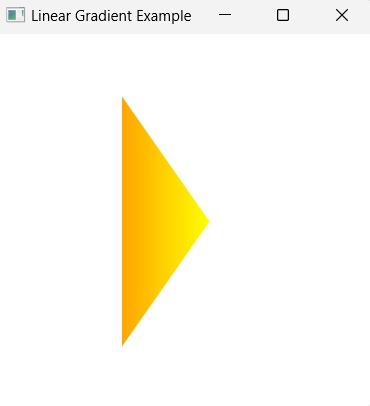
Apart from circle, you can also apply this type of gradient on other closed shapes like Polygons. Here, we are creating a triangle and coloring it with a certain linear gradient pattern.
Save this code in a file with name TriangleLinearGradient.java.
import javafx.application.Application;
import javafx.scene.Group;
import javafx.scene.Scene;

import javafx.scene.paint.Color;
import javafx.scene.paint.CycleMethod;
import javafx.scene.paint.LinearGradient;
import javafx.scene.paint.Stop;

import javafx.stage.Stage;
import javafx.scene.shape.Polygon;

public class TriangleLinearGradient extends Application {
   @Override
   public void start(Stage stage) {
      Polygon triangle = new Polygon();

      triangle.getPoints().addAll(new Double[]{
         100.0, 50.0,
         170.0, 150.0,
         100.0, 250.0,
      });


      Stop[] stops = new Stop[] {
         new Stop(0, Color.ORANGE),
         new Stop(1, Color.YELLOW)
      };
      LinearGradient linearGradient =
         new LinearGradient(0, 0, 1, 0, true, CycleMethod.NO_CYCLE, stops);


      triangle.setFill(linearGradient);

      Group root = new Group(triangle);

      Scene scene = new Scene(root, 300, 300);

      stage.setTitle("Linear Gradient Example");

      stage.setScene(scene);

      stage.show();
   }
   public static void main(String args[]){
      launch(args);
   }
}
Compile and execute the saved java file from the command prompt using the following commands.
javac --module-path %PATH_TO_FX% --add-modules javafx.controls TriangleLinearGradient.java
java --module-path %PATH_TO_FX% --add-modules javafx.controls TriangleLinearGradient
Output
On executing, the above program generates a JavaFX window as follows −