- SolidJS - Home
- SolidJS - Cheatsheet
- SolidJS - vs Vue, and Svelte
- SolidJS - Environment Setup
- SolidJS - First Solid App
- SolidJS - JSX Fundamentals
- SolidJS - Fine-grained Reactivity
- Building with Components
- SolidJS - Function Components
- SolidJS - Styling Your Components
- SolidJS - Conditional Rendering
- SolidJS - Dynamic Lists
- SolidJS - Passing Data
- SolidJS - Event Handling
- Routing, Data, and Async Operations
- SolidJS - Setting up Routes
- SolidJS - Input Handling
- SolidJS - Input Types
- SolidJS - Form Handling
- SolidJS Useful Resources
- SolidJS - Useful Resources
- SolidJS - Discussion
SolidJS - JSX Fundamentals
In this chapter, we will cover the JSX fundamentals for SolidJS with its uses, expressions, and rules.
What is JSX?
JSX is also known as JavaScript XML, and it is a syntax extension for JavaScript that allows us to write HTML code inside our JavaScript files. The JSX is core for building the components in SolidJS.
JSX is not valid JavaScript on its own because it needs to be transformed into regular JavaScript before it runs in the browser, and the transformation is done by Babel.
For example, take a look at the following line of code −
const ele = <h1>Welcome to SolidJS Tutorial!</h1>
This code is JSX because it is an HTML heading tag, but it's written directly inside JavaScript code and assigned to a variable named "ele".
Advantages of Using JSX
The following are some of the advantages of using JSX in SolidJS −
- SolidJS uses JSX in its components that contain both markup and logic in a single file.
- JSX is faster than standard JavaScript as it optimizes the code when translating it to JavaScript.
- JSX can prevent Cross-Site Scripting attacks or injection attacks.
- At compilation, most errors are detected in JSX because the data flow is unidirectional.
- JSX makes it easier to create templates and helps organize code structure.
JavaScript Expressions in JSX
In JSX, you can embed JavaScript expressions directly within your code. The JSX expression has to be enclosed inside the curly braces "{ }". The expression can reference all variables available in the context of the defined JSX. The following are the types of expressions in JSX −
Variable References
In JSX, you can directly embed variables inside the JSX to use their values. Below is an example to demonstrate the variable references expression in JSX −
const App = () => {
  const name = "SolidJS";

  return (
    <div>
      <p>Welcome to {name} Tutorial!</p>
    </div>
  );
};

export default App;
Below is the output for the above code:
Welcome to SolidJS Tutorial!
Mathematical Expressions
In JSX, you can perform mathematical calculations inside the JSX within curly braces { }. Below is an example to demonstrate the mathematical expression in JSX −
const App = () => {
  const p = 20, q = 10;

  return (
    <div>
      <p>Sum: {p + q}</p>
    </div>
  );
};

export default App;
Below is the output for the above code −
30
Function Calls and Methods
In JSX, you can call functions or use object methods within JSX expressions, and it also supports user-defined JavaScript functions. Below is an example to demonstrate the function Calls and methods in JSX −
const App = () => {
  function demo() {
    return "Learn SolidJS from TutorialsPoint!";
  }

  return (
    <div>
      <p>{demo()}</p>
    </div>
  );
};

export default App;
Below is the output for the above code −
Learn SolidJS from TutorialsPoint!
Conditional Expressions
In JSX, you cannot use if-else statements, but conditional expressions can be used instead. Below is an example to demonstrate the conditional expressions in JSX −
const App = () => {
  const count = 1;

  return (
    <div>
      <p>{count > 0 ? "Value is 1" : "Value is 0"}</p>
    </div>
  );
};

export default App;
Below is the output for the above code:
Value is 1
JSX Rules in SolidJS
To use JSX with SolidJS, the following are some of the fundamentals to keep in mind when working on a SolidJS application −
Single Root Element
In SolidJS, a JSX component should need to return a single root element, and if you try to return two siblings without wrapping them, the elements will cause issues. The issue occurs because JSX gets converted into JavaScript function calls at runtime.
Below is an example of how to use a single root element −
function Demo() {
  return (
    // single root element
    <div>
      <p>Tutorials</p>
      <p>Point</p>
    </div>

    /*
    Below will cause an error
    <p>Tutorials</p>
    <p>Point</p>
    */
  );
}
Close All Tags
When working with JSX, every element must include the closing slash at the end means all tags to be closed. In HTML, as we know that tags like <img> and <br> are self-closing tags and do not need to be closed, but in JSX, this will cause errors if not followed while working with JSX.
<img src="demo.png"> // Will throw an error
<img src="demo.png" /> // Closed correctly

<br> // Will throw an error
<br/> // Closed correctly
Handling Attributes
In JSX, when we set attributes or properties on elements, the syntax is different from standard HTML. The event handlers in JSX use camelCase as compared to HTML, which usually uses lowercase. Some of the common examples are htmlFor instead of for, tabIndex instead of tabindex, and onClick instead of onclick.
// Using standard HTML
<button onclick="handleClick()">

// With JSX
<button onClick={handleClick}>
In JSX, the inline CSS is not simple strings as they are in standard HTML. The inline CSS must be used as a JavaScript object, which is used within curly braces {{ }}. Below, the CSS for the Submit button is used under curly braces.
const App = () => {
  return (
    <div>
      <button style={{ color: 'green', 'font-size': '2rem' }}>
        Submit
      </button>
    </div>
  );
};

export default App;
Below is the output for the above code −

Passing props
When creating a component in JSX, you can pass props inside the component, and inside these components, you can use these prop values.
function Demo(props) {
  return <h1>Welcome to {props.name} Tutorial!</h1>;
}

const App = () => {
  return (
    <div>
      <Demo name="SolidJS" />
    </div>
  );
};

export default App;
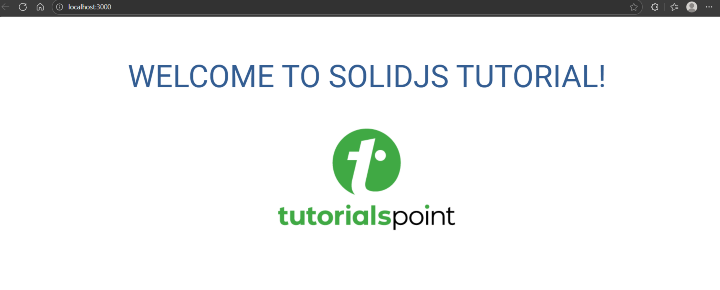
In the above example, the Demo component is like an HTML tag. The attribute name="SolidJS" defines a property named "name" and assigns its value as "SolidJS". The image represents the output for the above example −