
- SolidJS - Home
- SolidJS - Cheatsheet
- SolidJS - vs Vue, and Svelte
- SolidJS - Environment Setup
- SolidJS - First Solid App
- SolidJS - JSX Fundamentals
- SolidJS - Fine-grained Reactivity
- Building with Components
- SolidJS - Function Components
- SolidJS - Styling Your Components
- SolidJS - Conditional Rendering
- SolidJS - Dynamic Lists
- SolidJS - Passing Data
- SolidJS - Event Handling
- Routing, Data, and Async Operations
- SolidJS - Setting up Routes
- SolidJS - Input Handling
- SolidJS - Input Types
- SolidJS - Form Handling
- SolidJS Useful Resources
- SolidJS - Useful Resources
- SolidJS - Discussion
SolidJS - Environment Setup
Setting Up the SolidJS Environment
If you want to set up your own environment for SolidJS development, then this chapter guides you step-by-step through the whole process. Follow the steps given below to set up your SolidJS environment.
SolidJS can be installed on different OS platforms such as Windows, Linux, macOS, etc. You need the following tools on your computer −
- Node.js version 16 or higher.
- A package manager like npm or yarn.
- A code editor (recommend VSCode).
Installing Node.js
If you don't have Node.js installed on your computer, you can do so by following the steps given below −
- Visit the official Node.js website
- Download the LTS(Long Term Support) version as per your OS and its architecture(x64 or x86).
- Run the installer(.exe file) and follow the steps in the setup wizard.
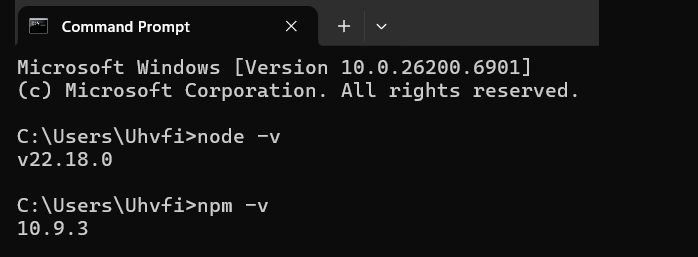
- Verify the Node.js installation by opening the command prompt and running the "node -v" and "npm -v". It shows the current version installed.
# Verify the Node.js version:
node -v

# Verify npm version:
npm -v
Quick Start with SolidJS
The following steps will guide you on how to set up a SolidJS application with the respective commands to run in the compiler −
Step 1 − In the first step, we have to use the npm create command that will download the latest Solid.js project template tool.
Open your terminal and run the following command −
# Using npm
npm create solid@latest my-solid-demo

# Using yarn
yarn create solid my-solid-demo
Here, "my-solid-demo" is the name of the project. You can use a name of your convenience.
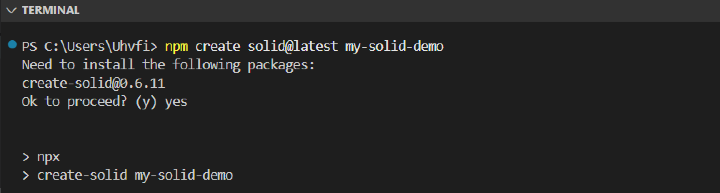
Step 2 − After running the above command, to proceed, we have to enter "y" or "yes". Then we have to follow the steps below to create my-solid-demo −
What type of project would you like to create?
- SolidStart(I have selected this as recommended for server-side rendering)
- Solid + Vite
- Library
Use Typescript?
- yes(I have selected yes as this is recommended)
- no
Which template would you like to use?
- Here, I have selected the bare template
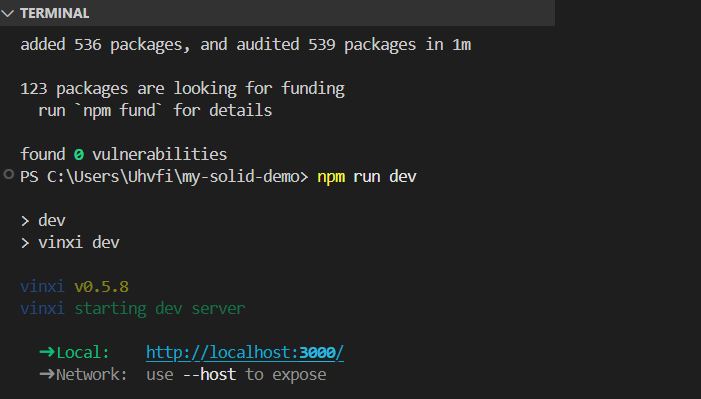
Step 3 − Then navigate to your project directory using the cd command and install the necessary node dependencies. Run the following commands −
cd my-solid-demo
npm install

Step 4 − After installing the node dependencies successfully, run the following command −
npm run dev
Your my-solid-demo project will be locally available at http://localhost:5173.
Popular Editors for Solid.js Development
To write SolidJS code, you need a text editor. You can use any text editor or an IDE(Integrated Development Environment) the most popular ones are mentioned below −
- VS Code (Visual Studio Code) − It is a Free, lightweight, and ideal tool for web development.
- WebStorm − It is a powerful IDE provided by JetBrains for advanced JavaScript tools.
- Sublime Text − It is a fast and simple text editor with built-in plugin support.
Online SolidJS Editor
If you don’t want to install any editor locally on your computer, you can use this Solid.js compiler "https://playground.solidjs.com/", write your code, and start working on SolidJS.
What is Next?
Move over to the next chapter to learn how to write and run your first SolidJS code. It will also explain some of the important basic syntaxes in SolidJS needed for developing SolidJS applications.
