
- SolidJS - Home
- SolidJS - Cheatsheet
- SolidJS - vs Vue, and Svelte
- SolidJS - Environment Setup
- SolidJS - First Solid App
- SolidJS - JSX Fundamentals
- SolidJS - Fine-grained Reactivity
- Building with Components
- SolidJS - Function Components
- SolidJS - Styling Your Components
- SolidJS - Conditional Rendering
- SolidJS - Dynamic Lists
- SolidJS - Passing Data
- SolidJS - Event Handling
- Routing, Data, and Async Operations
- SolidJS - Setting up Routes
- SolidJS - Input Handling
- SolidJS - Input Types
- SolidJS - Form Handling
- SolidJS Useful Resources
- SolidJS - Useful Resources
- SolidJS - Discussion
SolidJS - User Input Handling
User input fields help the user feed data such as text, email, passwords into the forms. In Solid.js, user input is handled using signals and event listeners. Read this chapter to learn how to handle different types of user input in Solid.js, including text inputs, text areas, checkboxes, radio buttons, controlled and uncontrolled inputs, and the use of events like onInput and onChange.
Basic Input Handling
Basic input handling means reading the user-entered values from the form inputs and storing them in signals so they can be displayed, processed, or submitted.
Reading Input Values
Given below are some of the ways to read input values in Solid.js −
Event Handler with event.target.value
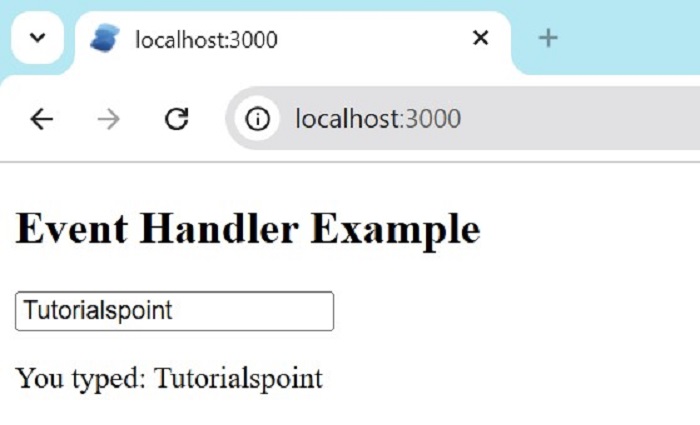
A separate function to handle input events is defined using Event Handler with event.target.value method. Paste the code in app.tsx, or create one more file(example eventtargetvalue) and import it in the app.tsx file
import { createSignal } from 'solid-js'

export default function EventHandlerExample() {
  const [text, setText] = createSignal('')

  const handleInput = (
    event: InputEvent & { currentTarget: HTMLInputElement }
  ) => {
    setText(event.currentTarget.value)
  }

  return (
    <div>
      <h2>Event Handler Example</h2>
      <input
        type="text"
        onInput={handleInput}
        placeholder="Type something..."
      />
      <p>You typed: {text()}</p>
    </div>
  )
}
The output for the above code is −
Inline Event Handler
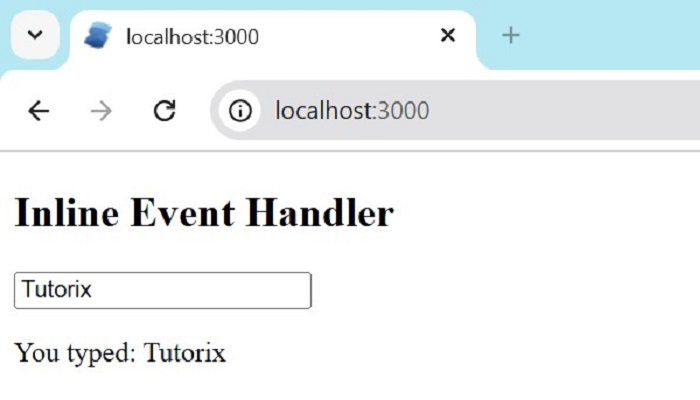
In the inline event handler, the input value is updated directly inside the event attribute without using a separate handler function. The logic is written directly inside the onInput attribute. Paste the code in app.tsx, or create one more file(example inlineeventhandler) and import it in the app.tsx file.
import { createSignal } from 'solid-js'

export default function InlineHandlerExample() {
  const [text, setText] = createSignal('')

  return (
    <div>
     <h2>Inline Event Handler</h2>
      <input
        type="text"
        onInput={(e: InputEvent & { currentTarget: HTMLInputElement }) =>
          setText(e.currentTarget.value)
        }
        placeholder="Type something..."
      />
      <p>You typed: {text()}</p>
    </div>
  )
}
The output for the above code is −
Using refs
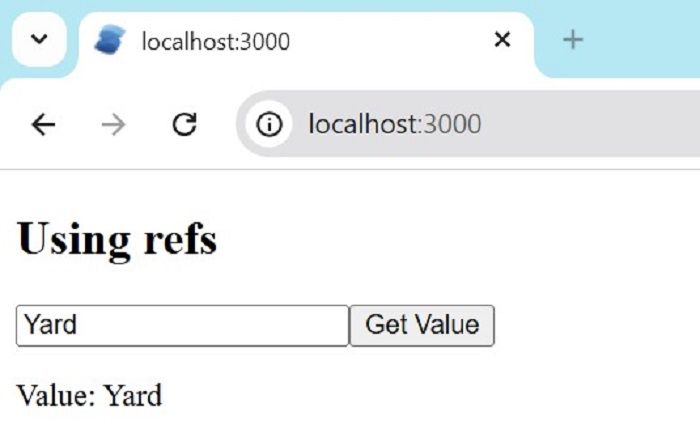
The DOM elements can be directly accessed using refs. The input value is read only when required, such as on button click or form submission. Paste the code in app.tsx, or create one more file(example usingrefs) and import it in the app.tsx file.
import { createSignal } from 'solid-js'

export default function RefExample() {
  let inputRef!: HTMLInputElement
  const [text, setText] = createSignal('')

  const handleClick = () => {
    setText(inputRef.value)
  }

  return (
    <div>
     <h2>Using refs</h2>
      <input
        type="text"
        ref={inputRef}
        placeholder="Type and click button..."
      />
      <button onClick={handleClick}>Get Value</button>
      <p>Value: {text()}</p>
    </div>
  )
}
The output for the above code is −
Understanding onInput and onChange
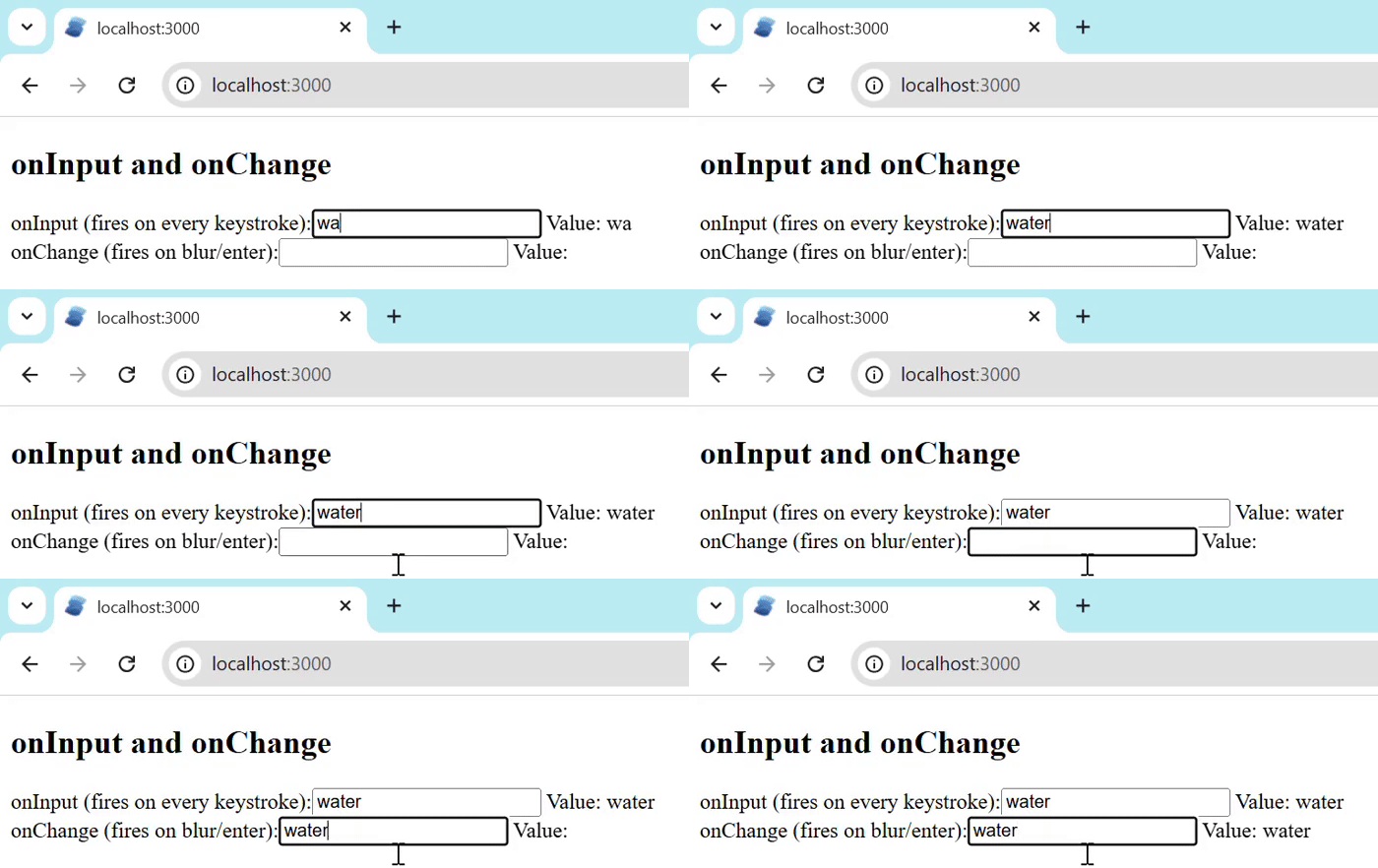
The onInput and onChange are the input events it tells when an input event is triggered.
- onInput triggers every time the user types or changes the input value.
- onChange triggers only when the input loses focus or the user presses the Enter key.
Paste the code in app.tsx, or create one more file(example onInputonChange) and import it in the app.tsx file.
import { createSignal } from 'solid-js'

export default function InputVsChange() {
  const [inputValue, setInputValue] = createSignal('')
  const [changeValue, setChangeValue] = createSignal('')

  return (
    <div>
     <h2>onInput and onChange</h2>
      <div>
        <label>onInput (fires on every keystroke):</label>
        <input
          type="text"
          onInput={(e: InputEvent & { currentTarget: HTMLInputElement }) =>
            setInputValue(e.currentTarget.value)
          }
        />
        <span> Value: {inputValue()}</span>
      </div>

      <div>
        <label>onChange (fires on blur/enter):</label>
        <input
          type="text"
          onChange={(e: Event & { currentTarget: HTMLInputElement }) =>
            setChangeValue(e.currentTarget.value)
          }
        />
        <span> Value: {changeValue()}</span>
      </div>
    </div>
  )
}
The output for the above code is −
Input Control Patterns
Here are the input control patterns in Solid.js −
- Controlled Input
- Uncontrolled Input
Controlled Input
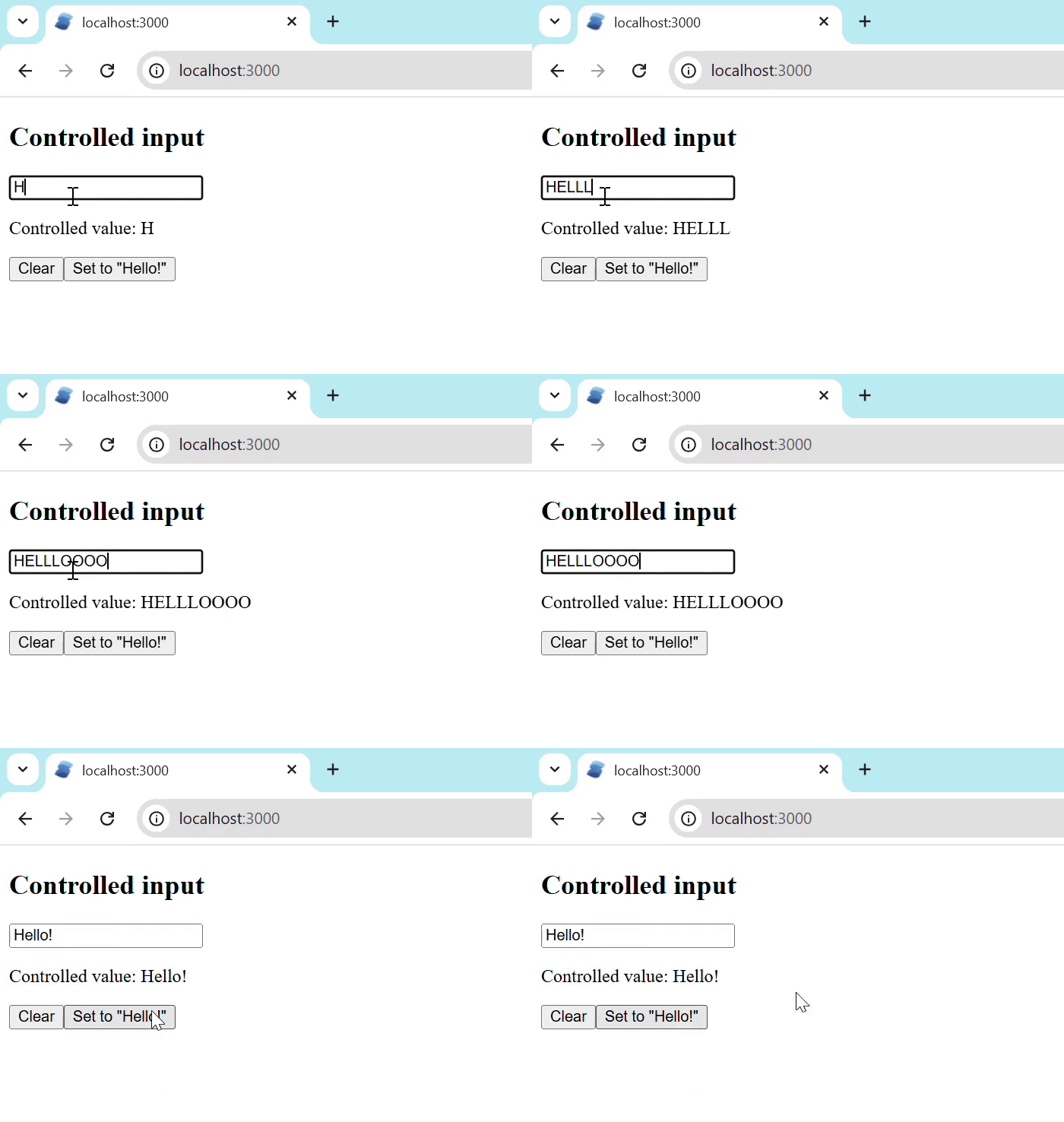
The controlled input is an input field whose value is fully controlled by a signal. Any change in the signal immediately updates the input value, as the input value comes from the signal. Paste the code in app.tsx, or create one more file(example controlledinput) and import it in the app.tsx file.
import { createSignal } from 'solid-js'

export default function ControlledInput() {
  const [value, setValue] = createSignal('')

  return (
    <div>
     <h2>Controlled input</h2>
      <input
        type="text"
        value={value()}
        onInput={e => setValue(e.target.value)}
      />
      <p>Controlled value: {value()}</p>
      <button onClick={() => setValue('')}>Clear</button>
      <button onClick={() => setValue('Hello!')}>Set to "Hello!"</button>
    </div>
  )
}
The output for the above code −
Uncontrolled Input
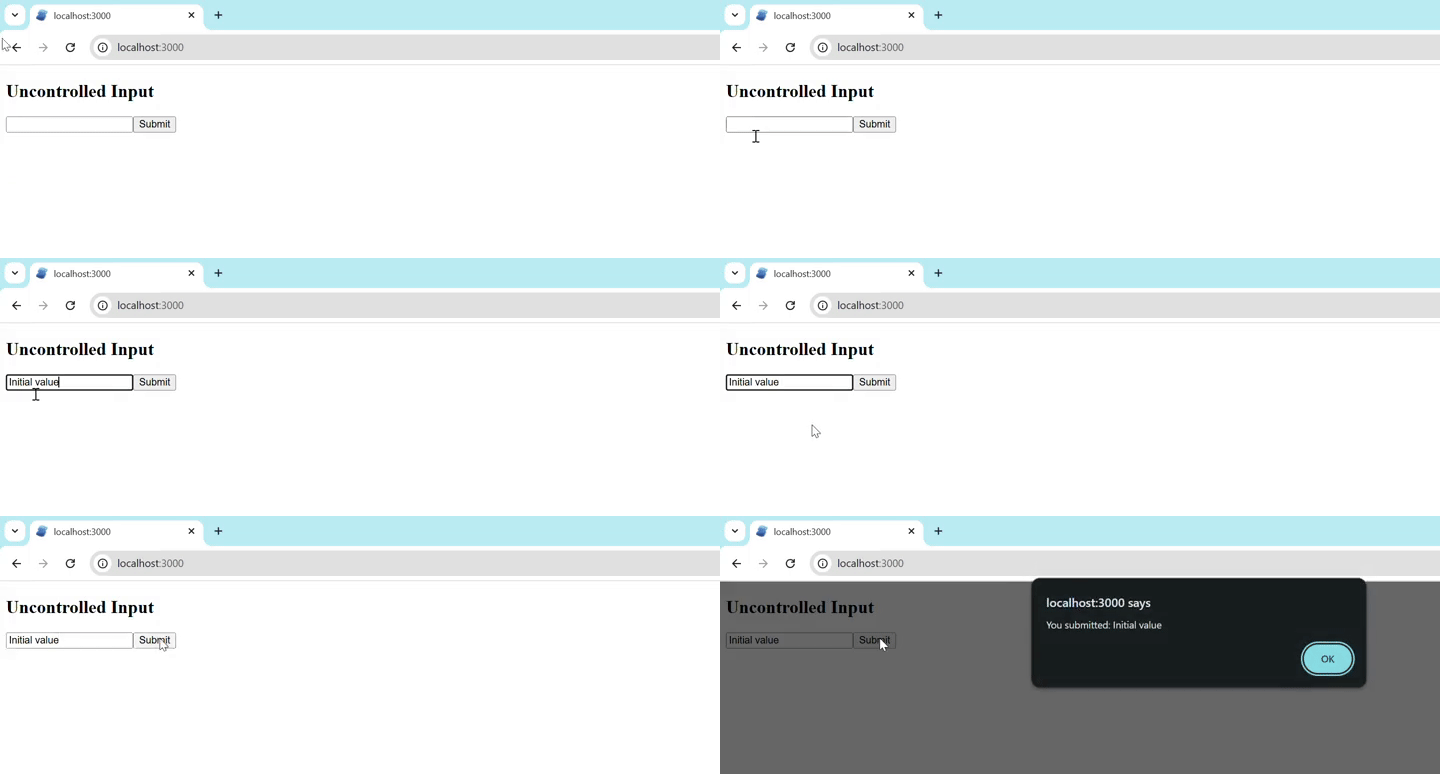
In Uncontrolled Input, the value is accessed directly from the DOM using refs, usually during form submission, and it manages its own value internally. Paste the code in app.tsx, or create one more file(example Uncontrolledinput) and import it in the app.tsx file.
export default function UncontrolledInput() {
  let inputRef!: HTMLInputElement

  const handleSubmit = (e: Event) => {
    e.preventDefault()
    alert(`You submitted: ${inputRef.value}`)
  }

  return (
    <div>
      <h2>UncontrolledInput</h2>

      <form onSubmit={handleSubmit}>
        <input
          type="text"
          ref={(el) => {
            inputRef = el
            el.value = "Initial value"
          }}
        />
        <button type="submit">Submit</button>
      </form>
    </div>
  )
}
The output for the above code is −
Conclusion
In this chapter, we explained in detail how to handle different types of user input in Solid.js. We covered topics like basic input handling methods to read input values, including event handlers, inline event handlers, and refs. Finally, we discussed about onInput and onChange and the input control patterns.
Read the next chapter to learn the different input types in Solid.js.
