IPython
- IPython - Introduction
- IPython - Installation
- IPython - Getting Started
- Running & Editing Python Script
- IPython - History Command
- IPython - System Commands
- IPython - Command Line Options
- Dynamic Object Introspection
- IPython - IO Caching
- Setting IPython as Default Python Environment
- Importing Python Shell Code
- IPython - Embedding IPython
- IPython - Magic Commands
Jupyter
- Project Jupyter - Overview
- Jupyter Notebook - Introduction
- Working With Jupyter Online
- Installation and Getting Started
- Jupyter Notebook - Dashboard
- Jupyter Notebook - User Interface
- Jupyter Notebook - Types of Cells
- Jupyter Notebook - Editing
- Jupyter Notebook - Markdown Cells
- Cell Magic Functions
- Jupyter Notebook - Plotting
- Converting Notebooks
- Jupyter Notebook - IPyWidgets
QtConsole
- QtConsole - Getting Started
- QtConsole - Multiline Editing
- QtConsole - Inline Graphics
- QtConsole - Save to Html
- QtConsole - Multiple Consoles
- Connecting to Jupyter Notebook
- Using github and nbviewer
JupyterLab
- JupyterLab - Overview
- Installation & Getting Started
- JupyterLab - Interface
- JupyterLab - Installing R Kernel
Jupyter Resources
Jupyter QtConsole - Getting Started
In this chapter, let us understand how to get started with QtConsole. This chapter will give you an overview about this software and explains its installation steps.
Overview
The Qt console is a GUI application similar to IPython terminal. However, it provides a number of enhancements which are not available in text based IPython terminal. The enhance features are inline figures, multi-line editing with syntax highlighting, graphical calltips, etc. The Qt console can use any Jupyter kernel, default being IPython kernel.
Installation
Jupyter QtConsole is a part of Project Jupyter. Anaconda distribution is already having QTconsole application in it. In order to install it individually, use pip command as shown below −
pip3 install qtconsole
...
Installing collected packages: qtpy, qtconsole
Successfully installed qtconsole-5.7.0 qtpy-2.4.3
Install QT binding
pip3 install pyqt5
...
Installing collected packages: PyQt5-Qt5, PyQt5-sip, pyqt5
Successfully installed PyQt5-Qt5-5.15.2 PyQt5-sip-12.17.2 pyqt5-5.15.11
You can also use the conda command for this purpose −
conda install qtconsole
You can start Jupyter console from Anaconda navigator. To start it from the command line, you should use the following command, either from the Windows command prompt or Anaconda prompt −
jupyter qtconsole
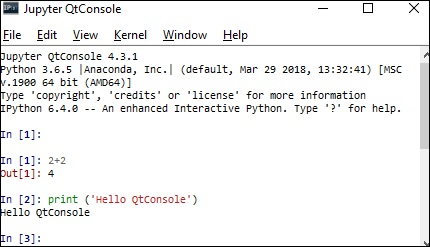
You get a terminal similar to IPython terminal with first In[] prompt. You can now execute any Python expression exactly like we do in IPython terminal or Jupyter notebook