
- Excel Functions - Home
- Compatibility Functions
- Compatibility Functions
- BETADIST Function
- BETAINV Function
- BINOMDIST Function
- CEILING Function
- CHIDIST Function
- CHIINV Function
- CHITEST Function
- CONFIDENCE Function
- COVAR Function
- CRITBINOM Function
- EXPONDIST Function
- FDIST Function
- FINV Function
- FLOOR Function
- FTEST Function
- GAMMADIST Function
- GAMMAINV Function
- HYPGEOMDIST Function
- LOGINV Function
- LOGNORMDIST Function
- MODE Function
- NEGBINOMDIST Function
- NORMDIST Function
- NORMINV Function
- NORMSDIST Function
- NORMSINV Function
- PERCENTILE Function
- PERCENTRANK Function
- POISSON Function
- QUARTILE Function
- RANK Function
- STDEV Function
- STDEVP Function
- TDIST Function
- TINV Function
- TTEST Function
- VAR Function
- VARP Function
- WEIBULL Function
- ZTEST Function
- Logical Functions
- Logical Functions
- AND Function
- FALSE Function
- IF Function
- IFERROR Function
- IFNA Function
- IFS Function
- NOT Function
- OR Function
- SWITCH Function
- TRUE Function
- XOR Function
- Text Functions
- Text Functions
- ARRAYTOTEXT Function
- BAHTTEXT Function
- CHAR Function
- CLEAN Function
- CODE Function
- CONCAT Function
- CONCATENATE Function
- DBCS Function
- DOLLAR Function
- Exact Function
- FIND Function
- FINDB Function
- FIXED Function
- LEFT Function
- LEFTB Function
- LEN Function
- LENB Function
- LOWER Function
- MID Function
- MIDB Function
- NUMBERVALUE Function
- PHONETIC Function
- PROPER Function
- REPLACE Function
- REPLACEB Function
- REPT Function
- RIGHT Function
- RIGHTB Function
- SEARCH Function
- SEARCHB Function
- SUBSTITUTE Function
- T Function
- TEXT Function
- TEXTAFTER Function
- TEXTBEFORE Function
- TEXTJOIN Function
- TEXTSPLIT Function
- TRIM Function
- UNICHAR Function
- UNICODE Function
- UPPER Function
- VALUE Function
- VALUETOTEXT Function
- Date & Time Functions
- Date & Time Functions
- DATE Function
- DATEDIF Function
- DATEVALUE Function
- DAY Function
- DAYS Function
- DAYS360 Function
- EDATE Function
- EOMONTH Function
- HOUR Function
- ISOWEEKNUM Function
- MINUTE Function
- MONTH Function
- NETWORKDAYS Function
- NETWORKDAYS.INTL Function
- NOW Function
- SECOND Function
- TIME Function
- TIMEVALUE Function
- TODAY Function
- WEEKDAY Function
- WEEKNUM Function
- WORKDAY Function
- WORKDAY.INTL Function
- YEAR Function
- YEARFRAC Function
- Cube Functions
- Cube Functions
- CUBEKPIMEMBER Function
- CUBEMEMBER Function
- CUBEMEMBERPROPERTY Function
- CUBERANKEDMEMBER Function
- CUBESET Function
- CUBESETCOUNT Function
- CUBEVALUE Function
- Math Functions
- Math Functions
- ABS Function
- AGGREGATE Function
- ARABIC Function
- BASE Function
- CEILING.MATH Function
- COMBIN Function
- COMBINA Function
- DECIMAL Function
- DEGREES Function
- EVEN Function
- EXP Function
- FACT Function
- FACTDOUBLE Function
- FLOOR.MATH Function
- GCD Function
- INT Function
- LCM Function
- LN Function
- LOG Function
- LOG10 Function
- MDETERM Function
- MINVERSE Function
- MMULT Function
- MOD Function
- MROUND Function
- MULTINOMIAL Function
- MUNIT Function
- ODD Function
- PI Function
- POWER Function
- PRODUCT Function
- QUOTIENT Function
- RADIANS Function
- RAND Function
- RANDBETWEEN Function
- ROMAN Function
- ROUND Function
- ROUNDDOWN Function
- ROUNDUP Function
- SERIESSUM Function
- SIGN Function
- SQRT Function
- SQRTPI Function
- SUBTOTAL Function
- SUM Function
- SUMIF Function
- SUMIFS Function
- SUMPRODUCT Function
- SUMSQ Function
- SUMX2MY2 Function
- SUMX2PY2 Function
- SUMXMY2 Function
- TRUNC Function
- Trigonometric Functions
- Trigonometric Functions
- ACOS
- ACOSH Function
- ACOT Function
- ACOTH Function
- ASIN Function
- ASINH Function
- ATAN Function
- ATAN2 Function
- ATANH Function
- COS Function
- COSH Function
- COT Function
- COTH Function
- CSC Function
- CSCH Function
- SEC Function
- SECH Function
- SIN Function
- SINH Function
- TAN Function
- TANH Function
- Database Functions
- Database Functions
- DAVERAGE
- DCOUNT
- DCOUNTA
- DGET
- DMAX
- DMIN
- DPRODUCT
- DSTDEV
- DSTDEVP
- DSUM
- DVAR
- DVARP
- Dynamic Array Functions
- Dynamic Array Functions
- FILTER Function
- RANDARRAY Function
- SEQUENCE Function
- SORT Function
- SORTBY Function
- UNIQUE Function
- XLOOKUP Function
- XMATCH Function
- Engineering Functions
- Engineering Functions
- BESSELI Function
- BESSELJ Function
- BESSELK Function
- BESSELY Function
- BIN2DEC Function
- BIN2HEX Function
- BIN2OCT Function
- BITAND Function
- BITLSHIFT Function
- BITOR Function
- BITRSHIFT Function
- BITXOR Function
- COMPLEX Function
- CONVERT Function
- DEC2BIN Function
- DEC2HEX Function
- DEC2OCT Function
- DELTA Function
- ERF Function
- ERF.PRECISE Function
- ERFC Function
- ERFC.PRECISE Function
- GESTEP Function
- HEX2BIN Function
- HEX2DEC Function
- HEX2OCT Function
- IMABS Function
- IMAGINARY Function
- IMARGUMENT Function
- IMCONJUGATE Function
- IMCOS Function
- IMCOSH Function
- IMCOT Function
- IMCSC Function
- IMCSCH Function
- IMDIV Function
- IMEXP Function
- IMLN Function
- IMLOG2 Function
- IMLOG10 Function
- IMPOWER Function
- IMPRODUCT Function
- IMREAL Function
- IMSEC Function
- IMSECH Function
- IMSIN Function
- IMSINH Function
- IMSQRT Function
- IMSUB Function
- IMSUM Function
- IMTAN Function
- OCT2BIN Function
- OCT2DEC Function
- OCT2HEX Function
- Financial Functions
- Financial Functions
- ACCRINT Function
- ACCRINTM Function
- AMORDEGRC Function
- AMORLINC Function
- COUPDAYBS Function
- COUPDAYS Function
- COUPDAYSNC Function
- COUPNCD Function
- COUPNUM Function
- COUPPCD Function
- CUMIPMT Function
- CUMPRINC Function
- DB Function
- DDB Function
- DISC Function
- DOLLARDE Function
- DOLLARFR Function
- DURATION Function
- EFFECT Function
- FV Function
- FVSCHEDULE Function
- INTRATE Function
- IPMT Function
- IRR Function
- ISPMT Function
- MDURATION Function
- MIRR Function
- NOMINAL Function
- NPER Function
- NPV Function
- ODDFPRICE Function
- ODDFYIELD Function
- ODDLPRICE Function
- ODDLYIELD Function
- PDURATION Function
- PMT Function
- PPMT Function
- PRICE Function
- PRICEDISC Function
- PRICEMAT Function
- PV Function
- RATE Function
- RECEIVED Function
- RRI Function
- SLN Function
- SYD Function
- TBILLEQ Function
- TBILLPRICE Function
- TBILLYIELD Function
- VDB Function
- XIRR Function
- XNPV Function
- YIELD Function
- YIELDDISC Function
- YIELDMAT Function
- Information Functions
- Information Functions
- CELL Function
- ERROR.TYPE Function
- INFO Function
- ISBLANK Function
- ISERR Function
- ISERROR Function
- ISEVEN Function
- ISFORMULA Function
- ISLOGICAL Function
- ISNA Function
- ISNONTEXT Function
- ISNUMBER Function
- ISODD Function
- ISREF Function
- ISTEXT Function
- N Function
- NA Function
- SHEET Function
- SHEETS Function
- TYPE Function
- Lookup & Reference Functions
- Lookup & Reference Functions
- ADDRESS Function
- AREAS Function
- CHOOSE Function
- COLUMN Function
- COLUMNS Function
- FORMULATEXT Function
- GETPIVOTDATA Function
- HLOOKUP Function
- HYPERLINK Function
- INDEX Function
- INDIRECT Function
- LOOKUP Function
- MATCH Function
- OFFSET Function
- ROW Function
- ROWS Function
- RTD Function
- TRANSPOSE Function
- VLOOKUP Function
- Statistical Functions
- Statistical Functions
- AVEDEV Function
- AVERAGE Function
- AVERAGEA Function
- AVERAGEIF Function
- AVERAGEIFS Function
- BETA.DIST Function
- BETA.INV Function
- BINOM.DIST Function
- BINOM.DIST.RANGE Function
- BINOM.INV Function
- CHISQ.DIST Function
- CHISQ.DIST.RT Function
- CHISQ.INV Function
- CHISQ.INV.RT Function
- CHISQ.TEST Function
- CONFIDENCE.NORM Function
- CONFIDENCE.T Function
- CORREL Function
- COUNT Function
- COUNTA Function
- COUNTBLANK Function
- COUNTIF Function
- COUNTIFS Function
- COVARIANCE.P Function
- COVARIANCE.S Function
- DEVSQ Function
- EXPON.DIST Function
- F.DIST Function
- F.DIST.RT Function
- F.INV Function
- F.INV.RT Function
- F.TEST Function
- FISHER Function
- FISHERINV Function
- FORECAST Function
- FORECAST.ETS Function
- FORECAST.ETS.CONFINT Function
- FORECAST.ETS.SEASONALITY Function
- FORECAST.ETS.STAT Function
- FORECAST.LINEAR Function
- FREQUENCY Function
- GAMMA Function
- GAMMA.DIST Function
- GAMMA.INV Function
- GAMMALN Function
- GAMMALN.PRECISE Function
- GAUSS Function
- GEOMEAN
- GROWTH
- HARMEAN
- HYPGEOM.DIST
- INTERCEPT Function
- KURT Function
- LARGE Function
- LINEST Function
- LOGEST Function
- LOGNORM.DIST Function
- LOGNORM.INV Function
- MAX Function
- MAXA Function
- MAXIFS Function
- MEDIAN Function
- MIN Function
- MINA Function
- MINIFS Function
- MODE.MULT Function
- MODE.SNGL Function
- NEGBINOM.DIST Function
- NORM.DIST Function
- NORM.INV Function
- NORM.S.DIST Function
- NORM.S.INV Function
- PEARSON Function
- PERCENTILE.EXC
- PERCENTILE.INC
- PERCENTRANK.EXC
- PERCENTRANK.INC
- PERMUT
- PERMUTATIONA
- PHI
- POISSON.DIST
- PROB
- QUARTILE.EXC
- QUARTILE.INC
- RANK.AVG
- RANK.EQ
- RSQ
- SKEW
- SKEW.P
- SLOPE
- SMALL
- STANDARDIZE
- STDEV.P
- STDEV.S
- STDEVA
- STDEVPA
- STEYX
- T.DIST
- T.DIST.2T
- T.DIST.RT
- T.INV
- T.INV.2T
- T.TEST
- TREND
- TRIMMEAN Function
- VAR.P Function
- VAR.S Function
- VARA Function
- VARPA Function
- WEIBULL.DIST Function
- Z.TEST Function
- Web Functions
- Web Functions
- ENCODEURL Function
- FILTERXML Function
- WEBSERVICE Function
Excel - SEQUENCE Function
SEQUENCE Function
The Excel Sequence function creates a dynamic list of periodic values. It facilitates users' work with dynamic arrays without pressing the Ctrl+Shift+Enter keys, which are required for one-dimensional or two-dimensional arrays. Additionally, it can populate sequence dates, and you can set the custom start and increment while generating it. The sequence function is listed under the category of the Dynamic Array function in Microsoft Excel.
Compatibility
This Dynamic Array function is compatible with the following versions of Microsoft Excel −
- Excel for Microsoft 365
- Excel for Microsoft 365 for Mac
- Excel for the web
- Excel 2024
- Excel 2024 for Mac
- Excel 2021
- Excel 2021 for Mac
- Excel for iPad
- Excel for iPhone
- Excel for Android tablets
- Excel for Android phones
Syntax
The syntax of the SEQUENCE function is as follows −
=SEQUENCE(rows,[columns],[start],[step])
Arguments
You can use the following arguments with the FILTER function −
| Argument | Description | Required / Optional |
|---|---|---|
| Rows | It indicates the number of rows to be retrieved. | Required |
| Columns | It specifies the column numbers to be retrieved. | Optional |
| Start | A numeric value representing the starting number. | Optional |
| Step | A numeric value requires increasing each data value in the selected range of cells. | Optional |
Lets elaborate on a few outstanding examples of using the Sequence function in Excel are as follows −
Example of SEQUENCE Function
Practice the following example to learn the use of the SEQUENCE function in Excel.
Example 1
Using the Sequence function to generate the dynamic array of 4*5 two dimensional whose values are incremented by 3.
Solution
You need to use the latest version of Microsoft Excel to generate the custom sequence of dynamic arrays.
Step 1 − First, open a desired worksheet in Microsoft Excel 365, place the cursor on the B2 cell, and double-click.

Step 2 − After that, enter the formula =SEQUENCE(4,5,10,3) and hit the Enter.
Explanation
=SEQUENCE(4,5,10,3)
Row − The first argument indicates the number of rows, which is 4.
Columns − The second argument denotes the number of columns, which is 5.
Start − The third argument denotes the starting number 10 in the Sequence formula.
The fourth argument represents increment 3, which means each value is incremented by 3.


Example 2
You can use the Sequence function to generate the dynamic list of numbers. The sample dataset comprises two columns, Serial Number and Task. The multiple task are given in the C column.

Step 2 − After that, enter the formula ="Serial No. &SEQUENCE(COUNTA(C:C)) in the B8 cell to create a dynamic list depending upon the count of the cell values in column C.

Therefore, the dynamic list of the serial number is generated through the Sequence function in Excel.
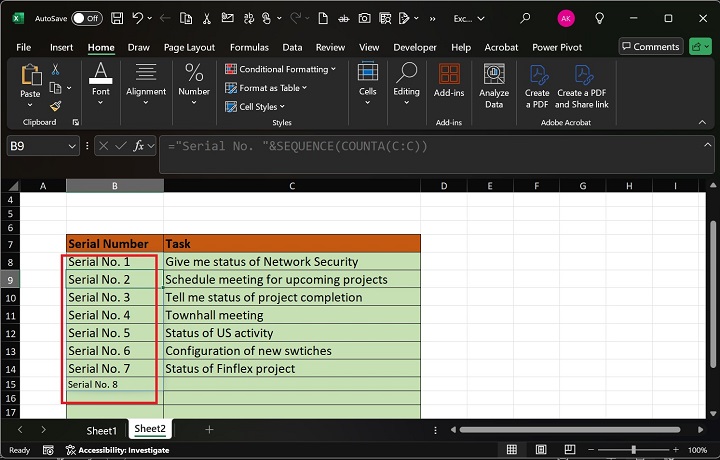
Further more, if you type the next task, Training of new joiners, in the C15 cell and press the Enter tab, the serial number for the next cell, B16, is automatically populated like this.

Example 3
Create a consecutive sequence of dates using the Sequence function.
Solution
Open the Excel worksheet, locate the pointer in the B2 cell, and double-click on it to write the sequence formula =SEQUENCE(10, TODAY(), 1) to populate the ten consecutive dates incremented by one starting from todays date.

Therefore, the Sequence function will return 10 consecutive dates, beginning with today's date and increasing by 1.

Download Practice Sheet
You can download and use the sample data sheet to practice the SEQUENCE function.
