
- GWT Tutorial
- GWT - Home
- GWT - Overview
- GWT - Environment Setup
- GWT - Applications
- GWT - Create Application
- GWT - Deploy Application
- GWT - Style with CSS
- GWT - Basic Widgets
- GWT - Form Widgets
- GWT - Complex widgets
- GWT - Layout Panels
- GWT - Event Handling
- GWT - Custom Widgets
- GWT - UIBinder
- GWT - RPC Communication
- GWT - JUnit Integration
- GWT - Debugging Application
- GWT - Internationalization
- GWT - History Class
- GWT - Bookmark Support
- GWT - Logging Framework
- GWT Useful Resources
- GWT - Questions and Answers
- GWT - Quick Guide
- GWT - Useful Resources
- GWT - Discussion
GWT - RadioButton Widget
Introduction
The RadioButton widget represents a mutually exclusive selection radio button.
Class Declaration
Following is the declaration for com.google.gwt.user.client.ui.RadioButton class −
public class RadioButton
   extends CheckBox
CSS Style Rules
Following default CSS Style rules will be applied to all the RadioButton widget. You can override it as per your requirements.
.gwt-RadioButton {}
Class Constructors
| Sr.No. | Constructor & Description |
|---|---|
| 1 |
RadioButton(java.lang.String name) Creates a new radio associated with a particular group name. |
| 2 |
RadioButton(java.lang.String name,java.lang.String label) Creates a new radio associated with a particular group, and initialized with the given HTML label. |
| 3 |
RadioButton(java.lang.String name,java.lang.String label, boolean asHTML) Creates a new radio button associated with a particular group, and initialized with the given label (optionally treated as HTML). |
Class Methods
| Sr.No. | Function name & Description |
|---|---|
| 1 |
void setName(java.lang.String name) Change the group name of this radio button. |
Methods Inherited
This class inherits methods from the following classes −
com.google.gwt.user.client.ui.UIObject
com.google.gwt.user.client.ui.Widget
com.google.gwt.user.client.ui.FocusWidget
com.google.gwt.user.client.ui.CheckBox
java.lang.Object
RadioButton Widget Example
This example will take you through simple steps to show usage of a RadioButton Widget in GWT. Follow the following steps to update the GWT application we created in GWT - Create Application chapter −
| Step | Description |
|---|---|
| 1 | Create a project with a name HelloWorld under a package com.tutorialspoint as explained in the GWT - Create Application chapter. |
| 2 | Modify HelloWorld.gwt.xml, HelloWorld.css, HelloWorld.html and HelloWorld.java as explained below. Keep rest of the files unchanged. |
| 3 | Compile and run the application to verify the result of the implemented logic. |
Following is the content of the modified module descriptor src/com.tutorialspoint/HelloWorld.gwt.xml.
<?xml version = "1.0" encoding = "UTF-8"?>
<module rename-to = 'helloworld'>
   <!-- Inherit the core Web Toolkit stuff.                        -->
   <inherits name = 'com.google.gwt.user.User'/>

   <!-- Inherit the default GWT style sheet.                       -->
   <inherits name = 'com.google.gwt.user.theme.clean.Clean'/>

   <!-- Specify the app entry point class.                         -->
   <entry-point class = 'com.tutorialspoint.client.HelloWorld'/>

   <!-- Specify the paths for translatable code                    -->
   <source path = 'client'/>
   <source path = 'shared'/>

</module>
Following is the content of the modified Style Sheet file war/HelloWorld.css.
body {
   text-align: center;
   font-family: verdana, sans-serif;
}

h1 {
   font-size: 2em;
   font-weight: bold;
   color: #777777;
   margin: 40px 0px 70px;
   text-align: center;
}

.gwt-RadioButton {
   color:green;
}
Following is the content of the modified HTML host file war/HelloWorld.html.
<html>
   <head>
      <title>Hello World</title>
      <link rel = "stylesheet" href = "HelloWorld.css"/>
      <script language = "javascript" src = "helloworld/helloworld.nocache.js">
      </script>
   </head>

   <body>
      <h1>RadioButton Widget Demonstration</h1>
      <div id = "gwtContainer"></div>
   </body>
</html>
Let us have following content of Java file src/com.tutorialspoint/HelloWorld.java which will demonstrate use of RadioButton widget.
package com.tutorialspoint.client;

import com.google.gwt.core.client.EntryPoint;
import com.google.gwt.user.client.ui.RadioButton;
import com.google.gwt.user.client.ui.RootPanel;
import com.google.gwt.user.client.ui.VerticalPanel;

public class HelloWorld implements EntryPoint {
   public void onModuleLoad() {

       // Create some radio buttons, all in one group 'radioGroup'.
       RadioButton radioButton1 = new RadioButton("radioGroup", "First");
       RadioButton radioButton2 = new RadioButton("radioGroup", "Second");
       RadioButton radioButton3 = new RadioButton("radioGroup", "Third");

       // Check 'First' by default.
       radioButton1.setValue(true);

      //disable 'Second' radio button
      radioButton2.setEnabled(false);

      // Add toggle button to the root panel.
      VerticalPanel panel = new VerticalPanel();
      panel.setSpacing(10);
      panel.add(radioButton1);
      panel.add(radioButton2);
      panel.add(radioButton3);

      RootPanel.get("gwtContainer").add(panel);
   }
}
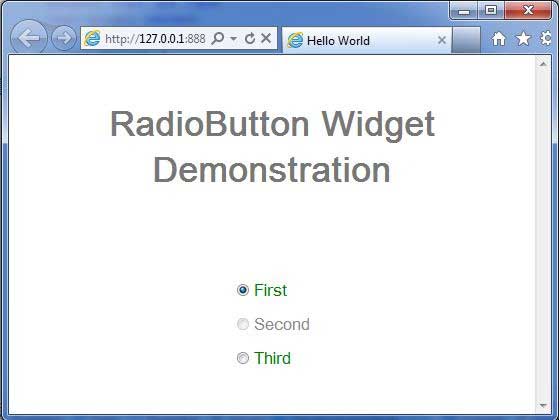
Once you are ready with all the changes done, let us compile and run the application in development mode as we did in GWT - Create Application chapter. If everything is fine with your application, this will produce following result −
To Continue Learning Please Login