- Angular Tutorial
- Angular - Home
- Angular - Overview
- Angular - Features
- Angular - Advantages & Disadvantages
- Angular Basics
- Angular - Environment setup
- Angular - First Application
- Angular - MVC Architecture
- Angular Components
- Angular - Components
- Angular - Component Lifecycle
- Angular - View Encapsulation
- Angular - Emulated Encapsulation
- Angular - ShadowDom Encapsulation
- Angular - Component Interaction
- Angular - Using @Input Decorator
- Angular - Using @Output Decorator
- Angular - Using Local Variable
- Angular - Using @ViewChild Decorator
- Angular - Using Services
- Angular - Component Styles
- Angular - Nested Components
- Angular - Content projection
- Angular - Single-slot Content Projection
- Angular - Multi-slot Content Projection
- Angular - Conditional Content Projection
- Angular - Dynamic components
- Angular - Using NgComponentOutlet
- Angular - Using ViewContainerRef
- Angular - Elements
- Angular Templates
- Angular - Templates
- Angular - Template statements
- Angular - Template Variables
- Angular - SVG as Templates
- Angular Binding
- Angular - Data Binding
- Angular - Interpolation
- Angular - Event Binding
- Angular - Property Binding
- Angular - Attribute Binding
- Angular - Class Binding
- Angular - Style Binding
- Angular - Two-way Binding
- Angular Directives
- Angular - Directives
- Angular - Attribute Directives
- Angular - Structural Directives
- Angular - Custom Directives
- Angular Pipes
- Angular - Pipes
- Angular - Built-in Pipes
- Angular - Custom Pipes
- Angular Forms
- Angular - Forms
- Angular - Template Driven Forms
- Angular - Reactive Forms
- Angular - Form Validation
- Angular - Dynamic Forms
- Angular Dependency Injection
- Angular - Dependency Injection
- Angular - Injectable Service
- Angular Routing
- Angular - Routing
- Angular - Dynamic Routes
- Angular - Wildcard Routes
- Angular - Nested Routes
- Angular - Navigation
- Angular - Routing in SPA
- Angular - Custom Route Matches
- Angular - Router Reference
- Angular HTTP Client programming
- Angular - Services
- Angular - HTTP Client
- Angular - Express based REST API
- Angular - Request
- Angular - Request Response Workflow
- Angular - Response
- Angular - Express based Upload API
- Angular - GET
- Angular - POST
- Angular - PUT
- Angular - DELETE
- Angular - JSONP
- Angular - CRUD Operations Using HTTP
- Angular Modules
- Angular - Introduction to Modules
- Angular - Root Module
- Angular - Feature Module
- Angular - Sharing Module
- Angular - Routing Module
- Angular - NgModules
- Angular Animation
- Angular - Animations
- Angular Service Workers & PWA
- Angular - Service Workers & PWA
- Angular Testing
- Angular - Testing Overview
- Angular Design Patterns
- Angular - Design Patterns
- Angular - Lazy Loading
- Angular - Singleton Pattern
- Angular - Observer Pattern
- Angular Libraries
- Angular - Libraries
- Angular - Angular Material
- Angular - PrimeNG
- Angular - RxJS
- Angular Advanced
- Angular - Signals
- Angular - Authentication & Authorization
- Angular - Internationalization
- Angular - Standalone Component
- Angular - Accessibility
- Angular - Web Workers
- Angular - Server Side Rendering
- Angular - Ivy Compiler
- Angular - Building with Bazel
- Angular - Backward Compatibility
- Angular - Reactive Programming
- Angular Tools
- Angular - CLI
- Angular Material UI Elements
- Angular - Paginator
- Angular - Datepicker
- Angular - Select Drop-down
- Angular Miscellaneous
- Angular - Third Party Controls
- Angular - Configuration
- Angular - Displaying Data
- Angular - Decorators & Metadata
- Angular - Basic Example
- Angular - Error Handling
- Angular - Testing & Building a Project
- Angular - Lifecycle Hooks
- Angular - User Input
- Angular - What's New?
- Angular Useful Resources
- Angular - Quick Guide
- Angular - Useful Resources
- Angular - Discussion
Angular - Using NgComponentOutlet
The NgComponentOutlet is a directive that helps in dynamic component creation. It instantiates a Component and embeds its view (host view) inside the current view. Please note it only accepts Components and to use it, you need to import CommonModule.
Example - Usage of NgComponentOutlet
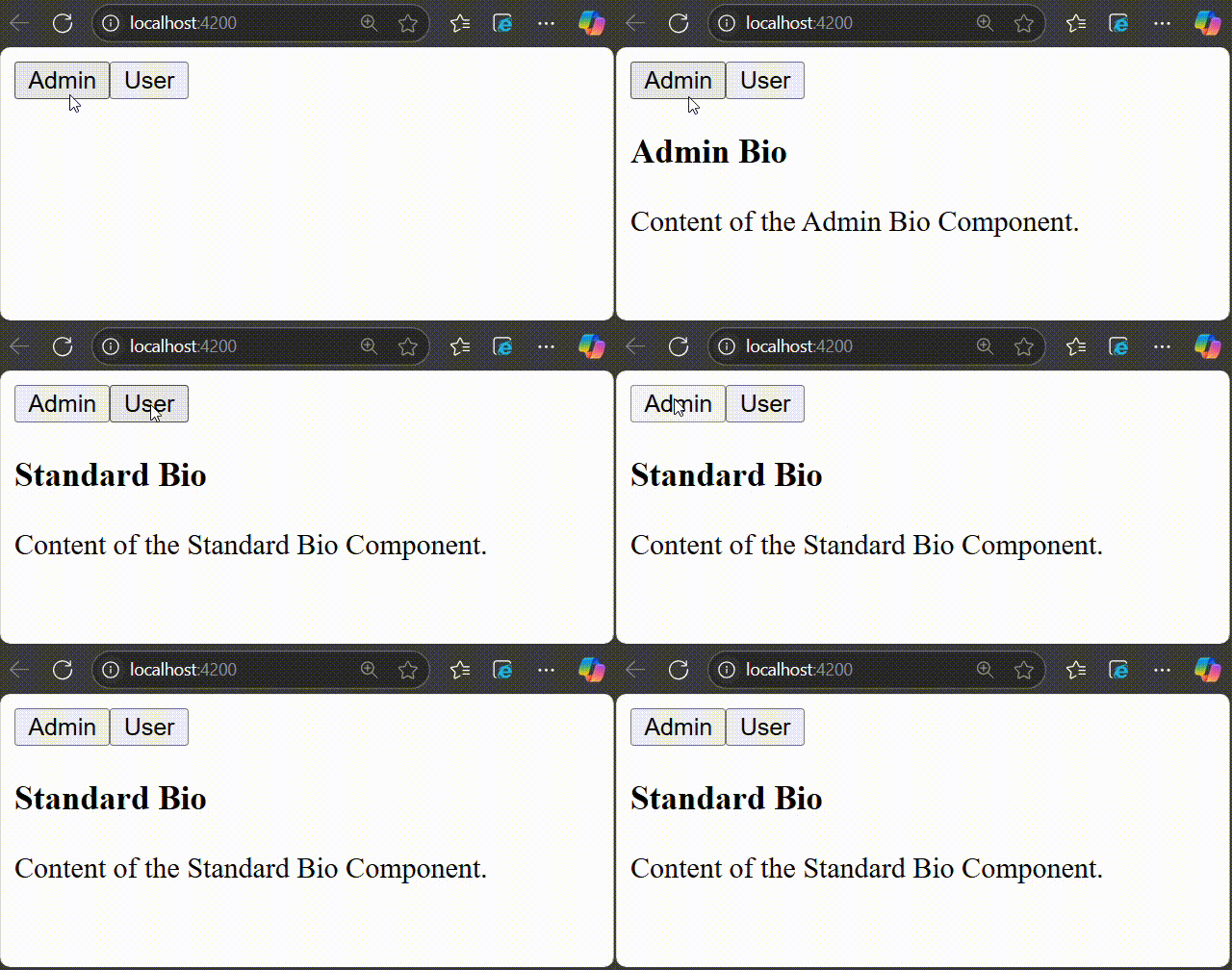
In this example, we see the practical implementation of NgComponentOutlet directive. Here, we create an Angular application that will have two main child components and they will be associated with buttons named Admin and User. On clicking the Admin button, AdminBio Component will be displayed and when you click the User button, StandardBio Component will be displayed.
Step 1: Create AdminBio Component using the given command −
ng g c admin-bio
Step 2: Create a second component, StandardBio Component using the command given below −
ng g c standard-bio
Step 3: We need another component that will contain the logic of dynamic component creation.
ng g c check-bio
Step 4: Now, open admin-bio.html file and copy the below code −
admin-bio.html
<h3>Admin Bio</h3>
<p>Content of the Admin Bio Component.</p>
Step 5: Then, open standard-bio.html file and copy the below code −
standard-bio.html
<h3>Standard Bio</h3>
<p>Content of the Standard Bio Component.</p>
Step 6: Next, open check-bio.html file and copy the below code −
check-bio.html
<ng-container *ngComponentOutlet="getBioComponent()"></ng-container>
Step 7: In the check-bio.ts file, create a method named getBioComponent(). This method will check which button is clicked among the two and display the view accordingly. The complete code is given below −
check-bio.ts
import { NgComponentOutlet } from '@angular/common';
import { Component, Input } from '@angular/core';
import { StandardBio } from '../standard-bio/standard-bio';
import { AdminBio } from '../admin-bio/admin-bio';

@Component({
   selector: 'app-check-bio',
   imports: [NgComponentOutlet],
   templateUrl: './check-bio.html',
   styleUrl: './check-bio.css',
})
export class CheckBio {
   @Input() user!: {name: string, isAdmin: boolean};
   getBioComponent() {
      console.log(this.user.isAdmin)
      return this.user.isAdmin ? AdminBio : StandardBio;
   }
}
Step 8: Next, open app.html file and copy the below code −
app.html
<!-- buttons to trigger admin() and userLog() methods -->
<button (click) = "admin()">Admin</button>
<button (click) = "userLog()">User</button>
<!-- conditional rendering -->
@if(isValid){
   <!--input binding -->
   <app-check-bio [user]="user"></app-check-bio>
   <router-outlet />
}
Here, the given buttons will trigger the admin() and userLog() methods. The @If directive conditionally includes the <div> element in the DOM if the isValid property is true. If it is false, the <div> and its contents are not rendered.
Step 9: Finally, inside the app.ts file, copy the below code −
app.ts
import { Component } from '@angular/core';
import { RouterOutlet } from '@angular/router';
import { CheckBio } from './check-bio/check-bio';
import { CommonModule } from '@angular/common';

@Component({
  selector: 'app-root',
  imports: [RouterOutlet, CheckBio, CommonModule],
  templateUrl: './app.html',
  styleUrls: ['./app.css']
})
export class AppComponent {
  title = 'dynamicComponent';

  user = {"name": "Admin", "isAdmin": false}
  isValid = false;
  admin(){
    this.user.isAdmin = true;
    this.isValid = true;
  }
  userLog(){
    this.user.isAdmin = false;
    this.isValid = true;
  }
}
Output
Run the application and check the output −