- Advanced Android - Home
- Advanced Android - Material Design
- Advanced Android - Sliding Menu
- Advanced Android - Tabs
- Advanced Android - Sliders
- Advanced Android - Floating Labels
- Advanced Android - ViewPager
- Material Login & Registration
- Advanced Android - Snackbar
- Expandable List View
- Search Functionality
- Count Down Functionality
- Draw Spritesheet
- Advanced Android - Linkify Class
- Advanced Android - ViewFlipper
- Advanced Android - loader
- Advanced Android - Slider Menu
- SwipeRefreshLayout
- Shake to Refresh
- Advanced Android - Color Palette
- Crumbling Layout
- Advanced Android - Page Flip
- Ken Burns effect
- Advanced Android - Parallax Header
- Borderless Dialog
- Advanced Android - Holder View
- Scrolling TextView by Ticker
- Floating Action Menu
- Spinner Data from Database
- Advanced Android - Flexbox Layout
- Advanced Android - YouTube API
- Video Streaming
- Cardview & Recycleview
Advanced Android - Video Streaming
Streaming media is multimedia that is constantly received by and presented to an end-user while being delivered by a provider
Example
This example demostrate about how to integrate Android Snackbar.
Step 1 − Create a new project in Android Studio, go to File ⇒ New Project and fill all required details to create a new project.
Step 2 − Add the following code to res/layout/activity_main.xml.
<?xml version = "1.0" encoding = "utf-8"?>
<RelativeLayout xmlns:android = "http://schemas.android.com/apk/res/android"
   xmlns:tools = "http://schemas.android.com/tools"
   android:layout_width = "match_parent"
   android:layout_height = "match_parent"
   android:paddingBottom = "@dimen/activity_vertical_margin"
   android:paddingLeft = "@dimen/activity_horizontal_margin"
   android:paddingRight = "@dimen/activity_horizontal_margin"
   android:paddingTop = "@dimen/activity_vertical_margin"
   tools:context = "myapplication.example.com.myapplication.MainActivity">
   <Button
      android:id = "@+id/MyButton"
      android:layout_width = "fill_parent"
      android:layout_height = "wrap_content"
      android:layout_centerHorizontal = "true"
      android:layout_centerVertical = "true"
      android:text = "button" />
</RelativeLayout>
Step 3 − Add the following code to src/MainActivity.java
package myapplication.example.com.myapplication;

import android.os.Bundle;
import android.view.View;
import android.view.View.OnClickListener;
import android.widget.Button;
import android.app.Activity;
import android.content.Intent;

public class MainActivity extends Activity {
   Button button;
   @Override
   protected void onCreate(Bundle savedInstanceState) {
      super.onCreate(savedInstanceState);
      // Get the layout from video_main.xml
      setContentView(R.layout.activity_main);

      // Locate the button in activity_main.xml
      button = (Button) findViewById(R.id.MyButton);

      // Capture button clicks
      button.setOnClickListener(new OnClickListener() {
         public void onClick(View arg0) {
            // Start NewActivity.class
            Intent myIntent = new Intent(MainActivity.this, VideoViewActivity.class);
            startActivity(myIntent);
         }
      });
   }
}
Step 4 − Add the following code to src/VideoViewActivity.java
package myapplication.example.com.myapplication;

import android.media.MediaPlayer;
import android.media.MediaPlayer.OnPreparedListener;
import android.net.Uri;
import android.os.Bundle;
import android.app.Activity;
import android.app.ProgressDialog;
import android.util.Log;
import android.widget.MediaController;
import android.widget.VideoView;

public class VideoViewActivity extends Activity {
   // Declare variables
   ProgressDialog pDialog;
   VideoView videoview;

   // Insert your Video URL
   String VideoURL = "http://dl.enjoypur.vc/upload_file/367/430/581/7567/7568/Raj%20Kapoor%20Funny%20Double%20Meaning%20Lalla%20%28PagalWorld.com%29.3gp";
   @Override
   protected void onCreate(Bundle savedInstanceState) {
      super.onCreate(savedInstanceState);
      // Get the layout from video_main.xml
      setContentView(R.layout.videoview_main);

      // Find your VideoView in your video_main.xml layout
      videoview = (VideoView) findViewById(R.id.VideoView);
      // Execute StreamVideo AsyncTask

      // Create a progressbar
      pDialog = new ProgressDialog(VideoViewActivity.this);

      // Set progressbar title
      pDialog.setTitle("Android Video Streaming Tutorial");

      // Set progressbar message
      pDialog.setMessage("Buffering...");

      pDialog.setIndeterminate(false);
      pDialog.setCancelable(false);

      // Show progressbar
      pDialog.show();
      try {
         // Start the MediaController
         MediaController mediacontroller = new MediaController(VideoViewActivity.this);
         mediacontroller.setAnchorView(videoview);

         // Get the URL from String VideoURL
         Uri video = Uri.parse(VideoURL);
         videoview.setMediaController(mediacontroller);
         videoview.setVideoURI(video);
      } catch (Exception e) {
         Log.e("Error", e.getMessage());
         e.printStackTrace();
      }
      videoview.requestFocus();
      videoview.setOnPreparedListener(new OnPreparedListener() {
         // Close the progress bar and play the video
         public void onPrepared(MediaPlayer mp) {
            pDialog.dismiss();
            videoview.start();
         }
      });
   }
}
Step 5 − Add the following code to res/layout/videoview_main.xml.
<?xml version = "1.0" encoding = "utf-8"?>
<LinearLayout xmlns:android = "http://schemas.android.com/apk/res/android"
   android:orientation = "vertical" android:layout_width = "match_parent"
   android:layout_height = "match_parent">
   <VideoView
      android:id = "@+id/VideoView"
      android:layout_width = "match_parent"
      android:layout_height = "match_parent"
      android:layout_centerHorizontal = "true"
      android:layout_centerVertical = "true" />
</LinearLayout>
Step 6 − Add the following code to manifest.xml
<?xml version = "1.0" encoding = "utf-8"?>
<manifest xmlns:android = "http://schemas.android.com/apk/res/android"
   package = "myapplication.example.com.myapplication">
   <uses-permission android:name = "android.permission.INTERNET" >
   </uses-permission>
   <application
      android:allowBackup = "true"
      android:icon = "@mipmap/ic_launcher"
      android:label = "@string/app_name"
      android:supportsRtl = "true"
      android:theme = "@style/AppTheme">
      <activity android:name = ".MainActivity">
         <intent-filter>
            <action android:name="android.intent.action.MAIN" />
            <category android:name = "android.intent.category.LAUNCHER" />
         </intent-filter>
      </activity>
      <activity android:name=".VideoViewActivity" />

   </application>
</manifest>
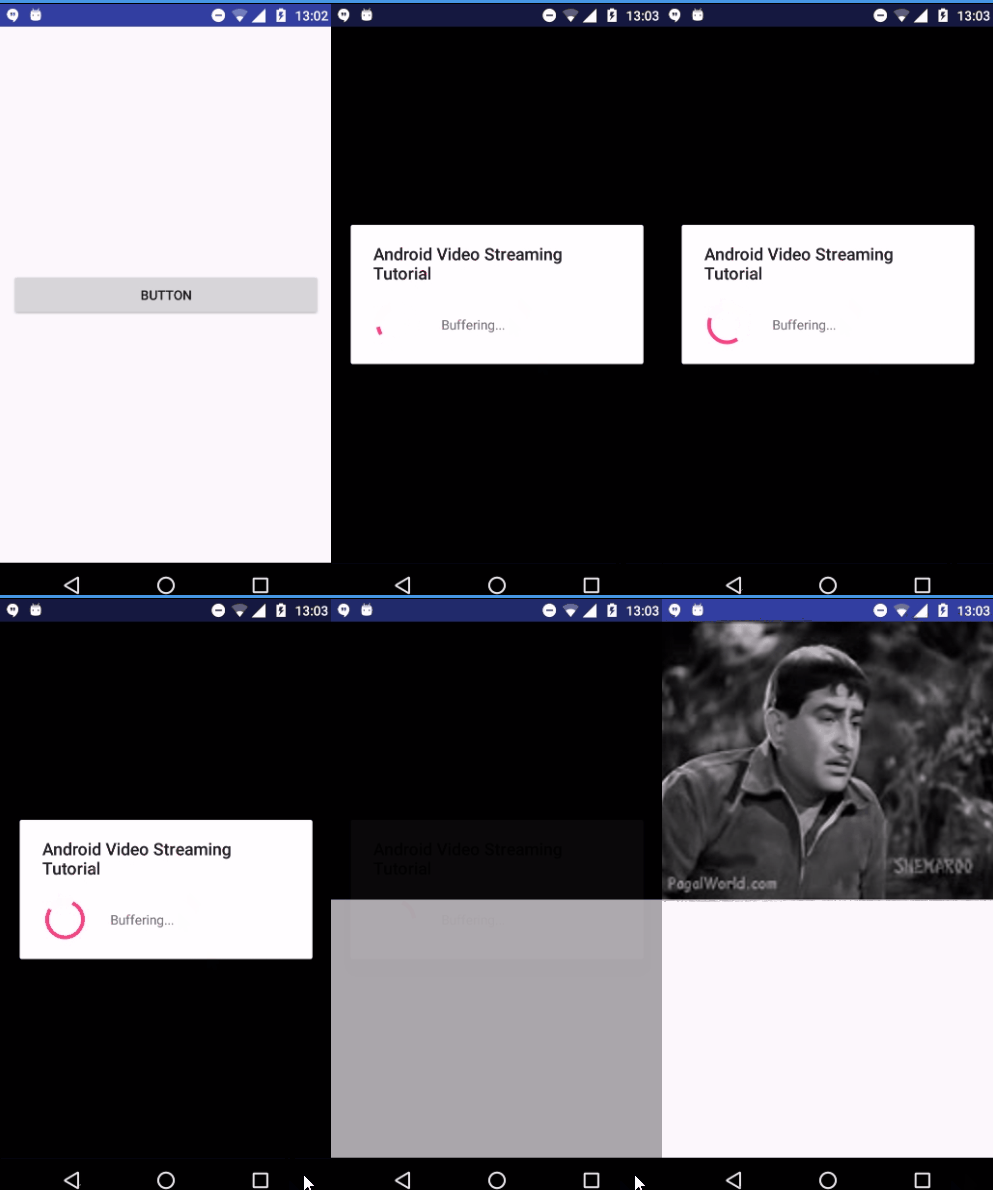
Let's try to run your application. I assume you have connected your actual Android Mobile device with your computer. To run the app from android studio, open one of your project's activity files and click Run  icon from the toolbar. Select your mobile device as an option and then check your mobile device which will display your default screen −