- Advanced Android - Home
- Advanced Android - Material Design
- Advanced Android - Sliding Menu
- Advanced Android - Tabs
- Advanced Android - Sliders
- Advanced Android - Floating Labels
- Advanced Android - ViewPager
- Material Login & Registration
- Advanced Android - Snackbar
- Expandable List View
- Search Functionality
- Count Down Functionality
- Draw Spritesheet
- Advanced Android - Linkify Class
- Advanced Android - ViewFlipper
- Advanced Android - loader
- Advanced Android - Slider Menu
- SwipeRefreshLayout
- Shake to Refresh
- Advanced Android - Color Palette
- Crumbling Layout
- Advanced Android - Page Flip
- Ken Burns effect
- Advanced Android - Parallax Header
- Borderless Dialog
- Advanced Android - Holder View
- Scrolling TextView by Ticker
- Floating Action Menu
- Spinner Data from Database
- Advanced Android - Flexbox Layout
- Advanced Android - YouTube API
- Video Streaming
- Cardview & Recycleview
Advanced Android - Sliders
Adding Welcome / Intro slider screens in your app is a great way of showcasing the major features of the app. It is a small replacement of Splash Screen
Example
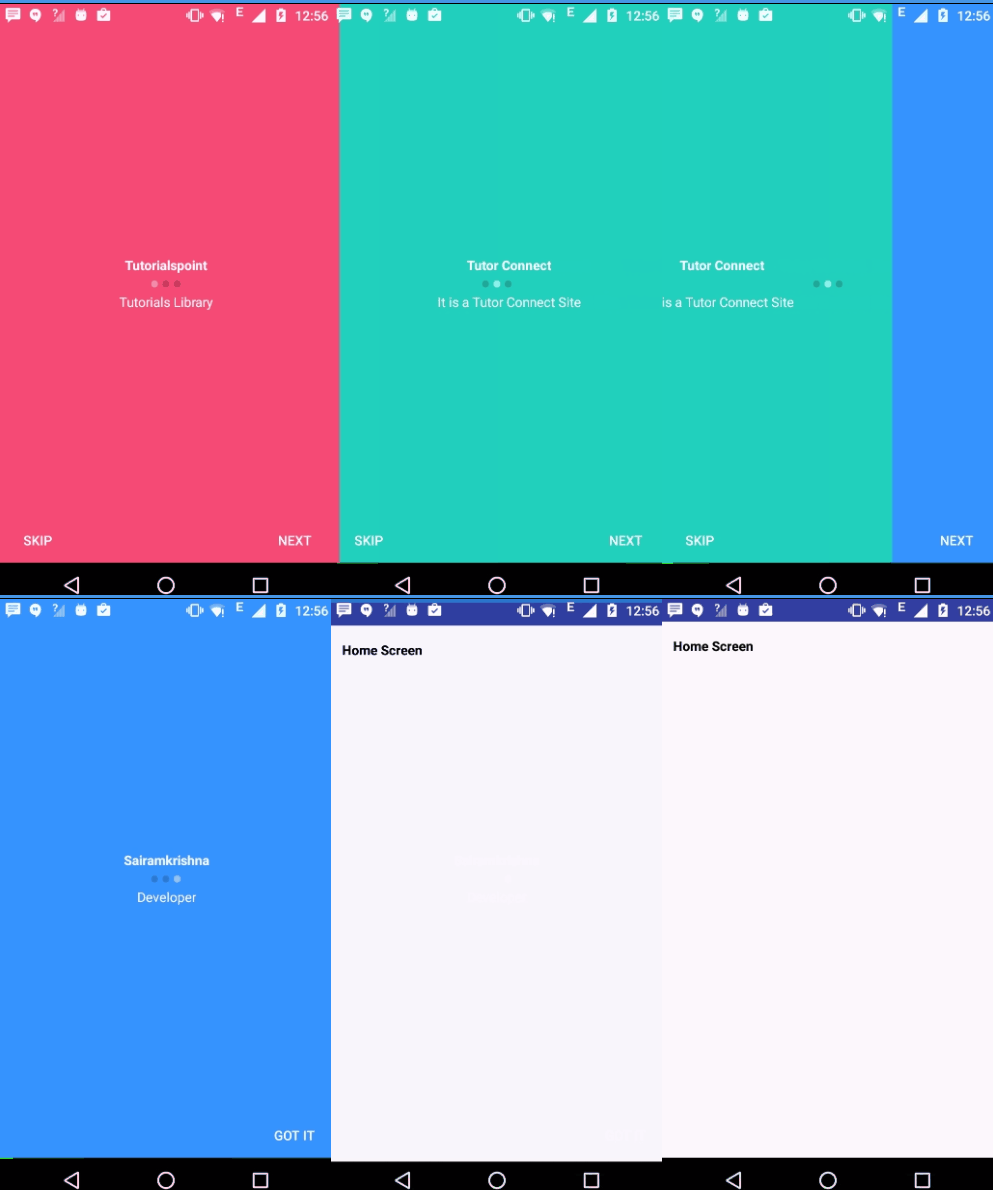
This example demostrate about how to integrate Android Intro Sliders.
Step 1 − Create a new project in Android Studio,go to File ⇒ New Project and fill all required details to create a new project.
Step 2 − Open colors.xml located under res ⇒ values Add the following Code.
<?xml version = "1.0" encoding = "utf-8"?>
<resources>
   <color name = "colorPrimary">#3F51B5</color>
   <color name = "colorPrimaryDark">#303F9F</color>
   <color name = "colorAccent">#FF4081</color>

   <!-- Screens background color-->
   <color name = "bg_screen1">#f64c73</color>
   <color name = "bg_screen2">#20d2bb</color>
   <color name = "bg_screen3">#3395ff</color>
   <color name = "bg_screen4">#c873f4</color>

   <!-- dots inactive colors -->
   <color name = "dot_dark_screen1">#d1395c</color>
   <color name = "dot_dark_screen2">#14a895</color>
   <color name = "dot_dark_screen3">#2278d4</color>
   <color name = "dot_dark_screen4">#a854d4</color>

   <!-- dots active colors -->
   <color name = "dot_light_screen1">#f98da5</color>
   <color name = "dot_light_screen2">#8cf9eb</color>
   <color name = "dot_light_screen3">#93c6fd</color>
   <color name = "dot_light_screen4">#e4b5fc</color>

   <array name = "array_dot_active">
      <item>@color/dot_light_screen1</item>
      <item>@color/dot_light_screen2</item>
      <item>@color/dot_light_screen3</item>
      <item>@color/dot_light_screen4</item>
   </array>

   <array name = "array_dot_inactive">
      <item>@color/dot_dark_screen1</item>
      <item>@color/dot_dark_screen2</item>
      <item>@color/dot_dark_screen3</item>
      <item>@color/dot_dark_screen4</item>
   </array>
</resources>
Step 3 − Add the following code to res/layout/activity_main.xml.
<?xml version = "1.0" encoding = "utf-8"?>
<RelativeLayout xmlns:android =" http://schemas.android.com/apk/res/android"
   xmlns:app = "http://schemas.android.com/apk/res-auto"
   xmlns:tools = "http://schemas.android.com/tools"
   android:layout_width = "match_parent"
   android:layout_height = "match_parent">
   <android.support.v4.view.ViewPager
      android:id = "@+id/view_pager"
      android:layout_width = "match_parent"
      android:layout_height = "match_parent" />
   <LinearLayout
      android:id = "@+id/layoutDots"
      android:layout_width = "match_parent"
      android:layout_alignParentBottom = "true"
      android:gravity = "center"
      android:orientation = "horizontal"
      android:layout_height = "match_parent"></LinearLayout>
   <View
      android:layout_width = "match_parent"
      android:layout_height = "1dp"
      android:alpha = ".5"
      android:layout_above = "@id/layoutDots"
      android:background = "@android:color/white" />
   <Button
      android:id = "@+id/btn_next"
      android:layout_width = "wrap_content"
      android:layout_height = "wrap_content"
      android:layout_alignParentBottom = "true"
      android:layout_alignParentRight = "true"
      android:background = "@null"
      android:text = "next"
      android:textColor = "@android:color/white" />
   <Button
      android:id = "@+id/btn_skip"
      android:layout_width = "wrap_content"
      android:layout_height = "wrap_content"
      android:layout_alignParentBottom = "true"
      android:layout_alignParentLeft = "true"
      android:background = "@null"
      android:text = "skip"
      android:textColor = "@android:color/white" />
</RelativeLayout>
Step 4 − Add the following code to src/MainActivity.java
package myapplication.example.com.myapplication;

import android.support.v7.app.AppCompatActivity;
import android.os.Bundle;
import android.content.Context;
import android.content.Intent;
import android.graphics.Color;

import android.os.Build;
import android.support.v4.view.PagerAdapter;
import android.support.v4.view.ViewPager;
import android.text.Html;

import android.view.LayoutInflater;
import android.view.View;
import android.view.ViewGroup;
import android.view.Window;
import android.view.WindowManager;

import android.widget.Button;
import android.widget.LinearLayout;
import android.widget.TextView;

public class MainActivity extends AppCompatActivity {
   private ViewPager viewPager;
   private MyViewPagerAdapter myViewPagerAdapter;
   private LinearLayout dotsLayout;
   private TextView[] dots;
   private int[] layouts;
   private Button btnSkip, btnNext;
   private PrefManager prefManager;

   @Override
   protected void onCreate(Bundle savedInstanceState) {
      super.onCreate(savedInstanceState);

      // Checking for first time launch - before calling setContentView()
      prefManager = new PrefManager(this);
      if (!prefManager.isFirstTimeLaunch()) {
         launchHomeScreen();
         finish();
      }
      // Making notification bar transparent
      if (Build.VERSION.SDK_INT >= 21) {
         getWindow().getDecorView().setSystemUiVisibility(
            View.SYSTEM_UI_FLAG_LAYOUT_STABLE | View.SYSTEM_UI_FLAG_LAYOUT_FULLSCREEN);
      }
      setContentView(R.layout.activity_main);
      viewPager = (ViewPager) findViewById(R.id.view_pager);
      dotsLayout = (LinearLayout) findViewById(R.id.layoutDots);
      btnSkip = (Button) findViewById(R.id.btn_skip);
      btnNext = (Button) findViewById(R.id.btn_next);

      // layouts of all welcome sliders
      // add few more layouts if you want
      layouts = new int[]{
         R.layout.welcome_slide1,
         R.layout.welcome_slide2,
         R.layout.welcome_slide3,
      };

      // adding bottom dots
      addBottomDots(0);

      // making notification bar transparent
      changeStatusBarColor();

      myViewPagerAdapter = new MyViewPagerAdapter();
      viewPager.setAdapter(myViewPagerAdapter);
      viewPager.addOnPageChangeListener(viewPagerPageChangeListener);

      btnSkip.setOnClickListener(new View.OnClickListener() {
         @Override
         public void onClick(View v) {
            launchHomeScreen();
         }
      });

      btnNext.setOnClickListener(new View.OnClickListener() {
         @Override
         public void onClick(View v) {
            // checking for last page
            // if last page home screen will be launched
            int current = getItem(+1);
            if (current < layouts.length) {
               // move to next screen
               viewPager.setCurrentItem(current);
            } else {
               launchHomeScreen();
            }
         }
      });
   }

   private void addBottomDots(int currentPage) {
      dots = new TextView[layouts.length];

      int[] colorsActive = getResources().getIntArray(R.array.array_dot_active);
      int[] colorsInactive = getResources().getIntArray(R.array.array_dot_inactive);

      dotsLayout.removeAllViews();
      for (int i = 0; i < dots.length; i++) {
         dots[i] = new TextView(this);
         dots[i].setText(Html.fromHtml("•"));
         dots[i].setTextSize(35);
         dots[i].setTextColor(colorsInactive[currentPage]);
         dotsLayout.addView(dots[i]);
      }
      if (dots.length > 0) dots[currentPage].setTextColor(colorsActive[currentPage]);
   }
   private int getItem(int i) {
      return viewPager.getCurrentItem() + i;
   }

   private void launchHomeScreen() {
      prefManager.setFirstTimeLaunch(false);
      startActivity(new Intent(MainActivity.this, Main2Activity.class));
      finish();
   }

   //  viewpager change listener
   ViewPager.OnPageChangeListener viewPagerPageChangeListener = new
      ViewPager.OnPageChangeListener() {

      @Override
      public void onPageSelected(int position) {
         addBottomDots(position);

         // changing the next button text 'NEXT' / 'GOT IT'
         if (position == layouts.length - 1) {

            // last page. make button text to GOT IT
            btnNext.setText(getString(R.string.start));
            btnSkip.setVisibility(View.GONE);
         } else {

            // still pages are left
            btnNext.setText(getString(R.string.next));
            btnSkip.setVisibility(View.VISIBLE);
         }
      }

      @Override
      public void onPageScrolled(int arg0, float arg1, int arg2) {
      }

      @Override
      public void onPageScrollStateChanged(int arg0) {
      }
   };

   /**
   * Making notification bar transparent
   */
   private void changeStatusBarColor() {
      if (Build.VERSION.SDK_INT >= Build.VERSION_CODES.LOLLIPOP) {
         Window window = getWindow();
         window.addFlags(WindowManager.LayoutParams.FLAG_DRAWS_SYSTEM_BAR_BACKGROUNDS);
         window.setStatusBarColor(Color.TRANSPARENT);
      }
   }

   /**
   * View pager adapter
   */
   public class MyViewPagerAdapter extends PagerAdapter {
      private LayoutInflater layoutInflater;
      public MyViewPagerAdapter() {
      }
      @Override
      public Object instantiateItem(ViewGroup container, int position) {
         layoutInflater = (LayoutInflater) getSystemService(
         Context.LAYOUT_INFLATER_SERVICE);

         View view = layoutInflater.inflate(layouts[position], container, false);
         container.addView(view);
         return view;
      }

      @Override
      public int getCount() {
         return layouts.length;
      }

      @Override
      public boolean isViewFromObject(View view, Object obj) {
         return view == obj;
      }

      @Override
      public void destroyItem(ViewGroup container, int position, Object object) {
         View view = (View) object;
         container.removeView(view);
      }
   }
}
Step 5 − Add the following code to res/layout/welcome_slide1.xml
<?xml version = "1.0" encoding = "utf-8"?>
<RelativeLayout xmlns:android = "http://schemas.android.com/apk/res/android"
   android:layout_width = "match_parent"
   android:layout_height = "match_parent"
   android:background = "@color/bg_screen1">
   <LinearLayout
      android:layout_width = "wrap_content"
      android:layout_height = "wrap_content"
      android:layout_centerInParent = "true"
      android:gravity = "center_horizontal"
      android:orientation = "vertical">
      <ImageView
         android:layout_width = "match_parent"
         android:layout_height = "match_parent"/>
      <TextView
         android:layout_width = "wrap_content"
         android:layout_height = "wrap_content"
         android:text = "Tutorialspoint"
         android:textColor = "@android:color/white"
         android:textStyle = "bold" />
      <TextView
         android:layout_width = "wrap_content"
         android:layout_height = "wrap_content"
         android:layout_marginTop = "20dp"
         android:text = "Tutorials Library"
         android:textAlignment = "center"
         android:textColor = "@android:color/white" />
   </LinearLayout>
</RelativeLayout>
Step 6 − Add the following code to res/layout/welcome_slide2.xml
<?xml version = "1.0" encoding = "utf-8"?>
<RelativeLayout xmlns:android = "http://schemas.android.com/apk/res/android"
   android:layout_width = "match_parent"
   android:layout_height = "match_parent"
   android:background = "@color/bg_screen2">
   <LinearLayout
      android:layout_width = "wrap_content"
      android:layout_height = "wrap_content"
      android:layout_centerInParent = "true"
      android:gravity = "center_horizontal"
      android:orientation = "vertical">
      <ImageView
         android:layout_width = "match_parent"
         android:layout_height = "match_parent"/>
      <TextView
         android:layout_width = "wrap_content"
         android:layout_height = "wrap_content"
         android:text = "Tutor Connect"
         android:textColor = "@android:color/white"
         android:textStyle = "bold" />
      <TextView
         android:layout_width = "wrap_content"
         android:layout_height = "wrap_content"
         android:layout_marginTop = "20dp"
         android:text = "It is a Tutor Connect Site"
         android:textAlignment = "center"
         android:textColor = "@android:color/white" />
   </LinearLayout>
</RelativeLayout>
Step 7 − Add the following code to res/layout/welcome_slide3.xml
<?xml version = "1.0" encoding = "utf-8"?>
<RelativeLayout xmlns:android = "http://schemas.android.com/apk/res/android"
   android:layout_width = "match_parent"
   android:layout_height = "match_parent"
   android:background = "@color/bg_screen3">
   <LinearLayout
      android:layout_width = "wrap_content"
      android:layout_height = "wrap_content"
      android:layout_centerInParent = "true"
      android:gravity = "center_horizontal"
      android:orientation = "vertical">
      <ImageView
         android:layout_width = "match_parent"
         android:layout_height = "match_parent"/>
      <TextView
         android:layout_width = "wrap_content"
         android:layout_height = "wrap_content"
         android:text = "Sairamkrishna"
         android:textColor = "@android:color/white"
         android:textStyle = "bold" />
      <TextView
         android:layout_width = "wrap_content"
         android:layout_height = "wrap_content"
         android:layout_marginTop = "20dp"
         android:text = "Developer"
         android:textAlignment = "center"
         android:textColor = "@android:color/white" />
   </LinearLayout>
</RelativeLayout>
Step 8 − Add the following code to res/layout/activity_main2.xml.
<?xml version = "1.0" encoding = "utf-8"?>
<RelativeLayout xmlns:android = "http://schemas.android.com/apk/res/android"
   xmlns:tools = "http://schemas.android.com/tools"
   android:layout_width = "match_parent"
   android:layout_height = "match_parent"
   android:paddingBottom = "@dimen/activity_vertical_margin"
   android:paddingLeft = "@dimen/activity_horizontal_margin"
   android:paddingRight = "@dimen/activity_horizontal_margin"
   android:paddingTop = "@dimen/activity_vertical_margin"
   tools:context = "myapplication.example.com.myapplication.Main2Activity">
   <TextView
      android:layout_width = "wrap_content"
      android:layout_height = "wrap_content"
      android:text = "Home Screen"
      android:textColor = "@android:color/black"
      android:textStyle = "bold" />
</RelativeLayout>
Step 9 − Add the following code to src/Main2Activity.java
package myapplication.example.com.myapplication;

import android.support.v7.app.AppCompatActivity;
import android.os.Bundle;

public class Main2Activity extends AppCompatActivity {
   @Override
   protected void onCreate(Bundle savedInstanceState) {
      super.onCreate(savedInstanceState);
      setContentView(R.layout.activity_main2);
   }
}
Step 10 − Add the following code to src/PrefManager.java.
package myapplication.example.com.myapplication;

import android.content.Context;
import android.content.SharedPreferences;

public class PrefManager {
   SharedPreferences pref;
   SharedPreferences.Editor editor;
   Context _context;

   // shared pref mode
   int PRIVATE_MODE = 0;

   // Shared preferences file name
   private static final String PREF_NAME = "Tutorialspoint-welcome";
   private static final String IS_FIRST_TIME_LAUNCH = "IsFirstTimeLaunch";

   public PrefManager(Context context) {
      this._context = context;
      pref = _context.getSharedPreferences(PREF_NAME, PRIVATE_MODE);
      editor = pref.edit();
   }
   public void setFirstTimeLaunch(boolean isFirstTime) {
      editor.putBoolean(IS_FIRST_TIME_LAUNCH, isFirstTime);
      editor.commit();
   }
   public boolean isFirstTimeLaunch() {
      return pref.getBoolean(IS_FIRST_TIME_LAUNCH, true);
   }
}
Step 11 − Add the following code to styles.xml.
<resources>
   <!-- Base application theme. -->
   <style name = "AppTheme" parent = "Theme.AppCompat.Light.DarkActionBar">
      <!-- Customize your theme here. -->
      <item name = "colorPrimary">@color/colorPrimary</item>
      <item name = "colorPrimaryDark">@color/colorPrimaryDark</item>
      <item name = "colorAccent">@color/colorAccent</item>
      <item name = "windowActionBar">false</item>
      <item name = "windowNoTitle">true</item>
   </style>
</resources>
Step 12 − Add the following code to Strings.xml.
<resources>
   <string name = "app_name">My Application</string>
   <string name = "next">NEXT</string>
   <string name = "skip">SKIP</string>
   <string name = "start">GOT IT</string>
</resources>
Step 13 − Add the following code to AndroidManifest.xml.
<?xml version = "1.0" encoding = "utf-8"?>
<manifest xmlns:android = "http://schemas.android.com/apk/res/android"
   package = "myapplication.example.com.myapplication">

   <application
      android:allowBackup = "true"
      android:icon = "@mipmap/ic_launcher"
      android:label = "@string/app_name"
      android:supportsRtl = "true"
      android:theme = "@style/AppTheme">
      <activity android:name = ".MainActivity">
         <intent-filter>
            <action android:name = "android.intent.action.MAIN" />
            <category android:name = "android.intent.category.LAUNCHER" />
         </intent-filter>
      </activity>
      <activity android:name = ".Main2Activity"></activity>
   </application>

</manifest>
Let's try to run your application. I assume you have connected your actual Android Mobile device with your computer. To run the app from android studio, open one of your project's activity files and click Run  icon from the toolbar. Select your mobile device as an option and then check your mobile device which will display your default screen −