
- Python - Home
- Python - Overview
- Python - History
- Python - Features
- Python vs C++
- Python - Hello World Program
- Python - Application Areas
- Python - Interpreter
- Python - Environment Setup
- Python - Virtual Environment
- Python - Basic Syntax
- Python - Variables
- Python - Private Variables
- Python - Data Types
- Python - Type Casting
- Python - Unicode System
- Python - Literals
- Python - Operators
- Python - Arithmetic Operators
- Python - Comparison Operators
- Python - Assignment Operators
- Python - Logical Operators
- Python - Bitwise Operators
- Python - Membership Operators
- Python - Identity Operators
- Python - Walrus Operator
- Python - Operator Precedence
- Python - Comments
- Python - User Input
- Python - Numbers
- Python - Booleans
- Python - Floating Points
- Python - Control Flow
- Python - Decision Making
- Python - If Statement
- Python - If else
- Python - Nested If
- Python - Conditional User Inputs
- Python - Match-Case Statement
- Python - Loops
- Python - for Loops
- Python - for-else Loops
- Python - While Loops
- Python - break Statement
- Python - continue Statement
- Python - pass Statement
- Python - Nested Loops
- Python Functions & Modules
- Python - Functions
- Python - Default Arguments
- Python - Keyword Arguments
- Python - Keyword-Only Arguments
- Python - Positional Arguments
- Python - Positional-Only Arguments
- Python - Arbitrary Arguments
- Python - Variables Scope
- Python - Function Annotations
- Python - Modules
- Python - Packing and Unpacking
- Python - Built in Functions
- Python Strings
- Python - Strings
- Python - Slicing Strings
- Python - Modify Strings
- Python - String Concatenation
- Python - String Formatting
- Python - Escape Characters
- Python - String Methods
- Python - String Exercises
- Python Lists
- Python - Lists
- Python - Access List Items
- Python - Change List Items
- Python - Add List Items
- Python - Remove List Items
- Python - Loop Lists
- Python - List Comprehension
- Python - Sort Lists
- Python - Copy Lists
- Python - Join Lists
- Python - List Methods
- Python - List Exercises
- Python Tuples
- Python - Tuples
- Python - Access Tuple Items
- Python - Update Tuples
- Python - Unpack Tuples
- Python - Loop Tuples
- Python - Join Tuples
- Python - Tuple Methods
- Python - Namedtuple
- Python - Tuple Exercises
- Python Sets
- Python - Sets
- Python - Access Set Items
- Python - Add Set Items
- Python - Remove Set Items
- Python - Loop Sets
- Python - Join Sets
- Python - Copy Sets
- Python - Set Operators
- Python - Set Methods
- Python - Set Exercises
- Python Dictionaries
- Python - Dictionaries
- Python - Access Dictionary Items
- Python - Change Dictionary Items
- Python - Add Dictionary Items
- Python - Remove Dictionary Items
- Python - Dictionary View Objects
- Python - Loop Dictionaries
- Python - Copy Dictionaries
- Python - Nested Dictionaries
- Python - Dictionary Methods
- Python - Dictionary Exercises
- Python Arrays
- Python - Arrays
- Python - Access Array Items
- Python - Add Array Items
- Python - Remove Array Items
- Python - Loop Arrays
- Python - Copy Arrays
- Python - Reverse Arrays
- Python - Sort Arrays
- Python - Join Arrays
- Python - Array Methods
- Python - Array Exercises
- Python File Handling
- Python - File Handling
- Python - Write to File
- Python - Read Files
- Python - Renaming and Deleting Files
- Python - Directories
- Python - File Methods
- Python - OS File/Directory Methods
- Python - OS Path Methods
- Object Oriented Programming
- Python - OOPs Concepts
- Python - Classes & Objects
- Python - Class Attributes
- Python - Class Methods
- Python - Static Methods
- Python - Constructors
- Python - Access Modifiers
- Python - Inheritance
- Python - Multiple Inheritance
- Python - Multilevel Inheritance
- Python - Polymorphism
- Python - Method Overriding
- Python - Method Overloading
- Python - Dynamic Binding
- Python - Dynamic Typing
- Python - Abstraction
- Python - Encapsulation
- Python - Interfaces
- Python - Packages
- Python - Inner Classes
- Python - Anonymous Class and Objects
- Python - Singleton Class
- Python - Wrapper Classes
- Python - Enums
- Python - Reflection
- Python - Data Classes
- Python Errors & Exceptions
- Python - Syntax Errors
- Python - Exceptions
- Python - try-except Block
- Python - try-finally Block
- Python - Raising Exceptions
- Python - Exception Chaining
- Python - Nested try Block
- Python - User-defined Exception
- Python - Logging
- Python - Assertions
- Python - Warnings
- Python - Built-in Exceptions
- Python - Debugger (PDB)
- Python Multithreading
- Python - Multithreading
- Python - Thread Life Cycle
- Python - Creating a Thread
- Python - Starting a Thread
- Python - Joining Threads
- Python - Naming Thread
- Python - Thread Scheduling
- Python - Thread Pools
- Python - Main Thread
- Python - Thread Priority
- Python - Daemon Threads
- Python - Synchronizing Threads
- Python Synchronization
- Python - Inter-thread Communication
- Python - Thread Deadlock
- Python - Interrupting a Thread
- Python Networking
- Python - Networking
- Python - Socket Programming
- Python - URL Processing
- Python - Generics
- Python Libraries
- NumPy Tutorial
- Pandas Tutorial
- SciPy Tutorial
- Matplotlib Tutorial
- Django Tutorial
- OpenCV Tutorial
- Python Miscellenous
- Python - Date & Time
- Python - Maths
- Python - Iterators
- Python - Generators
- Python - Generator Expressions
- Python - Lambda Expressions
- Python - Closures
- Python - Decorators
- Python - Recursion
- Python - Reg Expressions
- Python - PIP
- Python - Database Access
- Python - Weak References
- Python - Serialization
- Python - Templating
- Python - Output Formatting
- Python - Performance Measurement
- Python - Data Compression
- Python - CGI Programming
- Python - XML Processing
- Python - GUI Programming
- Python - Command-Line Arguments
- Python - Docstrings
- Python - JSON
- Python - Sending Email
- Python - Further Extensions
- Python - Tools/Utilities
- Python - Odds and Ends
- Python - GUIs
- Python Advanced Concepts
- Python - Abstract Base Classes
- Python - Custom Exceptions
- Python - Higher Order Functions
- Python - Object Internals
- Python - Memory Management
- Python - Metaclasses
- Python - Metaprogramming with Metaclasses
- Python - Mocking and Stubbing
- Python - Monkey Patching
- Python - Signal Handling
- Python - Type Hints
- Python - Automation Tutorial
- Python - Humanize Package
- Python - Context Managers
- Python - Coroutines
- Python - Descriptors
- Python - Diagnosing and Fixing Memory Leaks
- Python - Immutable Data Structures
- Python - Domain Specific Language (DSL)
- Python - Data Model
- Python Useful Resources
- Python - Questions & Answers
- Python - Interview Questions & Answers
- Python - Online Quiz
- Python - Quick Guide
- Python - Reference
- Python - Cheatsheet
- Python - Projects
- Python - Useful Resources
- Python - Discussion
- Python Compiler
- NumPy Compiler
- Matplotlib Compiler
- SciPy Compiler
Live World Time Application using Python
Live world time project is a GUI application which has been coded using basic Python and library called Tkinter. The option provides an ability to input a continent and country to show the current local time and open Google Maps with the country's location on the map.
Required Libraries
First, ensure that you have the following libraries installed −
- Tkinter − It comes with Python for defining and designing Graphical user interface applications.
- pytz − This library is used for time zones management.
- webbrowser − This library is used to make a web-browser open URLs.
Installation
The installation can be done either using the PIP or through direct command prompt. Below are the code statements to install required libraries.
To install tkinter, use the following command −
pip install tkinter
To install pytz, use the following command −
pip install pytz
You can get the webbrowser module from the official documentation from the command prompt as follows −
python -m webbrowser -t "http://www.python.org"
Steps to Create Live World Time Application
Step 1: Import Necessary Libraries
Use the following code statements to import the required libraries −
- Import datetime for handling date and time.
- Import pytz for time zone conversions.
- Import tkinter and ttk for GUI elements.
- Import webbrowser to open URLs.
Step 2: Initialize Tkinter Window
To initialize tkinter window −
- Create a window using Tk().
- Set the window's title and size.
Step 3: Define the Functions
Below are the functions that are using to get the different task done in the project −
- open_map() − This function opens Google Maps based on the selected country.
- update_map_and_time() − This function updates the displayed time and opens Google Maps.
- update_countries(event) − This function updates the list of countries when a continent is selected.
Step 4: Create Dropdown Menus
You have to create dropdown menus for −
- Continent selection.
- Country selection, populated based on the continent.
Step 5: Display Current Time
To display the current time, use a label to show the local time of the selected country.
Step 6: Bind Functions to Events
Bind the following functions for −
- Continent dropdown to update the country list.
- Country dropdown to update the time and map.
Step 7: Run the Application
Use root.mainloop() to start the Tkinter event loop.
Code to Create Live World Time Application
from datetime import datetime
import pytz
from tkinter import *
from tkinter import ttk
import webbrowser

root = Tk()
root.title("OPEN World")
root.geometry("700x400")

# Function to open Google Maps with the selected location
def open_map():
   map_url = f"https://www.google.com/maps/search/?api=1&query={country_var.get().replace(' ', '+')}"
   webbrowser.open(map_url)

# Function to update the map and time display
def update_map_and_time():
   continent = continent_var.get()
   country = country_var.get()

   if continent == 'Asia':
      if country == 'India':
         timezone = 'Asia/Kolkata'
      elif country == 'China':
         timezone = 'Asia/Shanghai'
      elif country == 'Japan':
         timezone = 'Asia/Tokyo'
      elif country == 'Pakistan':
         timezone = 'Asia/Karachi'
      elif country == 'Bangladesh':
         timezone = 'Asia/Dhaka'
      else:
         return
   elif continent == 'Australia':
      timezone = 'Australia/Victoria'
   elif continent == 'Africa':
      if country == 'Nigeria':
         timezone = 'Africa/Lagos'
      elif country == 'Algeria':
         timezone = 'Africa/Algiers'
      else:
         return
   elif continent == 'America':
      if country == 'USA (West)':
         timezone = 'America/Los_Angeles'
      elif country == 'Argentina':
         timezone = 'America/Argentina/Buenos_Aires'
      elif country == 'Canada':
         timezone = 'America/Toronto'
      elif country == 'Brazil':
         timezone = 'America/Sao_Paulo'
      else:
         return
   elif continent == 'Europe':
      if country == 'UK':
         timezone = 'Europe/London'
      elif country == 'Portugal':
         timezone = 'Europe/Lisbon'
      elif country == 'Italy':
         timezone = 'Europe/Rome'
      elif country == 'Spain':
         timezone = 'Europe/Madrid'
      else:
         return

   # Update the time
   home = pytz.timezone(timezone)
   local_time = datetime.now(home)
   current_time = local_time.strftime("%H:%M:%S")
   clock_label.config(text=current_time)

   # Open Google Maps in the web browser
   open_map()

# Function to update the country options based on selected continent
def update_countries(event):
   continent = continent_var.get()

   if continent == 'Asia':
      countries = ['India', 'China', 'Japan', 'Pakistan', 'Bangladesh']
   elif continent == 'Australia':
      countries = ['Australia']
   elif continent == 'Africa':
      countries = ['Nigeria', 'Algeria']
   elif continent == 'America':
      countries = ['USA (West)', 'Argentina', 'Canada', 'Brazil']
   elif continent == 'Europe':
      countries = ['UK', 'Portugal', 'Italy', 'Spain']
   else:
      countries = []

   country_menu['values'] = countries
   country_var.set('')  # Reset country selection

# Continent Selection
continent_var = StringVar()
continent_var.set('Asia')  # Default value
continent_label = Label(root, text="Select Continent:", font=("Arial", 14))
continent_label.pack(pady=10)
continent_menu = ttk.Combobox(root, textvariable=continent_var, font=("Arial", 12), state="readonly", width=20)
continent_menu['values'] = ['Asia', 'Australia', 'Africa', 'America', 'Europe']
continent_menu.pack(pady=10)
continent_menu.bind('<<ComboboxSelected>>', update_countries)

# Country Selection
country_var = StringVar()
country_label = Label(root, text="Select Country:", font=("Arial", 14))
country_label.pack(pady=10)
country_menu = ttk.Combobox(root, textvariable=country_var, font=("Arial", 12), state="readonly", width=20)
country_menu.pack(pady=10)
country_menu.bind('<<ComboboxSelected>>', lambda event: update_map_and_time())

# Time Display
clock_label = Label(root, font=("Arial", 25, "bold"))
clock_label.pack(pady=20)

root.mainloop()
Output
GUI Window − A window titled "OPEN World" appears.
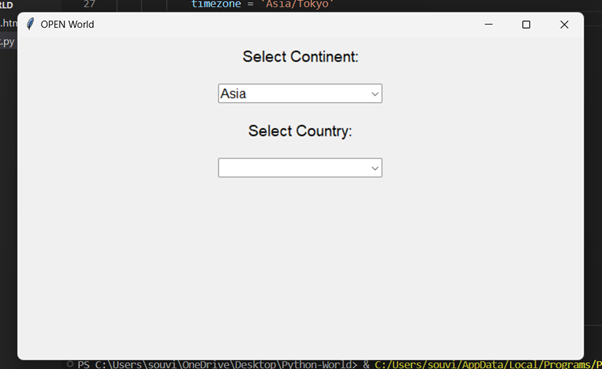
Continent Selection − The user selects a continent from the list
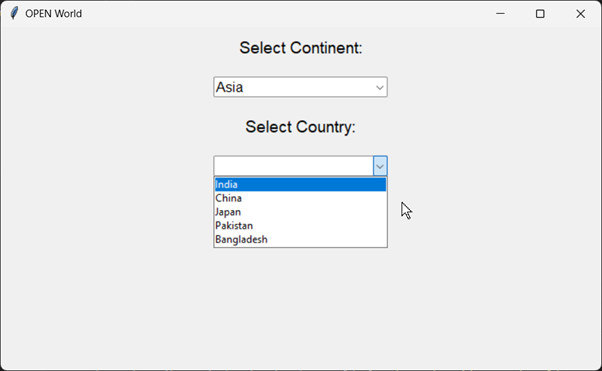
We click Asia continent you can show Four country, now we clicked India
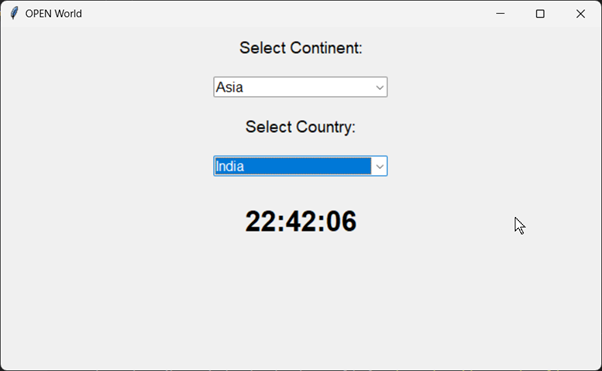
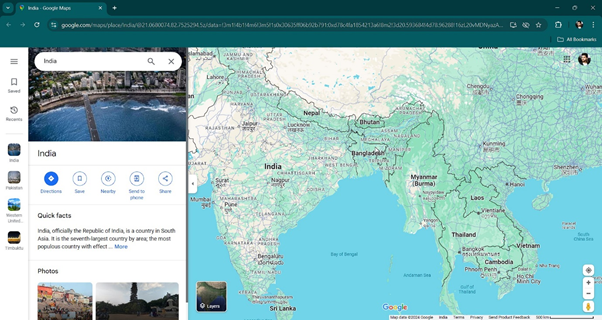
Its show India real time and also it will automatically opened web browser for this location in Google
Now we clicked Europe for Portugal.
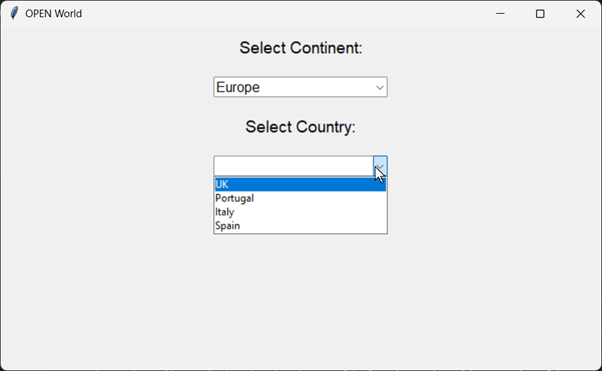
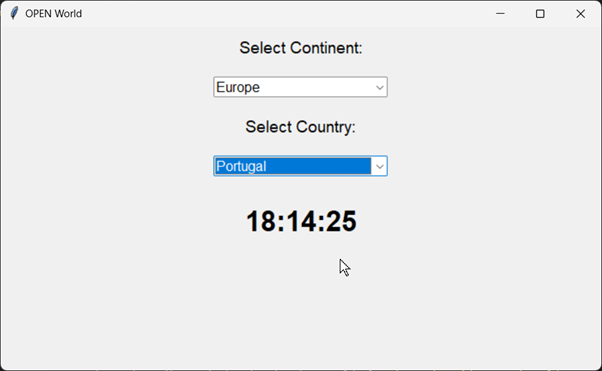
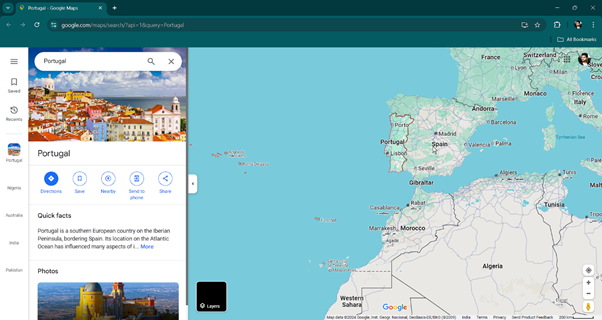
It will also open the google map.
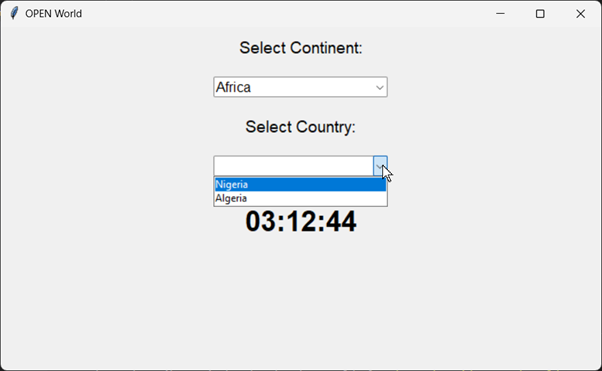
Time Display − The current local time of the selected country is displayed.
Google Maps − The selected country's location opens in Google Maps
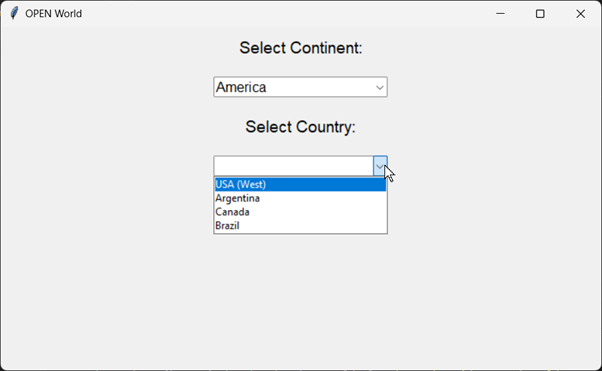
IF you want more country, you can add your country in the code.
