- MERN Stack - Home
- MERN Stack - Installation
- MERN Stack - MongoDB Setup
- MERN Stack - Node Setup
- MERN Stack - Connect React with Node
- MERN Stack - Folder Structure
- MERN Stack Useful Resources
- MERN Stack - Useful Resources
- MERN Stack - Discussion
Database MongoDB Setup
MongoDB is a database used in the MERN stack to store data in flexible JSON-like formats, known as BSON.
It does not require fixed tables like SQL; instead, it uses collections and documents. A collection represents a group of documents (similar to a table in a relational database), while a document represents an individual record (similar to a row).
MongoDB Setup
You can set up MongoDB in two ways: either by installing it directly on your computer (local setup) or by using MongoDB Atlas (cloud setup).
MongoDB Atlas is the official cloud-based service provided by MongoDB. It is ideal for MERN stack projects, especially when deploying applications online.
Since you have already downloaded MongoDB in the previous chapter, "MERN Stack Installation Guide", you can now start the MongoDB service and configure the environment variable.
Set Up Environment Variable (Windows)
After installing MongoDB, configure the environment variable to access MongoDB from any directory using the command line.
To set the environment variable, open the bin folder of MongoDB from the C drive under Program Files, and copy the following path from your system −
C:\Program Files\MongoDB\Server\8.2\bin
- Go to Start (or press the Windows button).
- Search for Edit the System Environment Variables.
- Click Open, then select Environment Variables.
- Under System variables, find and double-click Path.
- Click New and paste your MongoDB bin path here.
- Click OK to save the changes.
- Now you can start MongoDB using the following commands.
MongoDB Shell (mongosh)
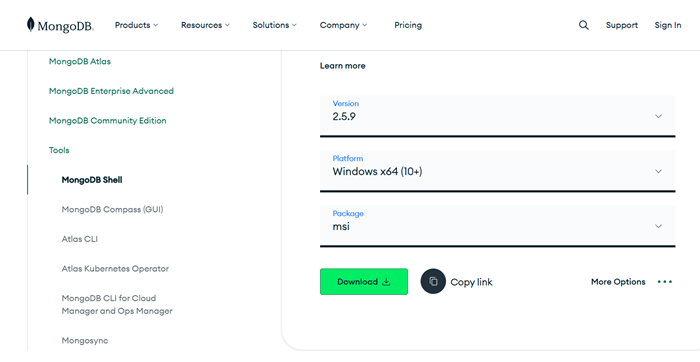
After installing MongoDB, you also need to install mongosh (MongoDB Shell), which is used to interact with MongoDB deployments.
Visit the official MongoDB Shell download page, download the .msi version, and install it. Once installed, you're all set to use MongoDB.
Start MongoDB Service
After setting up the environment, MongoDB usually runs automatically as a service on your system. To verify, open the Command Prompt and type −
net start MongoDB
Verify Installation
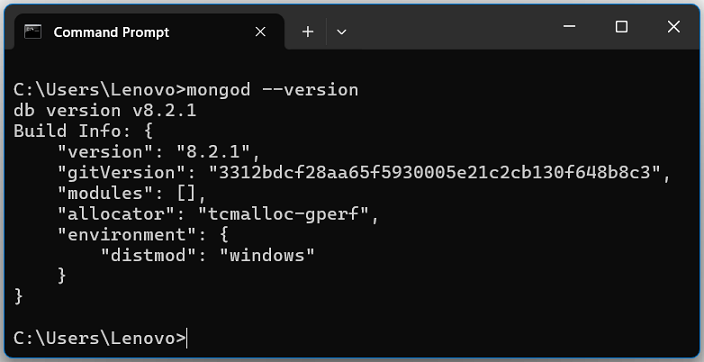
To check whether MongoDB is installed correctly, run the following command −
mongod --version
Run the Mongo Shell
Once MongoDB is running, open the MongoDB Shell by typing −
mongosh
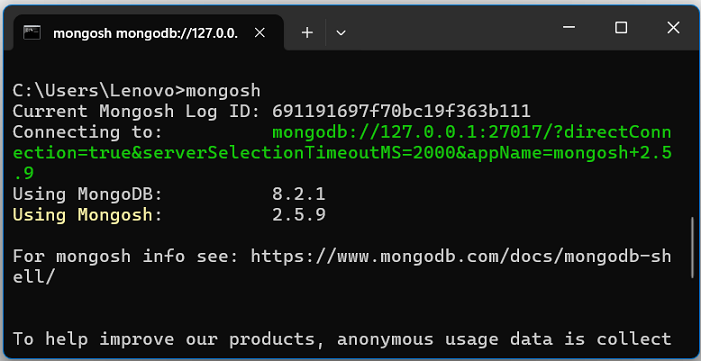
You can see in the image above that MongoDB is running on the default port: mongodb://127.0.0.1:27017/
Conclusion
In this chapter you successfully set up MongoDB on your system. You learned how to configure the environment variables, verify the installation, and run the MongoDB Shell (mongosh). At this point, your database is ready to connect with the backend of your MERN stack project using Node.js and Mongoose.
In the next chapter, you will setup the Node backend and how to connect MongoDB with Node.js and perform database operations.
