
- Scala - Home
- Scala - Overview
- Scala - Features
- Scala - Environment Setup
- Scala - Build Tool (SBT)
- Scala - REPL
- Scala - Dot & Dotty
- Scala - Basic Syntax
- Scala - Hello World Program
- Scala - Identifiers
- Scala - Keywords
- Scala - Comments
- Scala - Code Blocks
- Scala - Semicolon
- Scala - Constructs
- Scala - Expressions
- Scala - Input and Output
- Scala - Optional Braces
- Scala - Underscore (_)
- Data Types and Variables
- Scala - Data Types
- Scala - Type Bounds
- Scala - Context Bound
- Scala - Variances
- Scala - Type Hierarchy
- Scala - Variables
- Scala - Variable Scopes
- Scala - Literals
- Scala - Numeric Types
- Scala - Boolean Types
- Scala - Char Type
- Scala - Unit Types
- Scala - Strings
- Scala - Arrays
- Scala - Null Type
- Scala - Nothing
- Scala - Any Type
- Scala - AnyRef Type
- Scala - Unified Types
- Scala - Dates and Times
- Scala - Ranges
- Scala - Multidimensional Arrays
- Scala - WrappedArray
- Scala - StringBuilder
- Scala - String Interpolation
- Scala - StringContext
- Scala - Type Casting
- Scala var vs val
- Scala Operators
- Scala - Operators
- Scala - Rules for Operators
- Scala - Arithmetic Operators
- Scala - Relational Operators
- Scala - Logical Operators
- Scala - Bitwise Operators
- Scala - Assignment Operators
- Scala - Operators Precedence
- Scala - Symbolic Operators
- Scala - Range Operator
- Scala - String Concatenation Operator
- Scala Conditional Statements
- Scala - IF ELSE
- Scala - IF-ELSE-IF-ELSE Statement
- Scala - Nested IF-ELSE Statement
- Scala Loop Statements
- Scala - Loop Statements
- Scala - while Loop
- Scala - do-while Loop
- Scala - Nested Loops
- Scala - for Loop
- Scala - break Statement
- Scala - yield Keyword
- Scala Classes & Objects
- Scala - Classes & Objects
- Scala - Constructors
- Scala - Auxiliary Constructor
- Scala - Primary Constructor
- Scala - This Keyword
- Scala - Nested Classes
- Scala - Getters and Setters
- Scala - Object Private Fields
- Scala - Singleton Object
- Scala - Companion Objects
- Scala - Creating Executable Programs
- Scala - Stateful Object
- Scala - Enumerations
- Scala - Polymorphism
- Scala - Access Modifiers
- Scala - Apply Method
- Scala - Update Methods
- Scala - UnapplySeq Method
- Scala - Inheritance
- Scala - Extending a Class
- Scala - Method Overloading
- Scala - Method Overriding
- Scala - Generic Classes
- Scala - Generic Functions
- Scala - Superclass Construction
- Scala Methods & Functions
- Scala - Methods
- Scala - Functions
- Scala - Methods vs Functions
- Scala - Main Methods
- Scala - Functions Call-by-Name
- Scala - Functions with Named Arguments
- Scala - Function with Variable Arguments
- Scala - Recursion Functions
- Scala - Default Parameter Values
- Scala - Functions without Parameters
- Scala - Implicit Parameters
- Scala - Higher-Order Functions
- Scala - Nested Functions
- Scala - Extension Methods
- Scala - Anonymous Functions
- Partially Applied Functions
- Scala - Lazy Val
- Scala - Pure Function
- Scala - Currying Functions
- Scala - Control Abstractions
- Scala - Corecursion
- Scala - Unfold
- Scala - Tail Recursion
- Scala - Infinite Sequences
- Scala - Dynamic Invocation
- Scala - Lambda Expressions
- Scala - Polymorphic Functions
- Scala Collections
- Scala - Collections
- Mutable and Immutable Collections
- Scala - Lists
- Scala - Sets
- Scala - Maps
- Scala - TreeMap
- Scala - SortedMap
- Scala - Tuples
- Scala - Iterators
- Scala - Options
- Scala - NumericRange
- Scala - Infinite Streams
- Scala - Parallel Collections
- Scala Advanced Types
- Scala - Union Types
- Scala - Intersection Types
- Scala - Type Aliases
- Scala - Structural Types
- Scala - Match Expression
- Scala - Singleton Type Operator
- Scala - Abstract Types
- Scala - Dependent Types
- Scala - Abstract Type Bounds
- Scala - Higher-Kinded Types
- Scala - Opaque Type Alias
- Scala - Path-Dependent Types
- Scala - Type Lambdas
- Scala - Type Inference
- Scala - Algebraic Data Types
- Scala Pattern Matching
- Scala - Pattern Matching
- Scala - Guards
- Scala - Variables in Patterns
- Scala - Type Patterns
- Scala - The Matchable Trait
- Scala - Matching Arrays
- Scala - Matching Lists
- Scala - Matching Tuples
- Scala - Exception Handling
- Scala - Extractors
- Scala - Pattern Bindings
- Scala - Regular Expressions
- Scala - Case Classes
- Scala - Partial Functions
- Scala - Packaging and Imports
- Scala - Implicit Imports
- Scala - Export Clauses
- Scala - Nested Packages
- Scala - Chained Packages
- Scala - Package Objects
- Scala Files I/O
- Scala - Files I/O
- Scala - Writing Files
- Scala - Listing Files
- Scala - Deleting Directories
- Scala - Check File Exists
- Scala Advanced Concepts
- Scala - Closures
- Scala - Futures
- Scala - Promises
- Scala - Traits
- Scala - Trait Mixins
- Scala - Layered Traits
- Scala - Trait Linearization
- Scala - Sealed Traits
- Scala - Transparent Traits
- Scala - Process Management
- Scala - Scaladoc
- Scala - Literal Type Arithmetic
- Scala - Inline keyword
- Scala - Def, Var & Val
- Scala - Dropped Features
- Scala Unit Testing
- Scala - Unit Testing
- Scala - uTest
- Scala - MUnit
- Scala - ScalaTest Runner
- Scala - ScalaMock
- Scala - JUnit
- Scala - Mocking
- Scala - BDD Testing
- Scala - Quick Guide
- Scala - Cheatsheet
- Scala - Online Compiler
- Scala - Useful Resources
- Scala - Discussion
- Scala - Online Compiler
Scala - Environment Setup
Scala can be installed on any UNIX flavored or Windows based system. Before you start installing Scala on your machine, you must have Java 1.8 or greater installed on your computer.
Follow the steps given below to install Scala.
Step 1: Verify Your Java Installation
First of all, you need to have Java Software Development Kit (SDK) installed on your system. To verify this, execute any of the following two commands depending on the platform you are working on.
If the Java installation has been done properly, then it will display the current version and specification of your Java installation. A sample output is given in the following table.
| Platform | Command | Sample Output |
|---|---|---|
| Windows |
Open Command Console and type − \>java version |
Java version "21.0.1" Java (TM) SE Run Time Environment (build 21.0.1+12-LTS-29) Java Hotspot (TM) 64-bit Server VM (build 21.0.1+12-LTS-29, mixed mode) |
| Linux |
Open Command terminal and type − $java version |
Java version "21.0.1" Open JDK Runtime Environment (rhel-2.8.10.4.el6_4-x86_64) Open JDK 64-Bit Server VM (build 25.31-b07, mixed mode) |
We assume that the readers of this tutorial have Java SDK version 21.0.1 installed on their system.
In case you do not have Java SDK, download its current version from http://www.oracle.com/technetwork/java/javase/downloads/index.html and install it.
Example
For Windows
C:\Windows\System32>java --version
C:\Windows\System32>java --version
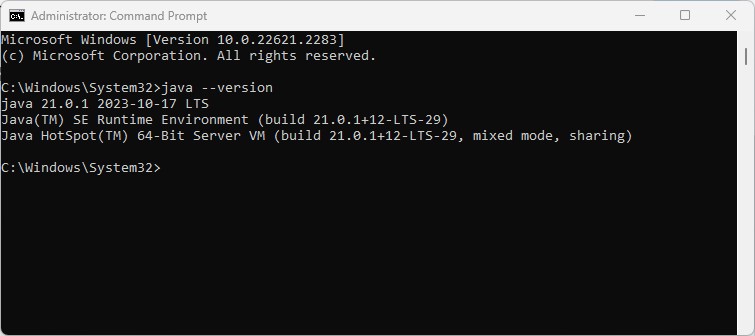
This will be the output, if Java is installed on your computer −
Microsoft Windows [Version 10.0.22621.2283]
(c) Microsoft Corporation. All rights reserved.

C:\Windows\System32>java --version
java 21.0.1 2023-10-17 LTS
Java(TM) SE Runtime Environment (build 21.0.1+12-LTS-29)
Java HotSpot(TM) 64-Bit Server VM (build 21.0.1+12-LTS-29, mixed mode, sharing)

C:\Windows\System32>
For Linux
$ java -version
This will be the output, if Java is installed on your computer −
java version "21.0.1"
Java(TM) SE Runtime Environment (build 21.0.1+9-LTS)
Java HotSpot(TM) 64-Bit Server VM (build 21.0.1+9-LTS, mixed mode)
If the Java installation has been done properly, it will display the current version and specification of your Java installation. If Java is not already installed on your computer, then there will be an error message.
Step 2: Set Your Java Environment
Set the environment variable JAVA_HOME to point to the base directory location where Java is installed on your machine. For example,
| Sr.No | Platform & Description |
|---|---|
| 1 |
Windows Set JAVA_HOME to C:\ProgramFiles\java\jdk21.0.1 |
| 2 |
Linux Export JAVA_HOME=/usr/local/java-current |
Append the full path of Java compiler location to the System Path.
| Sr.No | Platform & Description |
|---|---|
| 1 |
Windows Append the String "C:\Program Files\Java\jdk21.0.1\bin" to the end of the system variable PATH. |
| 2 |
Linux Export PATH=$PATH:$JAVA_HOME/bin/ |
Execute the command java -version from the command prompt as explained above.
Step 3: Install Scala
You can download Scala from http://www.scala-lang.org/downloads. At the time of writing this tutorial, I downloaded cs-x86_64-pc-win32.exe. Make sure you have admin privilege to proceed. Now, execute the following command at the command prompt
| Platform | Command & Output | Description |
|---|---|---|
| Windows | cs-x86_64-pc-win32.exe |
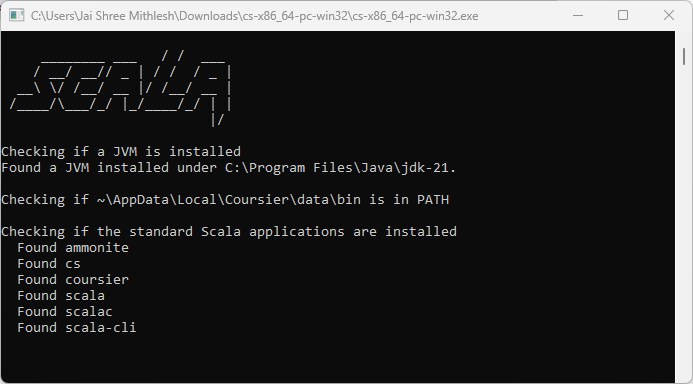
This command will display an installation wizard, which will guide you to install Scala on your windows machine. During installation, it will ask for license agreement, simply accept it and further it will ask a path where Scala will be installed. I selected default given path C:\Program Files\Scala, you can select a suitable path as per your convenience. |
| Linux |
Command − curl -fL https://github.com/coursier/coursier/releases/latest/download/cs-x86_64-pc-linux.gz | gzip -d > cs && chmod +x cs && ./cs setup Output − Welcome to the installation of Scala 3.8.3! The homepage is at − http://Scala-lang.org/ press 1 to continue, 2 to quit, 3 to redisplay 1................................................ [ Starting to unpack ] [ Processing package: Software Package Installation (1/1) ] [ Unpacking finished ] [ Console installation done ] |
During installation, it will ask for license agreement, to accept it type 1 and it will ask a path where Scala will be installed. I entered /usr/local/share, you can select a suitable path as per your convenience. |
For example, in Windows −
Finally, open a new command prompt and type Scala -version and press Enter. You should see the following −
| Platform | Command | Output |
|---|---|---|
| Windows | \>scala -version |
Scala code runner version 3.8.3 -- Copyright 2002-2026, LAMP/EPFL |
| Linux | $scala -version |
Scala code runner version 3.8.3 Copyright 2002-2026, LAMP/EPFL |
For example, in Windows −
C:\Windows\System32>scala --version
Scala code runner version 3.8.3 -- Copyright 2002-2026, LAMP/EPFL

C:\Windows\System32>
Testing and Running Scala using Commands
You can open cmd and run these commands to execute them. For example, in Windows −
Microsoft Windows [Version 10.0.22621.2283]
(c) Microsoft Corporation. All rights reserved.

C:\Users\Jai Shree Mithlesh>scala --version
Scala code runner version 3.8.3 -- Copyright 2002-2023, LAMP/EPFL

C:\Users\Jai Shree Mithlesh>scala
Welcome to Scala 3.8.3 (21.0.1, Java Java HotSpot(TM) 64-Bit Server VM).
Type in expressions for evaluation. Or try :help.

scala> println("Hello, tutorialspoint")
Hello, tutorialspoint

scala> 4+5
val res0: Int = 9

scala> 10/6
val res1: Int = 1

scala>
Note that you can also use Scala on various IDEs, like IntelliJ and VSCode with metals.
