- JOGL - API for Basic Templates
- JOGL - Canvas with AWT
- JOGL - Canvas with Swing
- JOGL - GLJPanel Class
- JOGL Graphical Shapes
- JOGL - Drawing Basics
- JOGL - Drawing with GL_Lines
- JOGL - Pre-defined shapes
- JOGL Effects & Transformation
- JOGL - Transformation
- JOGL - Coloring
- JOGL - Scaling
- JOGL - Rotation
- JOGL - Lighting
- JOGL 3D Graphics
- JOGL - 3D Basics
- JOGL - 3D Triangle
- JOGL - 3D Cube
- JOGL - Appendix
- JOGL Useful Resources
- JOGL - Quick Guide
- JOGL - Useful Resources
- JOGL - Discussion
JOGL Transformation of Objects
OpenGL provides more features such as applying colors to an object, scaling, lighting, rotating an object etc. This chapter describes some of the transformations on objects using JOGL.
Moving an object on the window
In previous chapters we discussed the programs for drawing a line and drawing various shapes using simple lines. The shapes created in this way can be displayed on any location within the window. It is done by using glTranslatef (float x, float y, float z) method.
This method belongs to GLMatrixFunc interface, which is in javax.media.opengl.fixedfunc package.
GLMatrixFunc interface
interface: GLMatrixFunc
package: javax.media.opengl.fixedfunc
Let us see some important methods of this interface:
| Sr. No. | Methods and Description |
|---|---|
| 1 |
void glRotatef(float angle, float x, float y, float z) This method rotates the current matrix. |
| 2 |
void glScalef(float x, float y, float z) This method is used to scale the current matrix. |
| 3 |
void glTranslatef(float x, float y,float z) This method is used to translate the current matrix. |
| 4 |
void glLoadIdentity() This method loads the current matrix with identity matrix. |
glTranslate() method moves origin of the coordinate system to the point specified by the parameters (x,y,z), passed to glTranslate() method as argument. To save and restore the untranslated coordinate system, glPushMatrix() and glPopMatrix() methods are used.
gl.glTranslatef(0f, 0f, -2.5f);
Whenever glTranslate() method is used, it changes the position of the component on the screen. Hence, reshape() method of GLEventListener interface should be overridden and OpenGL viewport and projection matrix should be initialized.
The following code shows the template to initialize view port and projection matrix:
public void reshape(GLAutoDrawable drawable, int x,  int y, int width, int height){
   final GL2 gl = drawable.getGL().getGL2();
   // get the OpenGL 2 graphics object
   if(height <=0)
      height =1;
   //preventing devided by 0 exception height =1;
   final float h = (float) width / (float) height;
   // display area to cover the entire window
   gl.glViewport(0, 0, width, height);
   //transforming projection matrix
   gl.glMatrixMode(GL2.GL_PROJECTION);
   gl.glLoadIdentity();
   glu.gluPerspective(45.0f, h, 1.0, 20.0);
   //transforming model view gl.glLoadIdentity();
   gl.glMatrixMode(GL2.GL_MODELVIEW);
   gl.glLoadIdentity();
}
Applying color to an object
To apply color to an object, use method glColor() of GL2 class.
Syntax
gl.glColorXY(1f,0f,0f);
where,
x denotes the number of colors used, 3 (red, blue, green) or 4(red, blue, green, alpha). To get various color combinations, values for these colors are passed as parameters. The sequence of the color parameters must be main-tained in that order.
y denotes the datatype which accepts parameters such as byte(b), double(d), float(f), int(i), short(s), ubyte(ub), uint(ui), ushort(us).
Example
If you pass color values as (1, 0, 0) then you get red color and (1, 1, 0) values give you yellow color.
 gl.glColor3f(1f,0f,0f);   //gives us red
 gl.glColor3f(0f,1f,0f);   //gives us blue
 gl.glColor3f(0f,0f,1f);   //gives us green
In case of triangle you can apply different colors for each vertex.
Let us go through the program to apply colors to a triangle:
import javax.media.opengl.GL2;
import javax.media.opengl.GLAutoDrawable;
import javax.media.opengl.GLCapabilities;
import javax.media.opengl.GLEventListener;
import javax.media.opengl.GLProfile;
import javax.media.opengl.awt.GLCanvas;
import javax.swing.JFrame;

public class TriangleColor implements GLEventListener{
   @Override
   public void display( GLAutoDrawable drawable ) {
      final GL2 gl = drawable.getGL().getGL2();
      gl.glBegin( GL2.GL_TRIANGLES );         // Drawing Using Triangles
      gl.glColor3f( 1.0f, 0.0f, 0.0f ); //Red
      gl.glVertex3f( 0.5f,0.7f,0.0f ); // Top
      gl.glColor3f( 0.0f,1.0f,0.0f ); //blue
      gl.glVertex3f( -0.2f,-0.50f,0.0f );              // Bottom Left
      gl.glColor3f( 0.0f,0.0f,1.0f ); //green
      gl.glVertex3f( 0.5f,-0.5f,0.0f );              //Bottom Right
      gl.glEnd();
   }
   @Override
   public void dispose( GLAutoDrawable arg0 ) {
      //method body
   }
   @Override
   public void init( GLAutoDrawable arg0 ) {
      // method body
   }
   @Override
   public void reshape( GLAutoDrawable arg0, int arg1, int arg2, int arg3, int arg4 ) {
      // method body
   }
   public static void main( String[] args ) {
      //getting the capabilities object of GL2 profile
      final GLProfile profile = GLProfile.get( GLProfile.GL2 );
      GLCapabilities capabilities = new GLCapabilities( profile );
      // The canvas
      final GLCanvas glcanvas = new GLCanvas( capabilities );
      TriangleColor triangle = new TriangleColor();
      glcanvas.addGLEventListener( triangle );
      glcanvas.setSize( 400, 400 );
      //creating frame
      final JFrame frame = new JFrame (" Colored Triangle");
      //adding canvas to it
      frame.getContentPane().add( glcanvas );
      frame.setSize( frame.getContentPane().getPreferredSize() );
      frame.setVisible( true );
   }//end of main
}//end of class
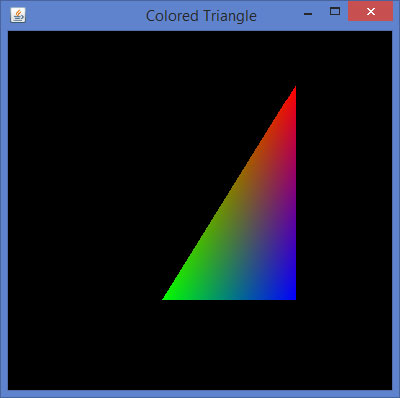
When you compile and execute the above program, you get the following colored triangle:
Applying color to a polygon
Let us go through the program to apply colors to a polygon:
import javax.media.opengl.GL2;
import javax.media.opengl.GLAutoDrawable;
import javax.media.opengl.GLCapabilities;
import javax.media.opengl.GLEventListener;
import javax.media.opengl.GLProfile;
import javax.media.opengl.awt.GLCanvas;
import javax.swing.JFrame;

public class PolygonColor implements GLEventListener{
   @Override
   public void display( GLAutoDrawable drawable ) {
      final GL2 gl = drawable.getGL().getGL2();
      gl.glColor3f( 1f,0f,0f ); //applying red
      gl.glBegin( GL2.GL_POLYGON );
      gl.glVertex3f( 0f,0.5f,0f  );
      gl.glVertex3f( -0.5f,0.2f,0f );
      gl.glVertex3f( -0.5f,-0.2f,0f );
      gl.glVertex3f( 0f,-0.5f,0f );
      gl.glVertex3f( 0f,0.5f,0f );
      gl.glVertex3f( 0.5f,0.2f,0f );
      gl.glVertex3f( 0.5f,-0.2f,0f );
      gl.glVertex3f( 0f,-0.5f,0f );
      gl.glEnd();
   }
   @Override
   public void dispose( GLAutoDrawable arg0 ) {
      //method body
   }
   @Override
   public void init( GLAutoDrawable arg0 ) {
      // method body
   }
   @Override
   public void reshape( GLAutoDrawable arg0, int arg1, int arg2, int arg3, int arg4 ) {
      // method body
   }
   public static void main( String[] args ) {
      //getting the capabilities object of GL2 profile
      final GLProfile profile = GLProfile.get( GLProfile.GL2 );
      GLCapabilities capabilities = new GLCapabilities( profile );
      // The canvas
      final GLCanvas glcanvas = new GLCanvas( capabilities );
      PolygonColor polygon = new PolygonColor();
      glcanvas.addGLEventListener( polygon );
      glcanvas.setSize( 400, 400 );
      //creating frame
      final JFrame frame = new JFrame ( "Colored Polygon" );
      //adding canvas to frame
      frame.getContentPane().add( glcanvas );
      frame.setSize( frame.getContentPane().getPreferredSize() );
      frame.setVisible( true );
   }//end of main
}//end of class
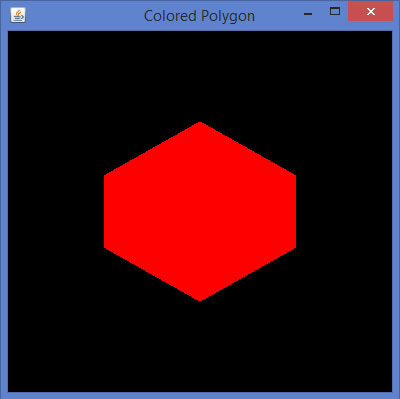
When you compile and execute the above program, the following output is generated:
Scaling
Scaling an object is done by using void glScalef(float x, float y, float z) method of GLMatrixFunc interface. This method accepts three floatingpoint parameters, using which we specify the scale factors along the x, y, and z axes respectively.
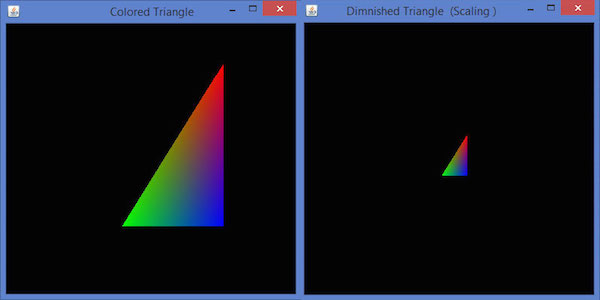
For example, in the following program, a triangle is diminished to 50%. Here, value 50 is passed as parameter along all the axes.
Let us go through the program to scale a triangle:
import javax.media.opengl.GL2;
import javax.media.opengl.GLAutoDrawable;
import javax.media.opengl.GLCapabilities;
import javax.media.opengl.GLEventListener;
import javax.media.opengl.GLProfile;
import javax.media.opengl.awt.GLCanvas;
import javax.swing.JFrame;

public class Scaling implements GLEventListener{
   @Override
   public void display( GLAutoDrawable drawable ) {
      final GL2 gl = drawable.getGL().getGL2();
      gl.glScalef( 0.50f,0.25f,0.50f );
      gl.glBegin( GL2.GL_TRIANGLES );       // Drawing Using Triangles
      gl.glColor3f( 1.0f, 0.0f, 0.0f ); //Red
      gl.glVertex3f( 0.5f,0.7f,0.0f ); // Top
      gl.glColor3f( 0.0f,1.0f,0.0f ); //blue
      gl.glVertex3f( -0.2f,-0.50f,0.0f );          // Bottom Left
      gl.glColor3f( 0.0f,0.0f,1.0f ); //green
      gl.glVertex3f( 0.5f,-0.5f,0.0f );           //Bottom Right
      gl.glEnd();
   }
   @Override
   public void dispose( GLAutoDrawable arg0 ) {
      //method body
   }
   @Override
   public void init( GLAutoDrawable arg0 ) {
      // method body
   }
   @Override
   public void reshape( GLAutoDrawable arg0, int arg1, int arg2, int arg3, int arg4 ) {
      // method body
   }
   public static void main( String[] args ) {
      //getting the capabilities object of GL2 profile
      final GLProfile profile = GLProfile.get( GLProfile.GL2 );
      GLCapabilities capabilities = new GLCapabilities( profile );
      // The canvas
      final GLCanvas glcanvas = new GLCanvas( capabilities );
      Scaling scaling = new Scaling();
      glcanvas.addGLEventListener( scaling );
      glcanvas.setSize( 400, 400 );
      //creating frame
      final JFrame frame = new JFrame (" Dimnished Triangle (Scaling )");
      //adding canvas to it
      frame.getContentPane().add(glcanvas);
      frame.setSize(frame.getContentPane().getPreferredSize());
      frame.setVisible(true);
   }//end of main
}//end of classimport javax.media.opengl.GL2;
On compiling and executing the above program, we get the following output. Here, you can observe a diminished triangle as compared to the original triangle produced by TriangleColor.java:
Rotation
Rotation of objects can be done along any of the 3 axes, using void glRotatef(float angle, float x, float y, float z) method of GLMatrixFunc interface. You need to pass angle of rotation and x, y, z axes as parameters to this method.
The following steps guide you to rotate an object successfully:
Clear the color buffer and depth buffer initially using gl.glClear(GL2.GL_COLOR_BUFFER_BIT | GL2.GL_DEPTH_BUFFER_BIT) method. This method erases the previous state of the object and makes the view clear.
Reset the projection matrix using glLoadIdentity() method.
Instantiate the animator class and start the animator using start() method.
FPSAnimator class
Class:
FPSAnim
ator
Package: javax.media.opengl.util
Constructor
FPSAnimator(GLAutoDrawable drawable, int fps)
Creates an FPSAnimator with a given target frames-per-second value and an initial drawable to animate.
FPSAnimator(GLAutoDrawable drawable, int fps, boolean cheduleAtFixedRate)
Creates an FPSAnimator with a given target frames-per-second value, an initial drawable to animate, and a flag indicating whether to use fixed-rate scheduling.
FPSAnimator(int fps)
Creates an FPSAnimator with a given target frames-per-second value.
FPSAnimator(int fps, boolean scheduleAtFixedRate)
Creates an FPSAnimator with a given target frames-per-second value and a flag indicating whether to use fixed rate scheduling.
start() and stop() are two important methods in this class.
Let us go through the program to rotate a triangle:
import javax.media.opengl.GL2;
import javax.media.opengl.GLAutoDrawable;
import javax.media.opengl.GLCapabilities;
import javax.media.opengl.GLEventListener;
import javax.media.opengl.GLProfile;
import javax.media.opengl.awt.GLCanvas;
import javax.swing.JFrame;
import com.jogamp.opengl.util.FPSAnimator;
public class TriangleRotation implements GLEventListener{
   private float rtri;  //for angle of rotation
   @Override
   public void display( GLAutoDrawable drawable ) {
      final GL2 gl = drawable.getGL().getGL2();
      gl.glClear (GL2.GL_COLOR_BUFFER_BIT | GL2.GL_DEPTH_BUFFER_BIT );
      // Clear The Screen And The Depth Buffer
      gl.glLoadIdentity();                  // Reset The View
      gl.glRotatef( rtri, 0.0f, 1.0f, 0.0f );//triangle rotation
      gl.glBegin( GL2.GL_TRIANGLES );         // Drawing Using Triangles
      gl.glColor3f( 1.0f, 0.0f, 0.0f ); //Red
      gl.glVertex3f( 0.5f,0.7f,0.0f ); // Top
      gl.glColor3f( 0.0f,1.0f,0.0f ); //blue
      gl.glVertex3f( -0.2f,-0.50f,0.0f );              // Bottom Left
      gl.glColor3f( 0.0f,0.0f,1.0f ); //green
      gl.glVertex3f( 0.5f,-0.5f,0.0f );              // Bottom Right
      gl.glEnd();
      gl.glFlush();
      rtri +=0.2f;  //assigning the angle
   }
   @Override
   public void dispose( GLAutoDrawable arg0 ) {
      //method body
   }
   @Override
   public void init( GLAutoDrawable arg0 ) {
      // method body
   }
   @Override
   public void reshape( GLAutoDrawable drawable, int x, int y, int width, int height ) {
      // method body
   }
   public static void main( String[] args ) {
      //getting the capabilities object of GL2 profile
      final GLProfile profile = GLProfile.get( GLProfile.GL2 );
      GLCapabilities capabilities = new GLCapabilities( profile );
      // The canvas
      final GLCanvas glcanvas = new GLCanvas( capabilities );
      TriangleRotation triangle = new TriangleRotation();
      glcanvas.addGLEventListener( triangle );
      glcanvas.setSize( 400, 400 );
      //creating frame
      final JFrame frame = new JFrame ( "Rotating Triangle" );
      //adding canvas to it
      frame.getContentPane().add( glcanvas );
      frame.setSize( frame.getContentPane().getPreferredSize() );
      frame.setVisible( true );
      //Instantiating and Initiating Animator
      final FPSAnimator animator = new FPSAnimator( glcanvas, 300,true );
      animator.start();
   }//end of main
}//end of class
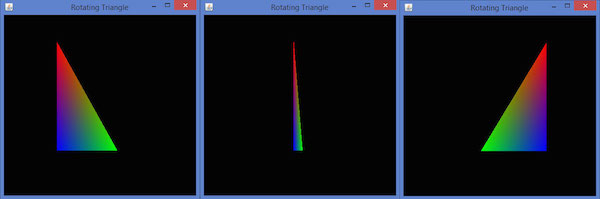
If you compile and execute the above program, it generates the following output. Here, you can observe various snapshots of a rotating colored triangle around x axis.
Lighting
To set lighting, initially enabled lighting using glEnable() method. Then apply lighting for the objects, using glLightfv(int light, int pname, float[] params, int params_offset) method of GLLightingFunc interface. This method takes four parameters.
The following table describes parameters of gllightfv() method.
| Sr. No. | Parameter Name and Description |
|---|---|
| 1 |
Light Specifies a light. The number of lights depends on the implementation, but at least eight lights are supported. It accepts ten values, those parameters are discussed in a separate table named Light Source Parameters given below. |
| 2 |
Pname Specifies a single valued light source parameter. For light source, there are ten parameters as discussed below. |
| 3 |
Params Specifies a pointer to the value or values that is set to the parameter pname of light source light. |
| 4 |
Light source parameter You can use any of the light source parameters given below. |
Light source parameters:
| Sr. No. | Parameter and Description |
|---|---|
| 1 |
GL_AMBIENT It contains the parameters that specify the ambient intensity of the light. |
| 2 |
GL_DIFFUSE It contains the parameters that specify the diffuse intensity of the light. |
| 3 |
GL_SPECULAR It contains the parameters that specify the specular intensity of the light. |
| 4 |
GL_POSITION It contains four integer or floating-point values that specify the position of the light in homogeneous object coordinates. |
| 5 |
GL_SPOT_DIRECTION It contains parameters that specify the direction of light in homogeneous object coordinates. |
| 6 |
GL_SPOT_EXPONENT Parameters of this specify the intensity distribution of light. |
| 7 |
GL_SPOT_CUTOFF The single parameter of this specifies the maximum spread angle of the light. |
| 8 |
GL_CONSTANT_ATTENUATION or GL_LINEAR_ATTENUATION or GL_QUADRATIC_ATTENUATION You can use any of these attenuation factors, which is represented by a single value. |
Lighting is enabled and disabled using glEnable() and glDisable () methods with argument GL_LIGHTING.
The following template is given for lighting:
gl.glEnable(GL2.GL_LIGHTING);
gl.glEnable(GL2.GL_LIGHT0); gl.glEnable(GL2.GL_NORMALIZE);
float[] ambientLight = { 0.1f, 0.f, 0.f,0f }; // weak RED ambient
gl.glLightfv(GL2.GL_LIGHT0, GL2.GL_AMBIENT, ambientLight, 0);
float[] diffuseLight = { 1f,2f,1f,0f }; //multi-color diffuse
gl.glLightfv(GL2.GL_LIGHT0, GL2.GL_DIFFUSE, diffuseLight, 0);
Applying light to a rotating polygon
Follow the given steps for applying light to a rotating polygon.
Rotate the polygon using glRotate() method:
gl.glClear(GL2.GL_COLOR_BUFFER_BIT | GL2.GL_DEPTH_BUFFER_BIT);
// Clear The Screen And The Depth Buffer
gl.glLoadIdentity();
// Reset The View
gl.glRotatef(rpoly, 0.0f, 1.0f, 0.0f);
Let us go through the program to apply light to a rotating polygon:
import javax.media.opengl.GL2;
import javax.media.opengl.GLAutoDrawable;
import javax.media.opengl.GLCapabilities;
import javax.media.opengl.GLEventListener;
import javax.media.opengl.GLProfile;
import javax.media.opengl.awt.GLCanvas;
import javax.swing.JFrame;
import com.jogamp.opengl.util.FPSAnimator;

public class PolygonLighting implements GLEventListener{
   private float rpoly;
   @Override
   public void display( GLAutoDrawable drawable ) {
      final GL2 gl = drawable.getGL().getGL2();
      gl.glColor3f(1f,0f,0f); //applying red
      // Clear The Screen And The Depth Buffer
      gl.glClear( GL2.GL_COLOR_BUFFER_BIT | GL2.GL_DEPTH_BUFFER_BIT );
      gl.glLoadIdentity();                  // Reset The View
      gl.glRotatef( rpoly, 0.0f, 1.0f, 0.0f );
      gl.glBegin( GL2.GL_POLYGON );
      gl.glVertex3f( 0f,0.5f,0f );
      gl.glVertex3f( -0.5f,0.2f,0f );
      gl.glVertex3f( -0.5f,-0.2f,0f );
      gl.glVertex3f( 0f,-0.5f,0f );
      gl.glVertex3f( 0f,0.5f,0f );
      gl.glVertex3f( 0.5f,0.2f,0f );
      gl.glVertex3f( 0.5f,-0.2f,0f );
      gl.glVertex3f( 0f,-0.5f,0f );
      gl.glEnd();
      gl.glFlush();
      rpoly +=0.2f;  //assigning the angle
      gl.glEnable( GL2.GL_LIGHTING );
      gl.glEnable( GL2.GL_LIGHT0 );
      gl.glEnable( GL2.GL_NORMALIZE );
      float[] ambientLight =  0.1f, 0.f, 0.f,0f }; // weak RED ambient
      gl.glLightfv( GL2.GL_LIGHT0, GL2.GL_AMBIENT, ambient-Light, 0 );
      float[] diffuseLight = { 1f,2f,1f,0f }; //multi color diffuse
      gl.glLightfv( GL2.GL_LIGHT0, GL2.GL_DIFFUSE, diffuse-Light, 0 );
   }
   @Override
   public void dispose( GLAutoDrawable arg0 ) {
      //method body
   }
   @Override
   public void init( GLAutoDrawable arg0 ) {
      // method body
   }
   @Override
   public void reshape( GLAutoDrawable arg0, int arg1, int arg2, int arg3, int arg4 ) {
      // method body
   }
   public static void main( String[] args ) {
      //getting the capabilities object of GL2 profile
      final GLProfile profile = GLProfile.get( GLProfile.GL2 );
      GLCapabilities capabilities = new GLCapabilities( profile );
      // The canvas
      final GLCanvas glcanvas = new GLCanvas( capabilities );
      PolygonLighting polygonlighting = new PolygonLighting();
      glcanvas.addGLEventListener( polygonlighting );
      glcanvas.setSize( 400, 400 );
      //creating frame
      final JFrame frame = new JFrame ( " Polygon lighting " );
      //adding canvas to it
      frame.getContentPane().add( glcanvas );
      frame.setSize( frame.getContentPane().getPreferredSize() );
      frame.setVisible( true );
      //Instantiating and Initiating Animator
      final FPSAnimator animator = new FPSAnimator(glcanvas, 300,true );
      animator.start();
   }//end of main
}//end of class
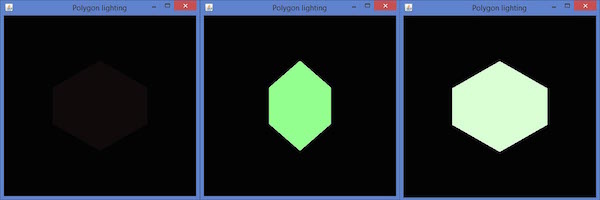
If you compile and execute the above program, it generates the following output. Here, you
can observe various snapshots of a rotating polygon with lighting.