
Article Categories
- All Categories
-
 Data Structure
-
 Networking
-
 RDBMS
RDBMS
-
 Operating System
-
 Java
Java
-
 MS Excel
-
 iOS
iOS
-
 HTML
HTML
-
 CSS
CSS
-
 Android
-
 Python
-
 C Programming
-
 C++
C++
-
 C#
C#
-
 MongoDB
-
 MySQL
MySQL
-
 Javascript
-
 PHP
PHP
-
 Economics & Finance
Using Filter to fetch specific data in SAP Crystal Reports
To fetch specific data in SAP Crystal Reports, you need to set up filtering using the Record Selection Formula. This formula allows you to define conditions that determine which records from your data source will be included in the report.
Accessing Record Selection Formula
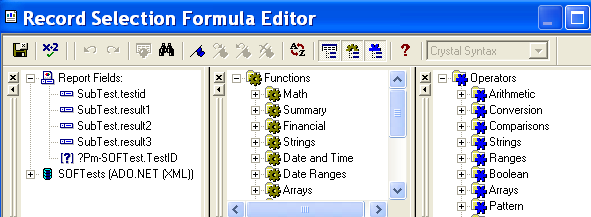
Navigate to the following path to open the Record Selection Formula editor ?
Report ? Selection Formula ? Record
This will open a new window where you can define your filtering conditions and rerun the report with the applied filters.
Creating Filter Conditions
In the Record Selection Formula editor, you can create various types of filter conditions using Crystal Reports formula syntax. Here are some common examples ?
// Filter by date range
{Orders.OrderDate} >= Date(2023,1,1) and {Orders.OrderDate} <= Date(2023,12,31)

// Filter by specific values
{Customer.Country} = "USA"

// Filter using multiple conditions
{Orders.OrderAmount} > 1000 and {Customer.Region} in ["North", "South"]
Additional Resources
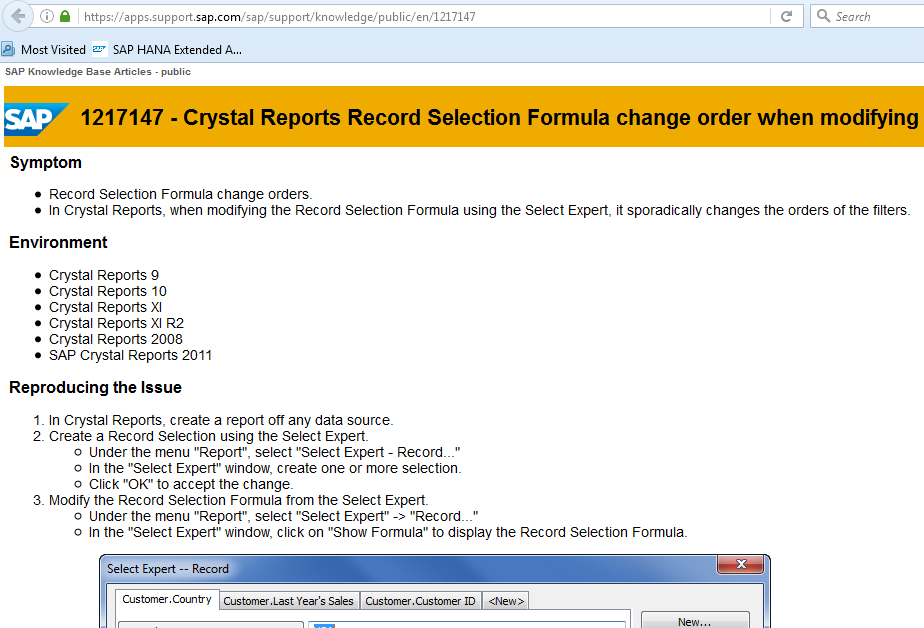
For more detailed information about Record Selection Formula and its advanced features, you can refer to the official SAP Knowledge Base article ?
1217147 - Crystal Reports Record Selection Formula change order when modifying it via the Select Expert
Conclusion
Using the Record Selection Formula is the most effective way to filter data in SAP Crystal Reports, allowing you to create precise conditions that fetch only the specific records you need for your reporting requirements.

531 Views
