
Article Categories
- All Categories
-
 Data Structure
-
 Networking
-
 RDBMS
RDBMS
-
 Operating System
-
 Java
Java
-
 MS Excel
-
 iOS
iOS
-
 HTML
HTML
-
 CSS
CSS
-
 Android
-
 Python
-
 C Programming
-
 C++
C++
-
 C#
C#
-
 MongoDB
-
 MySQL
MySQL
-
 Javascript
-
 PHP
PHP
-
 Economics & Finance
In SAP Crystal Reports, removing extra white space between details sections
To resolve extra white space between details sections in SAP Crystal Reports, you need to configure the formatting properties of your report objects. This issue commonly occurs when objects have fixed sizes that don't adjust to their content.
Solution Steps
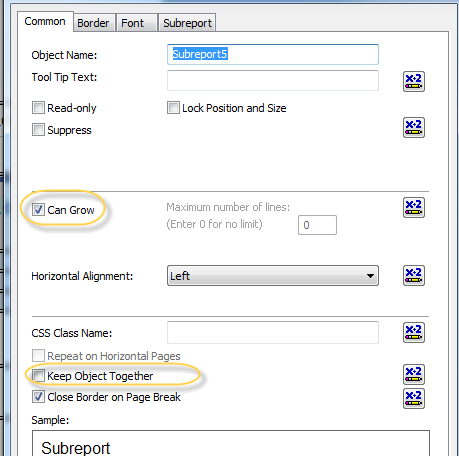
Navigate to the Format Editor tab and modify the following settings ?
- Check the "Can Grow" option to allow objects to expand based on content
- Deselect "Keep Object Together" in the subreport to prevent forced spacing
The Can Grow property allows text objects and fields to automatically adjust their height based on the amount of content they contain. When this option is enabled, objects will expand vertically to accommodate longer text, eliminating unnecessary white space when content is shorter than the allocated space.
The Keep Object Together option, when enabled, forces Crystal Reports to keep entire objects on the same page, which can create unwanted spacing. By deselecting this option, you allow more flexible positioning and reduce gaps between sections.
Additional Tips
For optimal results, also consider ?
- Setting section height to the minimum required size
- Removing unnecessary blank lines in formulas
- Adjusting the Can Shrink property for sections that may have variable content
Conclusion
By enabling "Can Grow" and disabling "Keep Object Together" in the Format Editor, you can effectively eliminate extra white space between details sections in SAP Crystal Reports, creating a more compact and professional-looking report layout.

2K+ Views
