
- Excel - Home
- Excel - Getting Started
- Excel - Explore Window
- Excel - Backstage
- Excel - Entering Values
- Excel - Move Around
- Excel - Save Workbook
- Excel - Create Worksheet
- Excel - Copy Worksheet
- Excel - Hiding Worksheet
- Excel - Delete Worksheet
- Excel - Close Workbook
- Excel - Open Workbook
- Excel - Merge Workbooks
- Excel - File Password
- Excel - File Share
- Excel - Emoji & Symbols
- Excel - Context Help
- Excel - Insert Data
- Excel - Select Data
- Excel - Delete Data
- Excel - Move Data
- Excel - Rows & Columns
- Excel - Copy & Paste
- Excel - Find & Replace
- Excel - Spell Check
- Excel - Zoom In-Out
- Excel - Special Symbols
- Excel - Insert Comments
- Excel - Add Text Box
- Excel - Shapes
- Excel - 3D Models
- Excel - CheckBox
- Excel - Add Sketch
- Excel - Scan Documents
- Excel - Auto Fill
- Excel - SmartArt
- Excel - Insert WordArt
- Excel - Undo Changes
- Formatting Cells
- Excel - Setting Cell Type
- Excel - Move or Copy Cells
- Excel - Add Cells
- Excel - Delete Cells
- Excel - Setting Fonts
- Excel - Text Decoration
- Excel - Rotate Cells
- Excel - Setting Colors
- Excel - Text Alignments
- Excel - Merge & Wrap
- Excel - Borders and Shades
- Excel - Apply Formatting
- Formatting Worksheets
- Excel - Sheet Options
- Excel - Adjust Margins
- Excel - Page Orientation
- Excel - Header and Footer
- Excel - Insert Page Breaks
- Excel - Set Background
- Excel - Freeze Panes
- Excel - Conditional Format
- Excel - Highlight Cell Rules
- Excel - Top/Bottom Rules
- Excel - Data Bars
- Excel - Color Scales
- Excel - Icon Sets
- Excel - Clear Rules
- Excel - Manage Rules
- Working with Formula
- Excel - Formulas
- Excel - Creating Formulas
- Excel - Copying Formulas
- Excel - Formula Reference
- Excel - Relative References
- Excel - Absolute References
- Excel - Arithmetic Operators
- Excel - Parentheses
- Excel - Using Functions
- Excel - Builtin Functions
- Excel Formatting
- Excel - Formatting
- Excel - Format Painter
- Excel - Format Fonts
- Excel - Format Borders
- Excel - Format Numbers
- Excel - Format Grids
- Excel - Format Settings
- Advanced Operations
- Excel - Data Filtering
- Excel - Data Sorting
- Excel - Using Ranges
- Excel - Data Validation
- Excel - Using Styles
- Excel - Using Themes
- Excel - Using Templates
- Excel - Using Macros
- Excel - Adding Graphics
- Excel - Cross Referencing
- Excel - Printing Worksheets
- Excel - Email Workbooks
- Excel- Translate Worksheet
- Excel - Workbook Security
- Excel - Data Tables
- Excel - Pivot Tables
- Excel - Simple Charts
- Excel - Pivot Charts
- Excel - Sparklines
- Excel - Ads-ins
- Excel - Protection and Security
- Excel - Formula Auditing
- Excel - Remove Duplicates
- Excel - Services
- Excel Useful Resources
- Excel - Keyboard Shortcuts
- Excel - Quick Guide
- Excel - Functions
- Excel - Useful Resources
- Excel - Discussion
Add or remove Add-ins in Excel
Microsoft Excel offers additional tool packs, such as Solver and Analysis Toolpak Add-ins, which are generally used for statistical analysis by academicians and researchers. These Excel add-ins reduce the time needed for data analysis and improve the functionality of the Microsoft Excel tool. Excel add-ins are paid, requiring an annual subscription, and few are available free of cost.
Popular Excel Add-ins
- Kutools
- PowerPivot
- MathType
- Solver
- Analysis Toolpak
- ChatGPT for Excel
- SAP Analytics cloud for Excel
- SQL Spreads
- Microsoft PowerMap for Excel
Add-ins for Data Visualization
Best Excel add-ins for Data Visualization are listed below −
- Supply Chain Add-ins
- Microsoft Visio Data Visualizer
- ChartExpo for Excel
- SmartCharts for Excel
- iGlobe CRM Excel Reporting Tool
Find Popular Excel Add-ins
Go to the Home tab and click on the Add-ins under the Add-ins group. In this option, you may search for add-ins that add functionality to the Excel tools to ease your work and permit you to connect to the services.
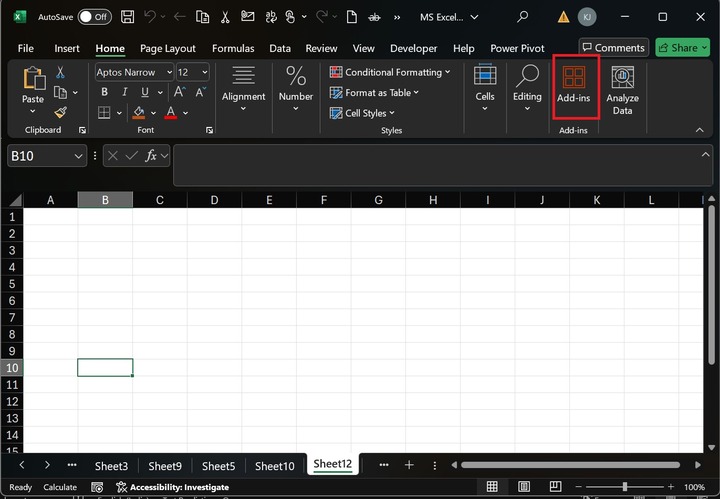
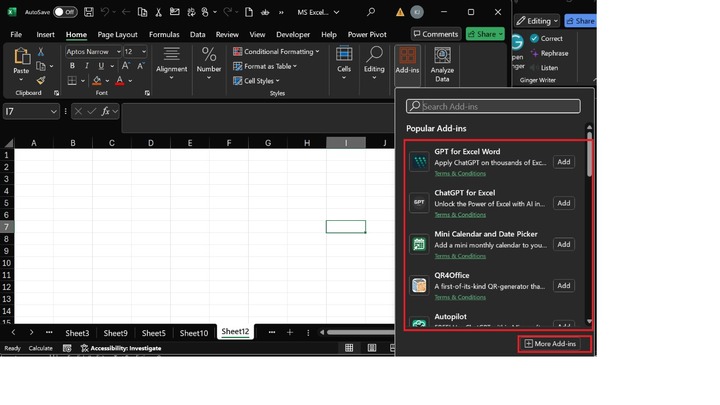
Once you click on Add-ins, a list of popular Add-ins is showcased in the drop-down menu. You can also click the More Add-ins button to search for specific add-ins.
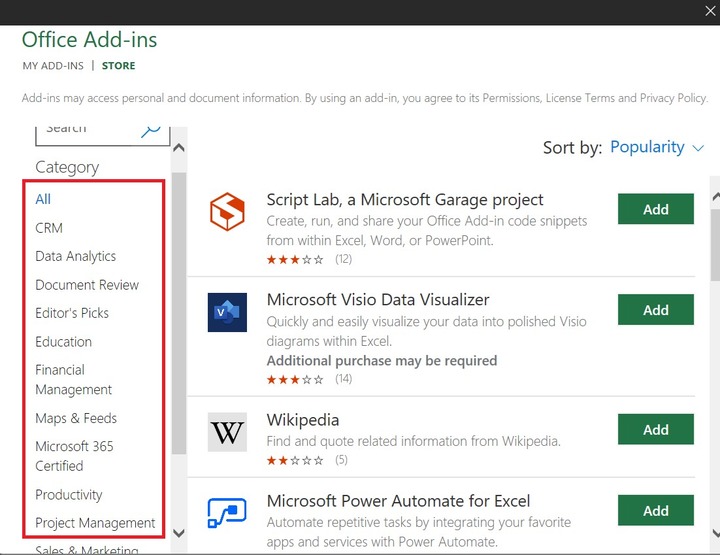
After that, the Office Add-ins dialog box appears. The different categories, such as CRM, Data Analytics, Document Review, Financial Management, and so on, are listed under the Category section.
How to Add Add-ins in Microsoft Excel?
Below are the steps to add-ins in the worksheet −
Step 1 − First, you may switch to the File tab, select the More.. category, and click on the Options from the drop-down menu.
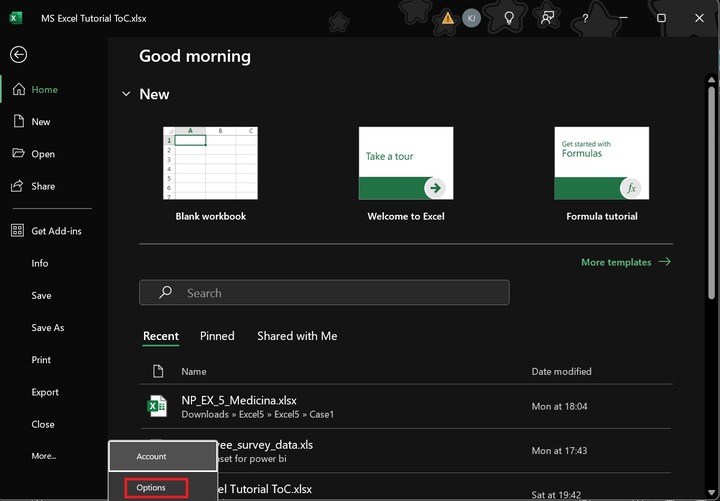
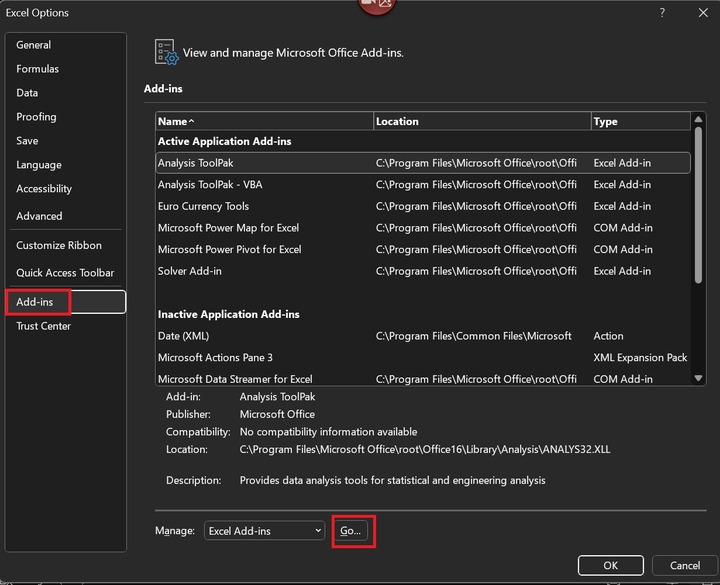
Step 2 − After that, the "Excel Options" will appear, where you can select the "Add-ins" category from the given category list. You can view and easily manage the Excel Add-ins in the Add-ins category. Active application Add-ins like Analysis Toolpak and Euro Currency tools are displayed in the first section, and inactive add-ins like Date(XML) and Microsoft Actions Pane 3 are shown in the next section.

After that, click the Go button in the Manage section and hit OK.
The Add-ins dialog box will appear. The free Excel add-ins are Analysis ToolPak, Analysis ToolPak-VBA, Euro Currency Tools, and Solver. You may select any add-ins or Browse the Add-ins from the Microsoft Excel Add-ins folder.
Let's say you click on the "Analysis Toolpak," one of the most important data analysis tools for statistical analysis, and click the OK button.
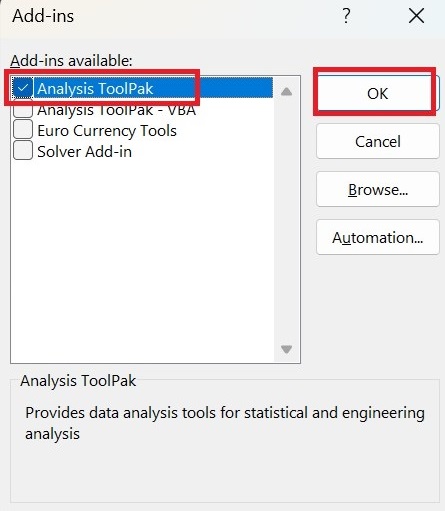
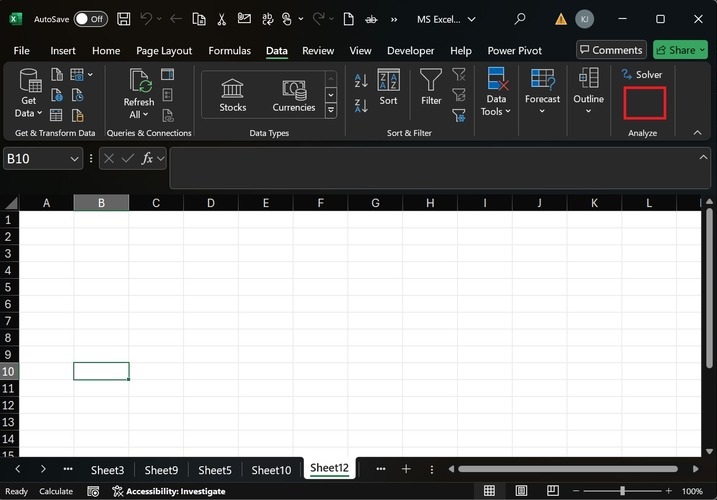
Once you click on the OK button, the "Data Analysis Tool" will be added to the Analysis group under the Data tab.
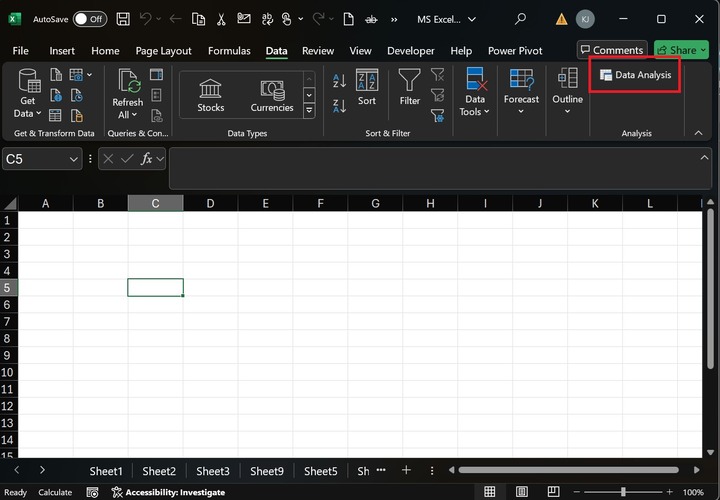
Similarly, you can add other available add-ins to Microsoft Excel.
Remove Add-ins in Microsoft Excel
The step-by-step instructions are written below −
Step 1 − To remove the add-ins in Microsoft Excel, go to the File tab, click on the More category, and select "Options."

Step 2 − After that, click on the "Add-ins" and select the "Go..." button.
Step 3 − Moreover, the Add-ins dialog box will appear. To remove this add-in, untick the "Analysis ToolPak" checkbox and click OK.

Therefore, the Analysis Toolpak is successfully removed and disabled from the Analyze group.