
Article Categories
- All Categories
-
 Data Structure
-
 Networking
-
 RDBMS
RDBMS
-
 Operating System
-
 Java
Java
-
 MS Excel
-
 iOS
iOS
-
 HTML
HTML
-
 CSS
CSS
-
 Android
-
 Python
-
 C Programming
-
 C++
C++
-
 C#
C#
-
 MongoDB
-
 MySQL
MySQL
-
 Javascript
-
 PHP
PHP
-
 Economics & Finance
Selected Reading
What is the command used to register gecko driver in Selenium?
We can register a gecko driver with Selenium webdriver. For the Firefox versions greater than 47, we can execute tests in Firefox with the geckodriver.exe file. To download this executable file, visit the below link − https://github.com/mozilla/geckodriver/releases
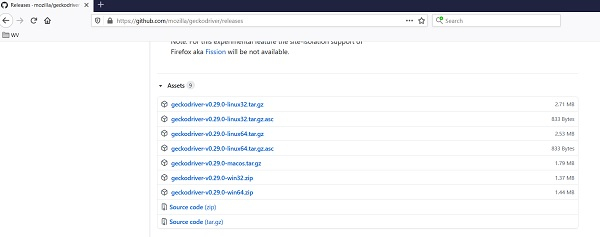
Next, we have to choose the link of the zip file which is compatible with our local operating system. As the download of the zip file is done, it has to be extracted and the file – geckodriver.exe should be saved in a location.
To register this geckodriver.exe file, we have to set the path of the geckodriver.exe file with the System.setProperty method. Also we have to create an instance of the FirefoxDriver class.
WebDriver driver = new FirefoxDriver();
Syntax
System.setProperty("webdriver.gecko.driver", "<path of geckodriver.exe>");
Example
import org.openqa.selenium.WebDriver;
import org.openqa.selenium.WebElement;
import org.openqa.selenium.firefox.FirefoxDriver;
import java.util.concurrent.TimeUnit;
public class RegGecko{
   public static void main(String[] args) {
      System.setProperty("webdriver.gecko.driver",
         "C:\Users\ghs6kor\Desktop\Java\geckodriver.exe");
      WebDriver driver = new FirefoxDriver();
      //implicit wait
      driver.manage().timeouts().implicitlyWait(5, TimeUnit.SECONDS);
      //URL launch
      driver.get("https://www.tutorialspoint.com/index.htm");
      String t = driver.getCurrentUrl();
      System.out.println("Current URL is: " + t);
      //close browser
      driver.close();
   }
}
Output


Updated on: 2021-04-08T07:36:49+05:30
514 Views

Advertisements