- Vibe Coding - Home
- Vibe Coding - Overview
- Vibe Coding - Process
- Vibe Coding vs Traditional Programming
- Vibe Coding - Effective Prompts
- Vibe Coding - Product Requirement and Design
- Vibe Coding - Vibe Coding Tools
- Vibe Coding - Google AI Studio
- Vibe Coding - Firebase Studio
- Vibe Coding - Gemini Code Assist
- Vibe Coding - Claude AI
- Vibe Coding - Copilot
- Vibe Coding - Replit
- Vibe Coding - Pitfalls and Solutions
- Vibe Coding - Creating a Sample Project
Vibe Coding Useful Resources
Vibe Coding - Creating a Sample Project
In this section, we're exploring how to create and test a sample project using Vibe Coding. We're using Google AI Studio. Open Google AI Studio and it will show up a text box to start chat or to vibe code an app as shown below.

Enter a Prompt with initial requirement
We've enter folliowing prompt to create an shopping app for algriculture spare parts for farmers of North India.
a shopping app for spare parts for agriculture in North India
AI studio starts processing using its Gemini 3 Flash Agent for 10 seconds and generates sources files. In right panel, application preview is avaiable as well.
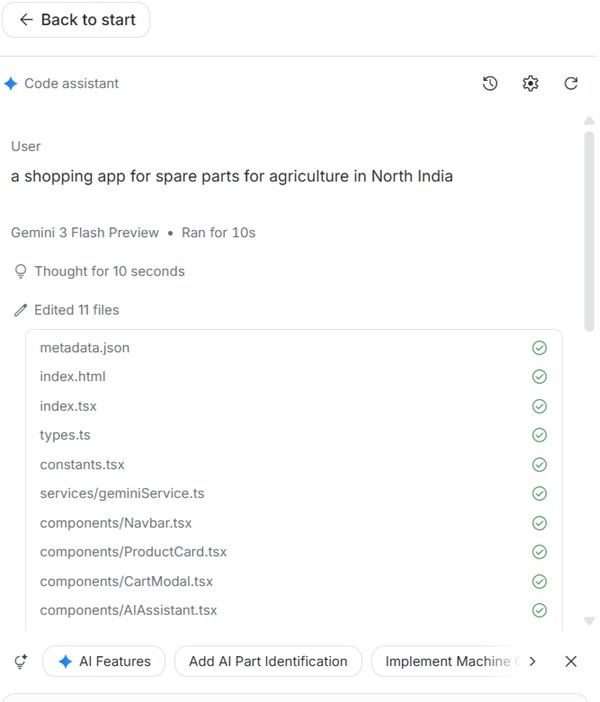
By default, AI studio generates code in React.
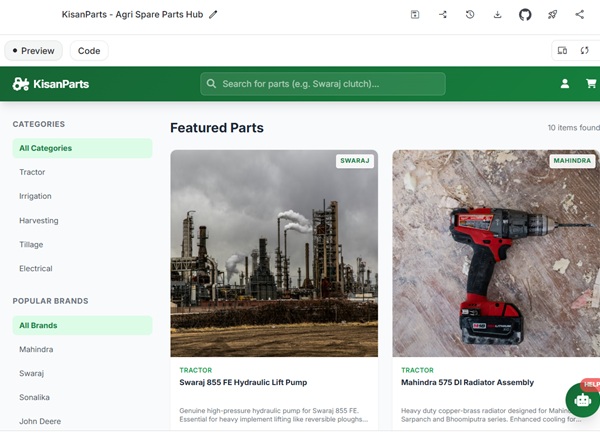
Preview the Application
In right panel, we've preview and code buttons. Under Preview section, live application preview is available.
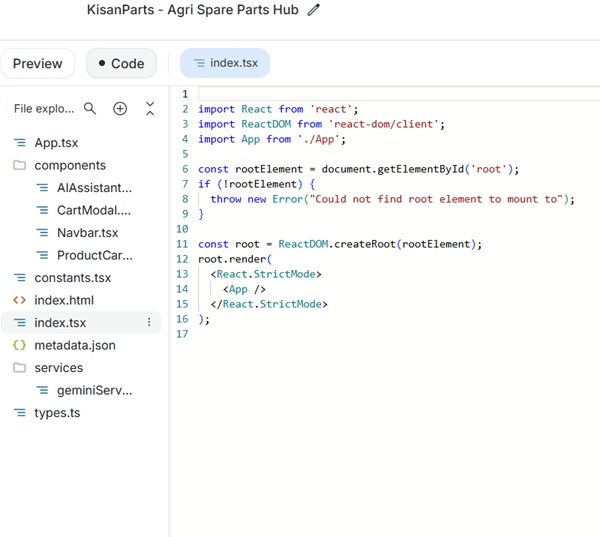
Edit the code
AI studio allows to edit code using an online IDE built within the studio. Click on the "Code" button and check the source code. You can edit any file as required to customize the app.
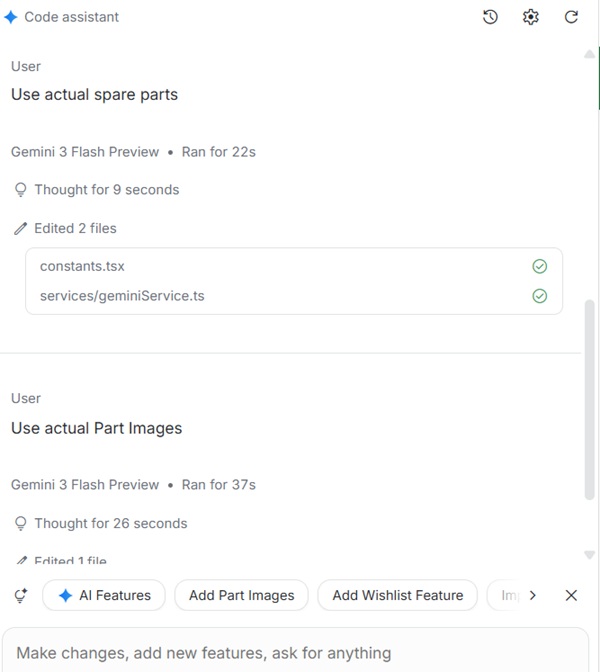
Provide feedback to improve application.
You can provide feedback in chat window as well. AI studio automatically provides many useful suggestions as per domain as well.
Deploy App
On right top, AI studio have panel with useful buttons to download app to run locally, commit code to github, deploy app on cloud run, share app link and lots more.
