
Article Categories
- All Categories
-
 Data Structure
-
 Networking
-
 RDBMS
RDBMS
-
 Operating System
-
 Java
Java
-
 MS Excel
-
 iOS
iOS
-
 HTML
HTML
-
 CSS
CSS
-
 Android
-
 Python
-
 C Programming
-
 C++
C++
-
 C#
C#
-
 MongoDB
-
 MySQL
MySQL
-
 Javascript
-
 PHP
PHP
-
 Economics & Finance
How to remove the dashed line from the Tkinter menu UI?
A Menu Bar contains vertically stacked menu items. We can create a Menu bar by initializing the object of Menu(root). Whenever we initialize a Menu bar in an application, it displays a dashed line separator at the top of each dropdown menu by default.
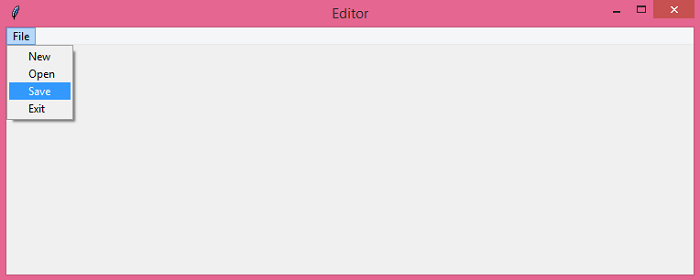
To remove the separator or the dashed line from the Menu, we can use the tearoff property. Setting tearoff=0 or tearoff="off" removes this dashed line and creates a cleaner menu appearance.
Syntax
menu_object = Menu(parent, tearoff=0)
Example Without Tearoff (Clean Menu)
Here's how to create a menu without the dashed line separator ?
# Import the required Libraries
from tkinter import *

# Create an instance of Tkinter frame
win = Tk()

# Set the geometry of Tkinter frame
win.geometry("750x250")
win.title("Editor")

# Adding Menubar
menu_bar = Menu(win)

# Create a New Menu in the MenuBar with tearoff disabled
file_menu = Menu(menu_bar, tearoff=0)

# All file menu-items will be added here next
menu_bar.add_cascade(label='File', menu=file_menu)

# Add Menu Items in the file Menu
file_menu.add_command(label="New", compound='left', underline=0)
file_menu.add_command(label="Open", compound='left', underline=0)
file_menu.add_command(label="Save", compound='left', underline=0)
file_menu.add_command(label="Exit", compound='left', underline=0)

win.config(menu=menu_bar)

win.mainloop()
Example With Tearoff (Default Behavior)
For comparison, here's the same menu with the dashed line enabled ?
# Import the required Libraries
from tkinter import *

# Create an instance of Tkinter frame
win = Tk()

# Set the geometry of Tkinter frame
win.geometry("750x250")
win.title("Editor")

# Adding Menubar
menu_bar = Menu(win)

# Create a New Menu in the MenuBar with tearoff enabled
file_menu = Menu(menu_bar, tearoff=1)

# All file menu-items will be added here next
menu_bar.add_cascade(label='File', menu=file_menu)

# Add Menu Items in the file Menu
file_menu.add_command(label="New", compound='left', underline=0)
file_menu.add_command(label="Open", compound='left', underline=0)
file_menu.add_command(label="Save", compound='left', underline=0)
file_menu.add_command(label="Exit", compound='left', underline=0)

win.config(menu=menu_bar)

win.mainloop()
Visual Comparison
Here's the difference between the two approaches:
| tearoff=0 | tearoff=1 |
|---|---|
 |
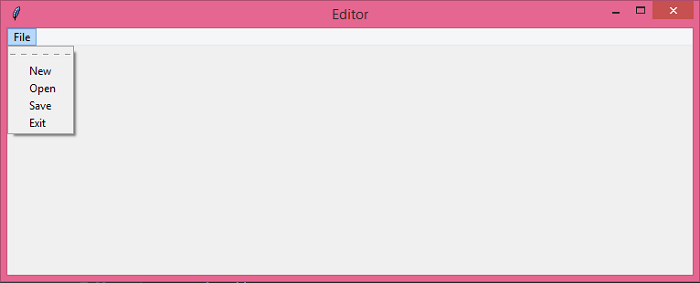 |
| Clean menu without dashed line | Menu with dashed line at top |
Key Points
- Use
tearoff=0to remove the dashed line separator - Use
tearoff=1to show the dashed line (default behavior) - The tearoff feature allows users to detach menus as separate windows
- Most modern applications disable tearoff for cleaner appearance
Conclusion
Setting tearoff=0 when creating Menu objects removes the dashed line separator, resulting in a cleaner, more modern menu appearance. This is the recommended approach for most Tkinter applications.

1K+ Views
