
- GCA - Home
- GCA - Introduction
- GCA - Features
- GCA - How It Works?
- GCA - Getting Started
- GCA - Supported Languages
- GCA - Integration IDEs
- GCA - Best Prompts
- GCA - Code Customization
- GCA - Code Refactoring
- GCA - Collaborative Coding
- GCA for API Development
- GCA with Big Query
- GCA with Database
- GCA for Google Cloud
- GCA for Google Workspace
Gemini with Big Query
Integrating Gemini Code Assist with BigQuery can significantly streamline your data operations, making it easier to write queries, optimise performance, and generate insights. You just have to start using Gemini and you will be automatically familiarised with its use.
Imagine integrating a powerful tool like Gemini with BigQuery, which is a fully managed data warehouse. This will boost the development of BigQuery and make managing queries and databases easier than ever. It can be a real game changer for data analysts and data scientists.
In this tutorial, we will see its step-by-step setup, use cases and tips to unleash Gemini's full potential for BigQuery.
What Does Gemini Suggest in BigQuery?
Gemini Code Assist is an AI-based code generation assistant available within Google Cloud. On the other hand, BigQuery is Google's enterprise-grade, serverless data warehouse designed to handle petabyte-scale datasets with blazing speed. Integrating Gemini within BigQuery brings the power of machine learning-based assistance to query creation and optimization. Some of the key features are −
- Auto-completion and query suggestions in real-time.
- Query optimization insights like partitioning or materialised views.
- Natural language input conversion (translating human questions into SQL).
- Boosting query efficiency with performance recommendations.
- Code explanations to simplify complex queries.
- Natural language querying to reduce dependency on SQL knowledge.
- Query refactorisation to get the most optimised query logic.
- Suggestion for changes in query if the database is changed.
- Generating real-time visualisations for dashboards without coding expertise.
Whether you're working with SQL or Python within BigQuery, Gemini ensures faster results and smarter query generation because it is constantly trained on a highly scalable and large dataset.
Setting Up Gemini Code Assist in BigQuery
Let's understand how to setup Gemini Code assist in BigQuery −
Prerequisites
Following are prerequisites −
- Google Cloud account with an active subscription.
- BigQuery API enabled in your project.
- IAM permissions (BigQuery Admin or BigQuery Data Editor).
- Access to the Gemini API via Google Cloud Console.
Steps to Setup Gemini Code Assist for BigQuery
Follow the below given steps to setup Gemini Code assist in BigQuery −
1. Enable BigQuery API −
- Go to Google Cloud Console.
- Then, select your project and navigate to APIs & Services.
- Enable BigQuery API.
2. Activate Gemini Code Assist −
- Open the Google Cloud Marketplace.
- Search for Gemini Code Assist and click Enable.
3. Assign IAM Roles −
- Here, go to IAM & Admin, and then assign the required roles (e.g., BigQuery Admin) to your user account.
4. Testing the Integration −
- Open the BigQuery Console and start a new query.
- Gemini will appear in the query editor, offering suggestions as you type.
Key Features of Gemini in BigQuery
Auto-completion for SQL and Python
Gemini analyses your query context and offers syntax predictions.
Example
Typing SELECT immediately suggests the columns available in the chosen table.

Query Optimization Suggestions
Gemini mechanically recommends best suggestions, like using partitioned tables for better overall performance.
Example
If you query a huge dataset without filters −

Natural Language Querying
With this, you may make kind queries in simple English, and the assistant will translate them into SQL.
Example Prompt
"Get me the whole sales for October grouped by category of the product."
Gemini Output −

AI-Generated Visualisations
It doesn't stop at queries - it additionally suggests visible dashboards. When running a query, Gemini can advise developing bar charts, pie charts, or time-series graphs based on your data.
Error Detection and Correction
Gemini assists users through identifying mistakes in SQL syntax.
Example
If you mistakenly write SELECT * FROM order, and there may be no desk with the name "order", then Gemini will highlight the mistake and propose with the correct naming.
Contextual Code Explanations
Gemini can provide factors for complex SQL queries, enhancing user information.
Example
After writing a nested query, you can ask for clarification: "Explain this query."
Gemini Output − "This question selects the average order value by means of a consumer from the orders desk, filtered by the final month."
Version Control for Queries
Gemini can use exceptional variations of queries, permitting users to revert again to previous versions or see how a query has evolved over time.
Using Python with Gemini
If you are using Python to carry out statistics alterations, use the subsequent library.

Real-Life Scenario: Building a Sales Dashboard Using Gemini
Project Context
Suppose you're a data analyst at an e-commerce company. You have a task to build a sales dashboard according to your environment and your database type, which will be primarily used for reviewing queries. Further, you need to highlight total sales, top products and sales trends over time in your organisation. Hence, in the end, you must provide actionable insights for decision-making and inventory management.
Let's see how you can handle this problem and follow the steps below.
Step-by-Step Process
1. Load the Dataset
First, you have to import the necessary transactions dataset into BigQuery. These datasets can hold different fields like transaction_id, product_id, quantity, price, and transaction_date.
2. Writing Queries with Gemini
Here's how you can use Gemini for different queries −
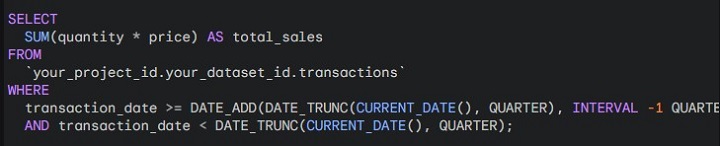
Query 1: Total Sales
Prompt − "What were the total sales for the last quarter?"
Gemini Output −
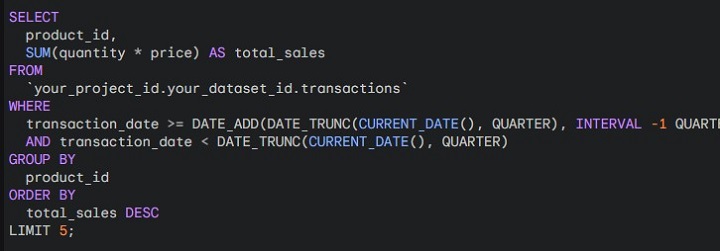
Query 2: Top Products
Prompt − "List the top 5 products by sales for the last quarter."
Gemini Output −
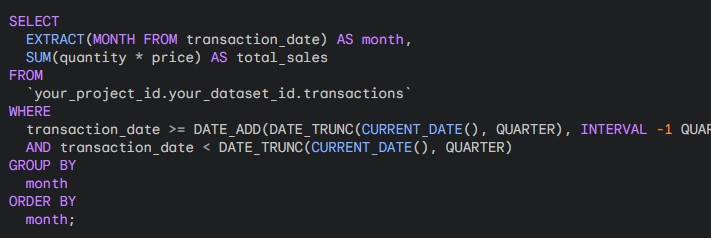
Query 3: Sales Trend Over Time
Prompt − "Show the sales trend for each month in the last quarter."
Gemini Output −

Query 4: Customer Segmentation
Prompt − "Segment customers based on their total spending."
Gemini Output −

Query 5: Monthly Sales Comparison
Prompt − "Compare monthly sales for the last two quarters."
Gemini Output −
3. Final Optimisation
If you are happy with the query results, you are ready to go. Or else, you can further modify the given queries, to make them more scalable and user-friendly through optimisations.
4. Visualising the Results
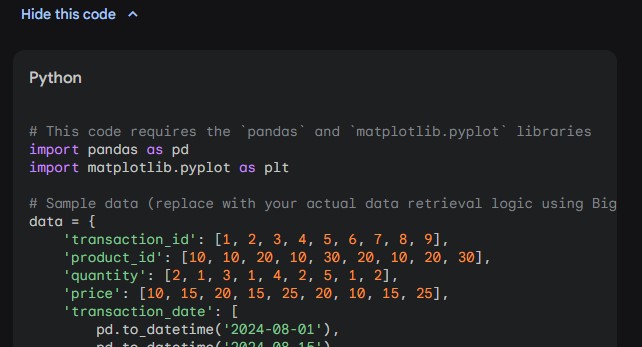
Once you have your queries, Gemini can help you create visualisations through Numpy, Pandas and Matplotlib.
Prompt − You can simply ask Gemini: "Provide me a bar chart and pie chart according to the data present in this table or database"
Gemini Output −
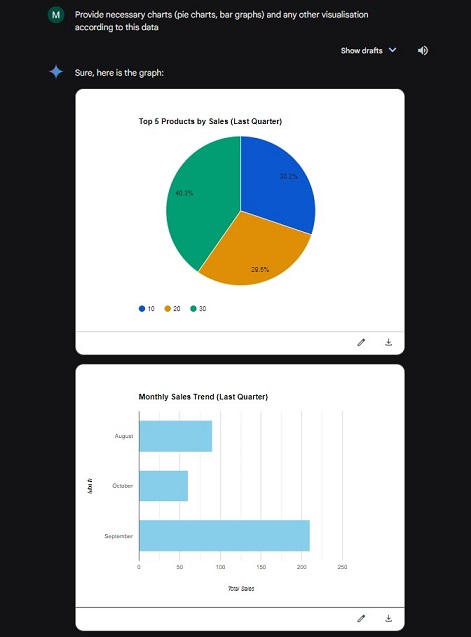
If You want to see the Python code behind all the graphs generated by Gemini, then click on show the code behind this result.
5. Dashboard Creation
Combining all the visualisations into a cohesive dashboard will present stakeholders with a clear view of sales performance, making it easier to strategize for future quarters.
