
Article Categories
- All Categories
-
 Data Structure
-
 Networking
-
 RDBMS
RDBMS
-
 Operating System
-
 Java
Java
-
 MS Excel
-
 iOS
iOS
-
 HTML
HTML
-
 CSS
CSS
-
 Android
-
 Python
-
 C Programming
-
 C++
C++
-
 C#
C#
-
 MongoDB
-
 MySQL
MySQL
-
 Javascript
-
 PHP
PHP
-
 Economics & Finance
Reset Kali Linux Password
Kali Linux is a Debian-derived Linux distribution designed for penetration testing and digital forensics, adopted by both hackers and security professionals. Users may find themselves unable to login due to a forgotten password or after installing Kali in a virtual environment or dual boot configuration. This article explains how to reset the Kali Linux password using the built-in recovery options.
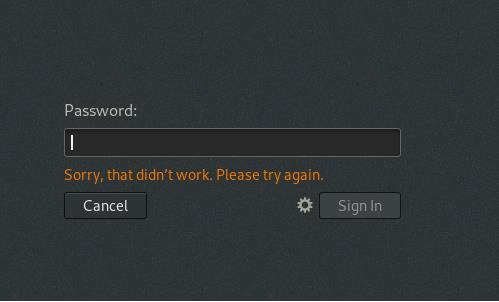
When locked out of the system, users typically encounter a login prompt where entering incorrect credentials results in access denial.
Step-by-Step Password Reset Process
Step 1: Access GRUB Boot Menu
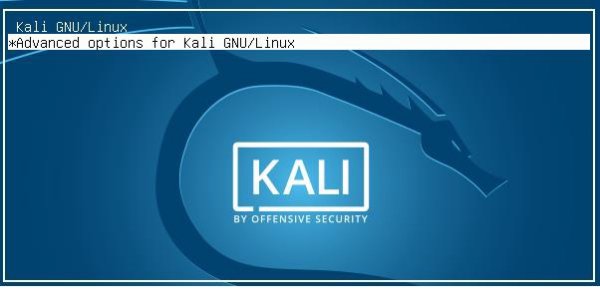
Reboot your Kali Linux system and select Advanced options for Kali GNU/Linux instead of the default boot option. This provides access to recovery and troubleshooting tools.
Step 2: Enter Recovery Mode
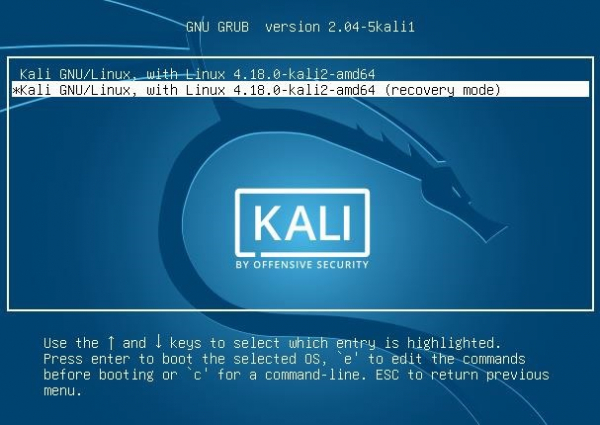
Select the recovery mode option (usually the second entry) and press the e key to edit the boot parameters. Do not press Enter at this stage, as we need to modify the kernel parameters first.
Step 3: Modify Kernel Parameters
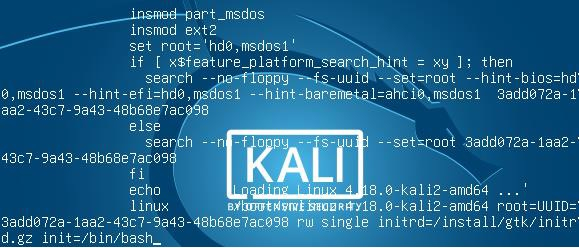
In the boot parameter editor, locate the line containing ro (read-only). You need to make two critical changes:
Replace
rowithrw(read-write) to enable filesystem modificationsAdd
init=/bin/bashat the end of the line to boot directly into a bash shell
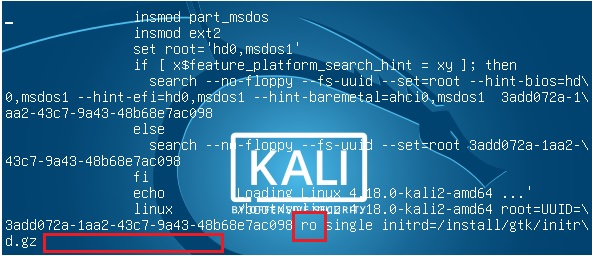
After making these modifications, the line should appear as shown below. Press F10 to save the changes and boot with the modified parameters.
Step 4: Reset the Password
The system will boot into a root shell environment. Execute the following commands to reset the password:
mount -o remount,rw /
passwd root
The first command ensures the filesystem is mounted in read-write mode. The second command prompts you to enter a new password for the root account. You will need to type the new password twice for confirmation.

Step 5: Reboot the System
Once the password has been successfully updated, reboot the system using:
reboot -f
The system will restart normally, and you can now login using the newly set password.
Key Points
This method works because it bypasses the normal init process and provides direct root access
The
rwparameter is essential for making filesystem changesAlways use
reboot -fto force a clean restart after password changesThis technique requires physical access to the machine or console access in virtual environments
Conclusion
Resetting a forgotten Kali Linux password is straightforward using the GRUB recovery mode and kernel parameter modification. This method provides direct root shell access, allowing you to change passwords without needing the original credentials. The process is particularly useful for penetration testers and security professionals who frequently work with multiple Kali installations.

3K+ Views
