
Article Categories
- All Categories
-
 Data Structure
-
 Networking
-
 RDBMS
RDBMS
-
 Operating System
-
 Java
Java
-
 MS Excel
-
 iOS
iOS
-
 HTML
HTML
-
 CSS
CSS
-
 Android
-
 Python
-
 C Programming
-
 C++
C++
-
 C#
C#
-
 MongoDB
-
 MySQL
MySQL
-
 Javascript
-
 PHP
PHP
-
 Economics & Finance
Windows UAC protection Bypass
User Account Control (UAC) is a Windows security feature that prevents unauthorized changes to the system by requiring administrator-level permissions for certain operations. It acts as a barrier between standard user accounts and administrative functions, prompting users to confirm or provide credentials when attempting to perform tasks that could affect system security or stability.
UAC is designed to reduce the attack surface by ensuring that even users with administrator accounts run most applications with standard user privileges. When administrative access is needed, UAC displays a prompt requiring explicit consent or credentials.
Understanding UAC Bypass Techniques
This tutorial demonstrates a legacy UAC bypass method that exploits trusted Windows applications to gain elevated privileges. This technique works by leveraging applications that are whitelisted to run with elevated privileges without triggering a UAC prompt.
Important: This information is provided for educational purposes to understand security vulnerabilities. Unauthorized access to systems is illegal and unethical.
Step-by-Step UAC Bypass Process
Step 1: Access Advanced User Management
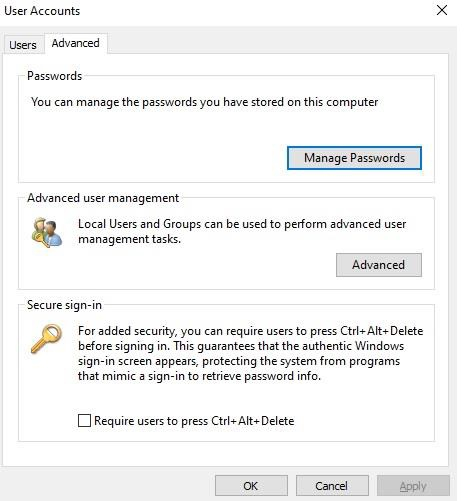
Open the Windows Run dialog (Windows + R) and type netplwiz.exe. In the User Accounts dialog, click on the Advanced tab to access additional user management options.
Step 2: Open Local Users and Groups
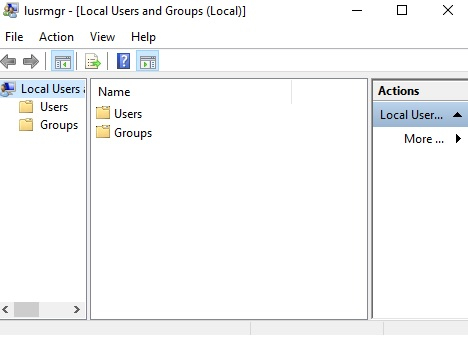
From the Advanced tab, click on Advanced button in the Advanced user management section. This opens the Local Users and Groups management console.
Step 3: Access Help System
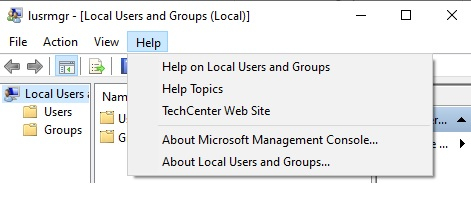
In the Local Users and Groups window, navigate to the Help menu and select Help Topics. This opens the Windows Help system, which runs with elevated privileges.
Step 4: Exploit Help System File Access
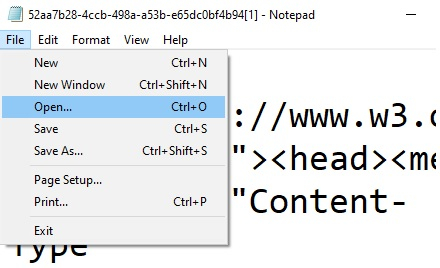
Right-click anywhere in the help dialog box and select View Source. This opens Notepad with system-level privileges. From Notepad, use File > Open to navigate to C:\Windows\System32.
Step 5: Launch Elevated Command Prompt
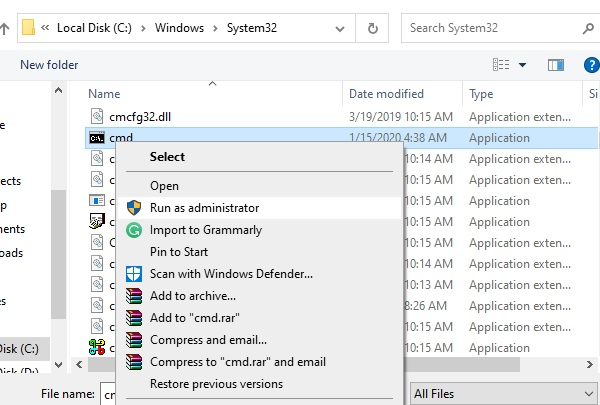
In the file browser, change the file type selection to All Files. Locate cmd.exe, right-click on it, and select Open or double-click to execute it with elevated privileges.
Verification and Administrative Access
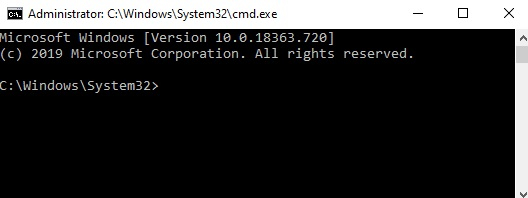
Once the command prompt opens with administrative privileges, you can verify the elevated access and perform administrative tasks. The command prompt title should indicate Administrator status.
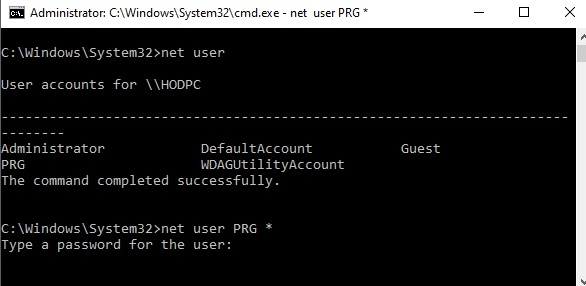
Use commands like net user to view user accounts and perform administrative operations such as password resets:
net user
net user Administrator newpassword
Security Implications
This bypass technique exploits the trust relationship Windows has with certain system applications. The Help system and associated applications run with elevated privileges to access system documentation, creating an attack vector for privilege escalation.
Mitigation Strategies
Keep Windows Updated − Microsoft regularly patches UAC bypass vulnerabilities through Windows updates.
Use Standard User Accounts − Avoid using administrator accounts for daily activities.
Enable Advanced UAC Settings − Configure UAC to always prompt for credentials rather than just consent.
Application Whitelisting − Implement additional security controls to restrict unauthorized application execution.
Conclusion
This UAC bypass demonstrates how trusted Windows applications can be exploited to gain elevated privileges without triggering security prompts. Understanding these techniques helps security professionals better defend systems and highlights the importance of keeping operating systems updated with the latest security patches.

690 Views
