
Article Categories
- All Categories
-
 Data Structure
-
 Networking
-
 RDBMS
RDBMS
-
 Operating System
-
 Java
Java
-
 MS Excel
-
 iOS
iOS
-
 HTML
HTML
-
 CSS
CSS
-
 Android
-
 Python
-
 C Programming
-
 C++
C++
-
 C#
C#
-
 MongoDB
-
 MySQL
MySQL
-
 Javascript
-
 PHP
PHP
-
 Economics & Finance
How To Create A Dynamic Chart Title In Excel?
Excel is a powerful tool that allows users to create visually appealing charts to represent data. However, the title of the chart is just as important as the data itself. A dynamic chart title in Excel can make a huge difference in the way your chart is perceived and can convey more information than a static title. In this tutorial, we will guide you step-by-step on how to create a dynamic chart title in Excel. Here, we can use the Name box to complete the task. So let us see a simple process to know how you can create a dynamic chart title in Excel. With a dynamic chart title, you can easily customize the title to reflect changes in your data, which makes your chart more informative and professional-looking. Whether you're a beginner or an experienced user, this tutorial will help you create dynamic chart titles quickly and easily.
Create A Dynamic Chart Title
In this tutorial, we will see a simple method for knowing how you can create a dynamic chart title in Excel. We can simply complete the task using the name box.
Step 1
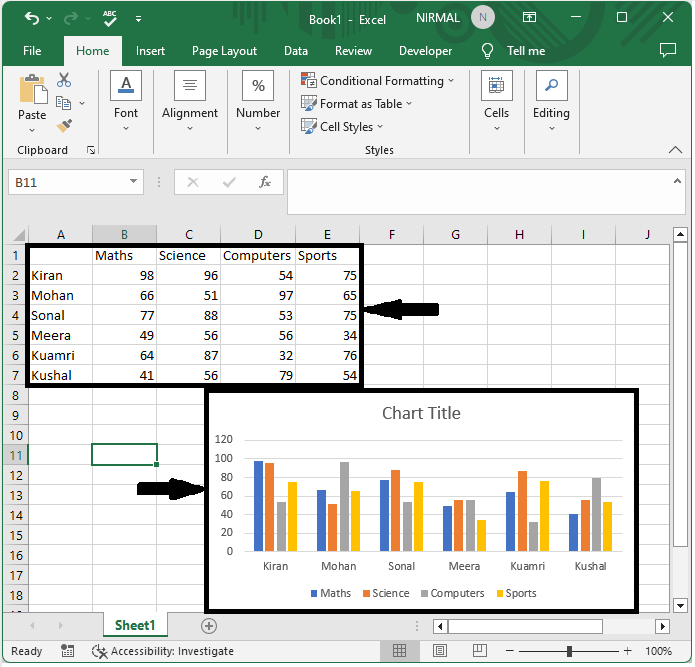
Consider an Excel sheet where you have a chart similar to the below image.
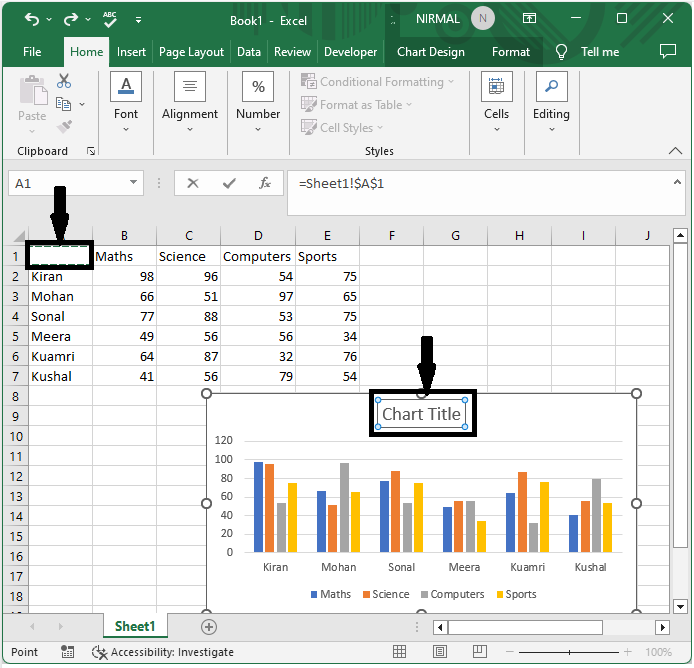
First, double-click on the chart title, click on an empty cell (in our case, cell A1), and click enter.
Chart tittle > Empty cell > Enter.
Step 2
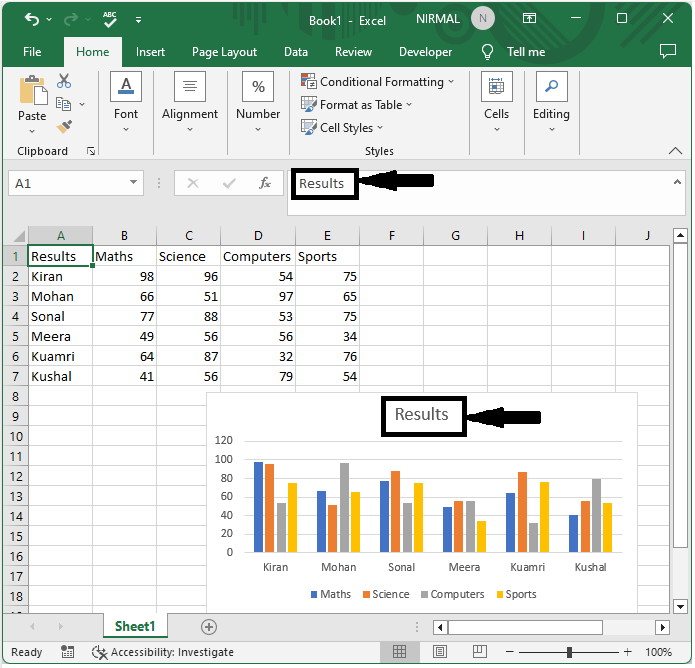
From now on, we can see that the data entered in cell A1 will be displayed as a chart title.
Conclusion
In this tutorial, we have used a simple example to demonstrate how you can create a dynamic chart title in Excel to highlight a particular set of data. Finally, we can conclude that we can complete our task just by using the name box.

572 Views
