
Article Categories
- All Categories
-
 Data Structure
-
 Networking
-
 RDBMS
RDBMS
-
 Operating System
-
 Java
Java
-
 MS Excel
-
 iOS
iOS
-
 HTML
HTML
-
 CSS
CSS
-
 Android
-
 Python
-
 C Programming
-
 C++
C++
-
 C#
C#
-
 MongoDB
-
 MySQL
MySQL
-
 Javascript
-
 PHP
PHP
-
 Economics & Finance
Selected Reading
Adding an image to SAP Adobe form from MIME repository
Note that the image must be uploaded from the system to MIME repository beforehand.
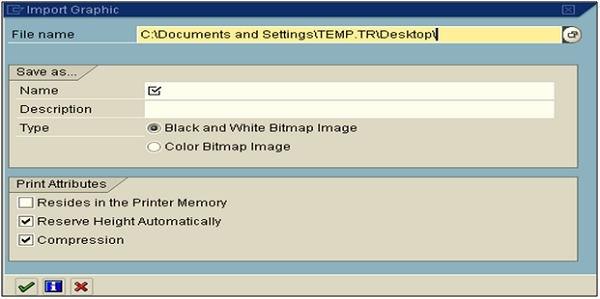
Step 1: Upload Image to MIME Repository
Run Transaction SE78 and press F5 to upload your image to the MIME repository.
Step 2: Declare Variables in Interface
You have to declare 2 variables in the interface - global data with types string and xstring. You need to change the data declaration as below −
data: gv_bmp_watermark type xstring.
constants: gc_url_watermark type string
value '/BC/PUBLIC/MyImages/watermark100.bmp'.
Step 3: Add Code Initialization
You need to add the following code under initialization to read the image from MIME repository −
//* Read Images
data: lr_api type ref to if_mr_api.
lr_api = cl_mime_repository_api=>get_api( ).
lr_api->get( exporting i_url = gc_url_watermark
             importing e_content = gv_bmp_watermark).
Step 4: Configure Context Node
You also need to change the context node settings as mentioned below −
Name: WATERMARK
Graphic Type: GRAPHIC CONTENT
Field: GV_BMP_WATERMARK
MIME Type: 'image/bmp'
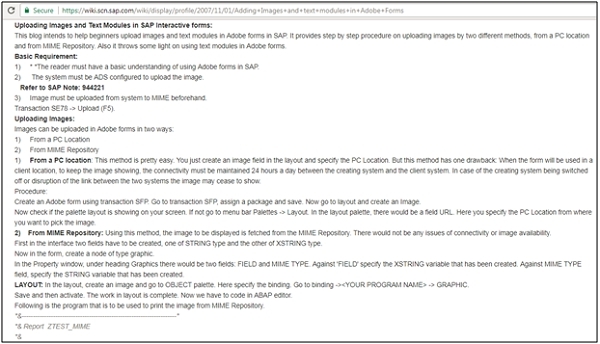
For more details, you can refer to the following links −
<a href="https://archive.sap.com/discussions/thread/3519383" rel="nofollow" target="_blank">https://archive.sap.com/discussions/thread/3519383</a>
<a href="https://wiki.scn.sap.com/wiki/display/profile/2007/11/01/Adding+Images+and+text+modules+in+Adobe+Forms" rel="nofollow" target="_blank">https://wiki.scn.sap.com/wiki/display/profile/2007/11/01/Adding+Images+and+text+modules+in+Adobe+Forms</a>
Following these steps will successfully add an image from the MIME repository to your SAP Adobe form. The image will be dynamically loaded and displayed in the form during runtime.

Updated on: 2026-03-13T20:43:34+05:30
3K+ Views

Advertisements