
Article Categories
- All Categories
-
 Data Structure
-
 Networking
-
 RDBMS
RDBMS
-
 Operating System
-
 Java
Java
-
 MS Excel
-
 iOS
iOS
-
 HTML
HTML
-
 CSS
CSS
-
 Android
-
 Python
-
 C Programming
-
 C++
C++
-
 C#
C#
-
 MongoDB
-
 MySQL
MySQL
-
 Javascript
-
 PHP
PHP
-
 Economics & Finance
How to split SAP Smartform templates
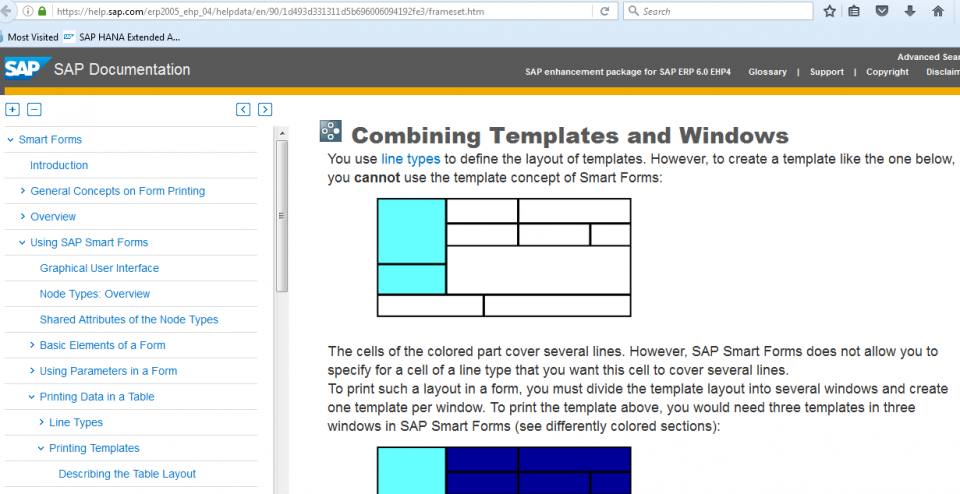
Splitting SAP Smartform templates is not directly achievable using the standard template concept of Smart Forms. The template functionality in Smart Forms has limitations when it comes to creating complex split layouts.
Alternative Approach for Content Splitting
To overcome this limitation, you need to use separate windows instead of relying on templates. This approach allows you to distribute content across different sections of your form effectively.
Implementation Strategy
The recommended approach involves ?
- Creating multiple windows in your Smart Form
- Defining specific content areas for each section
- Using window positioning to control layout
- Implementing conditional logic for content distribution
Window Configuration
When setting up separate windows, you can control the positioning and content flow by defining ?
* Define window properties
WINDOW_NAME: 'HEADER_WINDOW'
POSITION: X = 10, Y = 10
SIZE: WIDTH = 200, HEIGHT = 50

WINDOW_NAME: 'CONTENT_WINDOW'
POSITION: X = 10, Y = 70
SIZE: WIDTH = 200, HEIGHT = 150
Reference Documentation
For detailed implementation guidelines and additional examples on how to split contents into separate windows, refer to the official SAP Documentation.
Conclusion
While Smart Forms templates cannot be directly split, using separate windows with proper positioning and conditional logic provides an effective solution for creating complex, split-content layouts in SAP Smart Forms.

722 Views
