
- PowerMock - Home
- PowerMock - Overview
- PowerMock - Environment Setup
- PowerMock - First Application
- PowerMock - Mock Static
- PowerMock - Mock Private
- PowerMock - Mock Final
- PowerMock - Mock New
- PowerMock - Bypass Encapsulation
- PowerMock - Supress Behavior
- PowerMock Useful Resources
- PowerMock - Quick Guide
- PowerMock - Useful Resources
- PowerMock - Discussion
PowerMock - Quick Guide
PowerMock - Overview
PowerMock is an extension to Mockito/EasyMock mocking frameworks. It is a JAVA-based library that is used for effective unit testing of JAVA applications. PowerMock is used to mock untestable code such as private/final methods so that complete code can be used in unit testing.
Sometime the programs are not testable or are difficult to test due to multiple problems. Following are the examples where PowerMock comes to rescue.
3rd Party Program/Framework − Some of the framework requires communication via static methods.PowerMock methods allows to setup expectations for these static methods and simulate the behavior which can test. Without PowerMock, we've to create a wrapper across the framework classes and then mock the behavior which could be a tedious exercise.
Private Methods − Private methods cannot be tested directly. PowerMock allows mocking of private and final methods.
Constructors − Some framework requires to subclass their classes containing static initializers (e.g. Eclipse) or constructors (e.g. Wicket). PowerMock allows to remove static initializers and suppress constructors.
Features
Using PowerMock, we can achieve the following −
Mock static methods
Remove static initializers
Allow mocking without dependency injection
Suppress Constructors
PowerMock modifies the byte-code at run-time during the execution cycle of the tests using the reflection API. PowerMock also provides utilities to access the internal state of an object.
PowerMock - Environment Setup
PowerMock is a framework for Java, so the very first requirement is to have JDK installed in your machine.
System Requirement
| JDK | 1.5 or above. |
|---|---|
| Memory | no minimum requirement. |
| Disk Space | no minimum requirement. |
| Operating System | no minimum requirement. |
Step 1 − Verify Java Installation on Your Machine
Open the console and execute the following java command.
| OS | Task | Command |
|---|---|---|
| Windows | Open Command Console | c:\> java -version |
| Linux | Open Command Terminal | $ java -version |
| Mac | Open Terminal | machine:> joseph$ java -version |
Let's verify the output for all the operating systems −
| OS | Output |
|---|---|
| Windows | java version "1.6.0_21" Java(TM) SE Runtime Environment (build 1.6.0_21-b07) Java HotSpot(TM) Client VM (build 17.0-b17, mixed mode, sharing) |
| Linux | java version "1.6.0_21" Java(TM) SE Runtime Environment (build 1.6.0_21-b07) Java HotSpot(TM) Client VM (build 17.0-b17, mixed mode, sharing) |
| Mac | java version "1.6.0_21" Java(TM) SE Runtime Environment (build 1.6.0_21-b07) Java HotSpot(TM)64-Bit Server VM (build 17.0-b17, mixed mode, sharing) |
If you do not have Java installed, To install the Java Software Development Kit (SDK) click here.
We assume you have Java 1.6.0_21 installed on your system for this tutorial.
Step 2 − Set JAVA Environment
Set the JAVA_HOME environment variable to point to the base directory location where Java is installed on your machine. For example,
| OS | Output |
|---|---|
| Windows | Set the environment variable JAVA_HOME to C:\Program Files\Java\jdk1.6.0_21 |
| Linux | export JAVA_HOME = /usr/local/java-current |
| Mac | export JAVA_HOME = /Library/Java/Home |
Append the location of the Java compiler to your System Path.
| OS | Output |
|---|---|
| Windows | Append the string ;C:\Program Files\Java\jdk1.6.0_21\bin to the end of the system variable, Path. |
| Linux | export PATH = $PATH:$JAVA_HOME/bin/ |
| Mac | not required |
Verify Java Installation using the command java -version as explained above.
Step 3 − Download PowerMock 1.7.1 with Mockito2 and JUnit including dependencies
To download the latest version of PowerMock for Mockito from Its Home page click here.
Save the jar file on your C drive, let's say, C:\>PowerMock.
| OS | Archive name |
|---|---|
| Windows | powermock-mockito2-junit-1.7.1.zip |
| Linux | powermock-mockito2-junit-1.7.1.zip |
| Mac | powermock-mockito2-junit-1.7.1.zip |
Step 4 - Setup Eclipse IDE
All the examples in this tutorial have been written using Eclipse IDE. So we would suggest you should have the latest version of Eclipse installed on your machine.
To install Eclipse IDE, download the latest Eclipse binaries from https://www.eclipse.org/downloads/. Once you download the installation, unpack the binary distribution into a convenient location. For example, in C:\eclipse on Windows, or /usr/local/eclipse on Linux/Unix and finally set PATH variable appropriately.
Eclipse can be started by executing the following commands on Windows machine, or you can simply double-click on eclipse.exe
%C:\eclipse\eclipse.exe
Eclipse can be started by executing the following commands on Unix (Solaris, Linux, etc.) machine −
$/usr/local/eclipse/eclipse
After a successful startup, if everything is fine then it should display the following result −
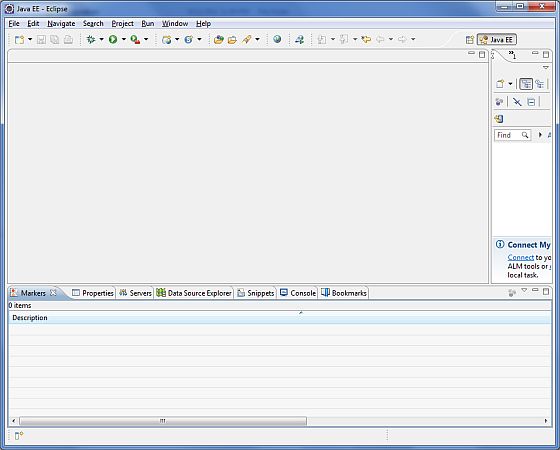
PowerMock - First Application
Let us start actual programming with PowerMock Framework. Before you start writing your first example using PowerMock framework, you have to make sure that you have set up your PowerMock environment properly as explained in PowerMock - Environment Setup Chapter. We also assume that you have a bit of working knowledge on Eclipse IDE.
Now let us proceed to write a simple Test Application, which will run a simple JUnit test case.
Step 1 - Create Java Project
The first step is to create a simple Java Project using Eclipse IDE. Follow the option File → New → Project and finally select Java Project wizard from the wizard list. Now name your project as PowerMock using the wizard window.
Once your project is created successfully, you will have a project PowerMock created in your Project Explorer −
Step 2 - Add Required Libraries
As a second step let us add PowerMock Framework and other dependent libraries in our project. To do this, right-click on your project name PowerMock and then follow the following option available in the context menu − Build Path → Configure Build Path to display the Java Build Path window.
Now use Add External JARs button available under the Libraries tab to add the following core JARs from PowerMock Framework directory −
byte-buddy-1.6.14
byte-buddy-agent-1.6.14
cglib-nodep-2.2.2
hamcrest-core-1.3
javassist-3.21.0-GA
junit-4.12
mockito-core-2.8.9
objenesis-2.5
powermock-mockito2-1.7.1-full
Step 3 - Create Source Files
Now let us create actual source files under the PowerMock project. First we need to create a package called com.tutorialspoint. To do this, right click on src in package explorer section and follow the option − New → Package.
Next we will create required files under the com.tutorialspoint package. In this example, we've created a mock of Stock Util to get the dummy price of some stocks and unit tested a java class named Portfolio.
The process is discussed below in a step-by-step manner.
Step 1 − Create a JAVA class to represent the Stock
File: Stock.java
package com.tutorialspoint;

public class Stock {
   private String stockId;
   private String name;
   private int quantity;

   public Stock(String stockId, String name, int quantity){
      this.stockId = stockId;
      this.name = name;
      this.quantity = quantity;
   }

   public String getStockId() {
      return stockId;
   }

   public void setStockId(String stockId) {
      this.stockId = stockId;
   }

   public int getQuantity() {
      return quantity;
   }

   public String getTicker() {
      return name;
   }
}
Step 2 − Create an abstract class StockUtil to get the price of a stock.
File: StockService.java
package com.tutorialspoint;

public abstract class StockUtil {
   public static double getPrice(String stockId){
      //call stock service and return the price of the stock
      return 1;
   }
   private  StockUtil ()  {}
}
Step 3 − Create a class Portfolio to represent the portfolio of any client
File: Portfolio.java
package com.tutorialspoint;

import java.util.List;

public class Portfolio {
   private List<Stock> stocks;

   public List<Stock> getStocks() {
      return stocks;
   }

   public void setStocks(List<Stock> stocks) {
      this.stocks = stocks;
   }

   public double getMarketValue(){
      double marketValue = 0.0;

      for(Stock stock:stocks){
         marketValue += StockUtil.getPrice(stock.getStockId()) * stock.getQuantity();
      }
      return marketValue;
   }
}
Step 4 − Test the Portfolio class
Let's test the Portfolio class, by mocking StockUtil. Mock will be created by PowerMock.
File: PortfolioTester.java
package com.tutorialspoint;
import static org.junit.Assert.assertEquals;

import java.util.ArrayList;
import java.util.List;

import org.junit.Before;
import org.junit.Test;
import org.junit.runner.RunWith;
import org.powermock.api.mockito.PowerMockito;
import org.powermock.core.classloader.annotations.PrepareForTest;
import org.powermock.modules.junit4.PowerMockRunner;

@RunWith( PowerMockRunner.class )
@PrepareForTest(  StockUtil.class  )
public class PortfolioTester {
   Portfolio portfolio;

   @Before
   public void setUp(){
      //Create a portfolio object which is to be tested
      portfolio = new Portfolio();

      PowerMockito.mockStatic(StockUtil.class);
      PowerMockito.when(StockUtil.getPrice("1")).thenReturn(100.0);
      PowerMockito.when(StockUtil.getPrice("2")).thenReturn(300.0);
   }

   @Test
   public void testMarketValue(){
      //Creates a list of stocks to be added to the portfolio
      List<Stock> stocks = new ArrayList<Stock>();
      Stock googleStock = new Stock("1","Google", 10);
      Stock microsoftStock = new Stock("2","Microsoft",100);

      stocks.add(googleStock);
      stocks.add(microsoftStock);

      //add stocks to the portfolio
      portfolio.setStocks(stocks);
      assertEquals ( 31000.0 ,  portfolio.getMarketValue(), 0.0001);
   }
}
Step 5 - Running the Program
Once you are done with creating the source files, you are ready for this step, which is compiling and running your program. To do this, keep PortfolioTester.Java file tab active, right click within the content area of PortfolioTester.Java and click on Run As > Junit Test option. If everything is fine with your application, this will run the test case in Eclipse JUnit Window and you can see the test case result as green means it is passed otherwise red being failed.
Congratulations, you have successfully created your test case using PowerMock.
PowerMock - Mock Static
In order to mock a static class or a static method, we need to first mock the complete class using following syntax.
Prepare Class
@PrepareForTest(StockUtil.class)
Mock Class
PowerMockito.mockStatic(StockUtil.class);
Then we can mock the static methods.
PowerMockito.when(StockUtil.getPrice("1")).thenReturn(100.0);
Example
Below is the complete example of mocking static class.
File: Stock.java
package com.tutorialspoint;

public class Stock {
   private String stockId;
   private String name;
   private int quantity;

   public Stock(String stockId, String name, int quantity){
      this.stockId = stockId;
      this.name = name;
      this.quantity = quantity;
   }

   public String getStockId() {
      return stockId;
   }

   public void setStockId(String stockId) {
      this.stockId = stockId;
   }

   public int getQuantity() {
      return quantity;
   }

   public String getTicker() {
      return name;
   }
}
File: StockService.java
package com.tutorialspoint;

public abstract class StockUtil {
   public static double getPrice(String stockId){
      //call stock service and return the price of the stock
      return 1;
   }
   private  StockUtil ()  {}
}
File: Portfolio.java
package com.tutorialspoint;

import java.util.List;

public class Portfolio {
   private List<Stock> stocks;

   public List<Stock> getStocks() {
      return stocks;
   }

   public void setStocks(List<Stock> stocks) {
      this.stocks = stocks;
   }

   public double getMarketValue(){
      double marketValue = 0.0;

      for(Stock stock:stocks){
         marketValue += StockUtil.getPrice(stock.getStockId()) * stock.getQuantity();
      }
      return marketValue;
   }
}
Let's test the Portfolio class, by mocking StockUtil. Mock will be created by PowerMock.
File: PortfolioTester.java
package com.tutorialspoint;
import static org.junit.Assert.assertEquals;

import java.util.ArrayList;
import java.util.List;

import org.junit.Before;
import org.junit.Test;
import org.junit.runner.RunWith;
import org.powermock.api.mockito.PowerMockito;
import org.powermock.core.classloader.annotations.PrepareForTest;
import org.powermock.modules.junit4.PowerMockRunner;

@RunWith( PowerMockRunner.class )
@PrepareForTest(  StockUtil.class  )
public class PortfolioTester {
   Portfolio portfolio;

   @Before
   public void setUp(){
      //Create a portfolio object which is to be tested
      portfolio = new Portfolio();

      PowerMockito.mockStatic(StockUtil.class);
      PowerMockito.when(StockUtil.getPrice("1")).thenReturn(100.0);
      PowerMockito.when(StockUtil.getPrice("2")).thenReturn(300.0);
   }

   @Test
   public void testMarketValue(){
      //Creates a list of stocks to be added to the portfolio
      List<Stock> stocks = new ArrayList<Stock>();
      Stock googleStock = new Stock("1","Google", 10);
      Stock microsoftStock = new Stock("2","Microsoft",100);

      stocks.add(googleStock);
      stocks.add(microsoftStock);

      //add stocks to the portfolio
      portfolio.setStocks(stocks);
      assertEquals ( 31000.0 ,  portfolio.getMarketValue(), 0.0001);
   }
}
Output
Once you are done with creating the source files, you are ready for this step, which is compiling and running your program. To do this, keep PortfolioTester.Java file tab active, right click within the content area of PortfolioTester.Java and click on Run As > Junit Test option. If everything is fine with your application, this will run the test case in Eclipse JUnit Window and you can see the test case result as green means it is passed otherwise red being failed.
PowerMock - Mock Private Methods
In order to mock a private method, we need to first mock the complete class using following syntax.
Prepare Class
@PrepareForTest(Portfolio.class)
Create the spy object of the Class
portfolio = PowerMockito.spy(new Portfolio());
Then we can mock the private method(s). Here getPrice() is private method of Portfolio class.
PowerMockito.when ( portfolio, "getPrice", "1").thenReturn(100.0);
Example
Below is the complete example of mocking private method of class.
File: Stock.java
package com.tutorialspoint;

public class Stock {
   private String stockId;
   private String name;
   private int quantity;

   public Stock(String stockId, String name, int quantity){
      this.stockId = stockId;
      this.name = name;
      this.quantity = quantity;
   }

   public String getStockId() {
      return stockId;
   }

   public void setStockId(String stockId) {
      this.stockId = stockId;
   }

   public int getQuantity() {
      return quantity;
   }

   public String getTicker() {
      return name;
   }
}
File: Portfolio.java
package com.tutorialspoint;

import java.util.List;

public class Portfolio {
   private List<Stock> stocks;

   public List<Stock> getStocks() {
      return stocks;
   }

   public void setStocks(List<Stock> stocks) {
      this.stocks = stocks;
   }

   public double getMarketValue(){
      double marketValue = 0.0;

      for(Stock stock:stocks){
         marketValue += getPrice(stock.getStockId()) * stock.getQuantity();
      }
      return marketValue;
   }
   private double getPrice(String stockId){
      //call stock service and return the price of the stock
      return 1;
   }
}
Let's test the Portfolio class, by mocking Portfolio private method. Mock will be created by PowerMock.
File: PortfolioTester.java
package com.tutorialspoint;
import static org.junit.Assert.assertEquals;

import java.util.ArrayList;
import java.util.List;

import org.junit.Before;
import org.junit.Test;
import org.junit.runner.RunWith;
import org.powermock.api.mockito.PowerMockito;
import org.powermock.core.classloader.annotations.PrepareForTest;
import org.powermock.modules.junit4.PowerMockRunner;

@RunWith( PowerMockRunner.class )
@PrepareForTest(  Portfolio.class  )
public class PortfolioTester {
   Portfolio portfolio;

   @Before
   public void setUp(){
      //Create a portfolio object which is to be tested
      portfolio = PowerMockito.spy(new Portfolio());

      PowerMockito.when ( portfolio, "getPrice", "1").thenReturn(100.0);
      PowerMockito.when ( portfolio, "getPrice", "2").thenReturn(300.0);
   }

   @Test
   public void testMarketValue(){
      //Creates a list of stocks to be added to the portfolio
      List<Stock> stocks = new ArrayList<Stock>();
      Stock googleStock = new Stock("1","Google", 10);
      Stock microsoftStock = new Stock("2","Microsoft",100);

      stocks.add(googleStock);
      stocks.add(microsoftStock);

      //add stocks to the portfolio
      portfolio.setStocks(stocks);
      assertEquals ( 31000.0 ,  portfolio.getMarketValue(), 0.0001);
   }
}
Output
Once you are done with creating the source files, you are ready for this step, which is compiling and running your program. To do this, keep PortfolioTester.Java file tab active, right click within the content area of PortfolioTester.Java and click on Run As > Junit Test option. If everything is fine with your application, this will run the test case in Eclipse JUnit Window and you can see the test case result as green means it is passed otherwise red being failed.
PowerMock - Mock Final
In order to mock a final class or a final method, we need to first mock the complete class using following syntax.
Prepare Class
@PrepareForTest(StockUtil.class)
Mock Class
PowerMockito.mock(StockUtil.class);
Then we can mock the final methods.
PowerMockito.when(StockUtil.getPrice("1")).thenReturn(100.0);
Example
Below is the complete example of mocking static class.
File: Stock.java
package com.tutorialspoint;

public class Stock {
   private String stockId;
   private String name;
   private int quantity;

   public Stock(String stockId, String name, int quantity){
      this.stockId = stockId;
      this.name = name;
      this.quantity = quantity;
   }

   public String getStockId() {
      return stockId;
   }

   public void setStockId(String stockId) {
      this.stockId = stockId;
   }

   public int getQuantity() {
      return quantity;
   }

   public String getTicker() {
      return name;
   }
}
File: StockService.java
package com.tutorialspoint;

public final class StockUtil {
   public final double getPrice(String stockId){
      //call stock service and return the price of the stock
      return 1;
   }
   public  StockUtil ()  {}
}
File: Portfolio.java
package com.tutorialspoint;

import java.util.List;

public class Portfolio {
   private List<Stock> stocks;
   private StockUtil stockUtil;

   public List<Stock> getStocks() {
      return stocks;
   }

   public void setStocks(List<Stock> stocks) {
      this.stocks = stocks;
   }

   public double getMarketValue(){
      double marketValue = 0.0;

      for(Stock stock:stocks){
         marketValue += stockUtil.getPrice(stock.getStockId()) * stock.getQuantity();
      }
      return marketValue;
   }

   public StockUtil getStockUtil() {
      return stockUtil;
   }

   public void setStockUtil(StockUtil stockUtil) {
      this.stockUtil = stockUtil;
   }
}
Let's test the Portfolio class, by mocking StockUtil. Mock will be created by PowerMock.
File: PortfolioTester.java
package com.tutorialspoint;
import static org.junit.Assert.assertEquals;

import java.util.ArrayList;
import java.util.List;

import org.junit.Before;
import org.junit.Test;
import org.junit.runner.RunWith;
import org.powermock.api.mockito.PowerMockito;
import org.powermock.core.classloader.annotations.PrepareForTest;
import org.powermock.modules.junit4.PowerMockRunner;

@RunWith( PowerMockRunner.class )
@PrepareForTest(  StockUtil.class  )
public class PortfolioTester {
   Portfolio portfolio;

   @Before
   public void setUp(){
      //Create a portfolio object which is to be tested
      portfolio = new Portfolio();

      StockUtil stockUtil = PowerMockito.mock(StockUtil.class);
      portfolio.setStockUtil(stockUtil);
      PowerMockito.when(stockUtil.getPrice("1")).thenReturn(100.0);
      PowerMockito.when(stockUtil.getPrice("2")).thenReturn(300.0);
   }

   @Test
   public void testMarketValue(){
      //Creates a list of stocks to be added to the portfolio
      List<Stock> stocks = new ArrayList<Stock>();
      Stock googleStock = new Stock("1","Google", 10);
      Stock microsoftStock = new Stock("2","Microsoft",100);

      stocks.add(googleStock);
      stocks.add(microsoftStock);

      //add stocks to the portfolio
      portfolio.setStocks(stocks);
      assertEquals ( 31000.0 ,  portfolio.getMarketValue(), 0.0001);
   }
}
Output
Once you are done with creating the source files, you are ready for this step, which is compiling and running your program. To do this, keep PortfolioTester.Java file tab active, right click within the content area of PortfolioTester.Java and click on Run As > Junit Test option. If everything is fine with your application, this will run the test case in Eclipse JUnit Window and you can see the test case result as green means it is passed otherwise red being failed.
PowerMock - Mock New
In order to mock an object created using new method, we need to first mock the complete class using following syntax.
Create mock object of the Class
Commission commission = PowerMockito.mock(Commission.class);
PowerMockito.when ( commission.getValue()).thenReturn(20.0);
Then we can mock the constructor method(s). Here Commission() is mocked.
PowerMockito.whenNew(Commission.class).withAnyArguments().thenReturn(commission);
Example
Below is the complete example of mocking constructor method of class.
File: Commission.java
package com.tutorialspoint;

public class Commission {
   private double value;

   public Commission(Double value){
      this.value = value;
   }

   public double getValue(){
      return value;
   }

   public void setValue(double value){
      this.value = value;
   }
}
File: Stock.java
package com.tutorialspoint;

public class Stock {
   private String stockId;
   private String name;
   private int quantity;

   public Stock(String stockId, String name, int quantity){
      this.stockId = stockId;
      this.name = name;
      this.quantity = quantity;
   }

   public String getStockId() {
      return stockId;
   }

   public void setStockId(String stockId) {
      this.stockId = stockId;
   }

   public int getQuantity() {
      return quantity;
   }

   public String getTicker() {
      return name;
   }
}
File: Portfolio.java
package com.tutorialspoint;

import java.util.List;

public class Portfolio {
   private List<Stock> stocks;

   public List<Stock> getStocks() {
      return stocks;
   }

   public void setStocks(List<Stock> stocks) {
      this.stocks = stocks;
   }

   public double getMarketValue(){
      Commission commission = new Commission(10.0);
      double marketValue = 0.0;

      for(Stock stock:stocks){
         marketValue += getPrice(stock.getStockId()) * stock.getQuantity()
         + commission.getValue();
      }
      return marketValue;
   }
   private double getPrice(String stockId){
      //call stock service and return the price of the stock
      return 1;
   }
}
Let's test the Portfolio class, by mocking Commission object. Mock will be created by PowerMock.
File: PortfolioTester.java
package com.tutorialspoint;
import static org.junit.Assert.assertEquals;

import java.util.ArrayList;
import java.util.List;

import org.junit.Before;
import org.junit.Test;
import org.junit.runner.RunWith;
import org.powermock.api.mockito.PowerMockito;
import org.powermock.core.classloader.annotations.PrepareForTest;
import org.powermock.modules.junit4.PowerMockRunner;

@RunWith( PowerMockRunner.class )
@PrepareForTest(  Portfolio.class  )
public class PortfolioTester {
   Portfolio portfolio;

   @Before
   public void setUp(){
      //Create a portfolio object which is to be tested
      portfolio = PowerMockito.spy(new Portfolio());
      Commission commission = PowerMockito.mock(Commission.class);
      PowerMockito.when ( commission.getValue()).thenReturn(20.0);
      PowerMockito.whenNew(Commission.class).withAnyArguments().thenReturn(commission);
      PowerMockito.when ( portfolio, "getPrice", "1").thenReturn(100.0);
      PowerMockito.when ( portfolio, "getPrice", "2").thenReturn(300.0);
   }

   @Test
   public void testMarketValue(){
      //Creates a list of stocks to be added to the portfolio
      List<Stock> stocks = new ArrayList<Stock>();
      Stock googleStock = new Stock("1","Google", 10);
      Stock microsoftStock = new Stock("2","Microsoft",100);

      stocks.add(googleStock);
      stocks.add(microsoftStock);

      //add stocks to the portfolio
      portfolio.setStocks(stocks);
      assertEquals ( 31040.0 ,  portfolio.getMarketValue(), 0.0001);
   }
}
Output
Once you are done with creating the source files, you are ready for this step, which is compiling and running your program. To do this, keep PortfolioTester.Java file tab active, right click within the content area of PortfolioTester.Java and click on Run As > Junit Test option. If everything is fine with your application, this will run the test case in Eclipse JUnit Window and you can see the test case result as green means it is passed otherwise red being failed.
PowerMock - Bypass Encapsulation
PowerMock provides WhiteBox class which can be used to access and set the private variables of a class. We can use the following syntax to get the private instance of an class using its name.
List<Stock> stocks = Whitebox.getInternalState(portfolio, "stocks");
Example
Below is the complete example of bypassing encapsulation.
File: Stock.java
package com.tutorialspoint;

public class Stock {
   private String stockId;
   private String name;
   private int quantity;

   public Stock(String stockId, String name, int quantity){
      this.stockId = stockId;
      this.name = name;
      this.quantity = quantity;
   }

   public String getStockId() {
      return stockId;
   }

   public void setStockId(String stockId) {
      this.stockId = stockId;
   }

   public int getQuantity() {
      return quantity;
   }

   public String getTicker() {
      return name;
   }
}
File: Portfolio.java
package com.tutorialspoint;

import java.util.ArrayList;
import java.util.List;

public class Portfolio {
   private List<Stock> stocks = new ArrayList<Stock>();

   public List<Stock> getStocks() {
      return stocks;
   }

   public void addStock(Stock stock) {
      stocks.add(stock);
   }
}
Let's test the Portfolio class.
File: PortfolioTester.java
package com.tutorialspoint;
import static org.junit.Assert.assertEquals;

import java.util.List;

import org.junit.Before;
import org.junit.Test;
import org.junit.runner.RunWith;
import org.powermock.api.mockito.PowerMockito;
import org.powermock.core.classloader.annotations.PrepareForTest;
import org.powermock.modules.junit4.PowerMockRunner;
import org.powermock.reflect.Whitebox;

@RunWith( PowerMockRunner.class )
@PrepareForTest(  Portfolio.class  )
public class PortfolioTester {
   Portfolio portfolio;

   @Before
   public void setUp() throws Exception{
      //Create a portfolio object which is to be tested
      portfolio = new Portfolio();
   }

   @Test
   public void testStockCount(){
      Stock googleStock = new Stock("1","Google", 10);
      Stock microsoftStock = new Stock("2","Microsoft",100);

      //add stocks to the portfolio
      portfolio.addStock(googleStock);
      portfolio.addStock(microsoftStock);

      List<Stock> stocks = Whitebox.getInternalState(portfolio, "stocks");
      assertEquals ( "Size of Stocks should be 2", 2, stocks.size());
   }
}
Output
Once you are done with creating the source files, you are ready for this step, which is compiling and running your program. To do this, keep PortfolioTester.Java file tab active, right click within the content area of PortfolioTester.Java and click on Run As > Junit Test option. If everything is fine with your application, this will run the test case in Eclipse JUnit Window and you can see the test case result as green means it is passed otherwise red being failed.
PowerMock - Supress Behavior
PowerMock allows to suppress unwanted behavior like call to unwanted constructor, static method, static block or even fields. For example, suppress method of PowerMockito can be used to suppress call to a constructor using following syntax.
PowerMockito.suppress(PowerMockito.constructor(BasePortfolio.class));
Example
Below is the complete example of supressing behavior.
File: BasePortfolio.java
package com.tutorialspoint;

public class BasePortfolio {
   private boolean servicesConfigured = false;
   public BasePortfolio(){
      //configure services
      servicesConfigured = true;
   }

   public boolean isServicesConfigured(){
      return servicesConfigured;
   }
}
File: Portfolio.java
package com.tutorialspoint;

public class Portfolio extends BasePortfolio {
   public Portfolio(){
      super();
   }
}
Let's test the Portfolio class.
File: PortfolioTester.java
package com.tutorialspoint;
import static org.junit.Assert.assertEquals;

import org.junit.Test;
import org.junit.runner.RunWith;
import org.powermock.api.mockito.PowerMockito;
import org.powermock.core.classloader.annotations.PrepareForTest;
import org.powermock.modules.junit4.PowerMockRunner;

@RunWith( PowerMockRunner.class )
@PrepareForTest(  Portfolio.class  )
public class PortfolioTester {
   Portfolio portfolio;

   @Test
   public void testServicesNotConfigured(){
      PowerMockito.suppress(PowerMockito.constructor(BasePortfolio.class));
      portfolio = new Portfolio();
      assertEquals ( "Base constructor not called, services not configured",
         false,  portfolio.isServicesConfigured());
   }

   @Test
   public void testServicesConfigured(){
      portfolio = new Portfolio();
      assertEquals ( "Base constructor called, services configured",
         true,  portfolio.isServicesConfigured());
   }
}
Output
Once you are done with creating the source files, you are ready for this step, which is compiling and running your program. To do this, keep PortfolioTester.Java file tab active, right click within the content area of PortfolioTester.Java and click on Run As > Junit Test option. If everything is fine with your application, this will run the test case in Eclipse JUnit Window and you can see the test case result as green means it is passed otherwise red being failed.
