- PowerMock - Home
- PowerMock - Overview
- PowerMock - Environment Setup
- PowerMock - First Application
- PowerMock - Mock Static
- PowerMock - Mock Private
- PowerMock - Mock Final
- PowerMock - Mock New
- PowerMock - Bypass Encapsulation
- PowerMock - Supress Behavior
- PowerMock Useful Resources
- PowerMock - Quick Guide
- PowerMock - Useful Resources
- PowerMock - Discussion
PowerMock - Environment Setup
PowerMock is a framework for Java, so the very first requirement is to have JDK installed in your machine.
System Requirement
| JDK | 1.5 or above. |
|---|---|
| Memory | no minimum requirement. |
| Disk Space | no minimum requirement. |
| Operating System | no minimum requirement. |
Step 1 − Verify Java Installation on Your Machine
Open the console and execute the following java command.
| OS | Task | Command |
|---|---|---|
| Windows | Open Command Console | c:\> java -version |
| Linux | Open Command Terminal | $ java -version |
| Mac | Open Terminal | machine:> joseph$ java -version |
Let's verify the output for all the operating systems −
| OS | Output |
|---|---|
| Windows | java version "1.6.0_21" Java(TM) SE Runtime Environment (build 1.6.0_21-b07) Java HotSpot(TM) Client VM (build 17.0-b17, mixed mode, sharing) |
| Linux | java version "1.6.0_21" Java(TM) SE Runtime Environment (build 1.6.0_21-b07) Java HotSpot(TM) Client VM (build 17.0-b17, mixed mode, sharing) |
| Mac | java version "1.6.0_21" Java(TM) SE Runtime Environment (build 1.6.0_21-b07) Java HotSpot(TM)64-Bit Server VM (build 17.0-b17, mixed mode, sharing) |
If you do not have Java installed, To install the Java Software Development Kit (SDK) click here.
We assume you have Java 1.6.0_21 installed on your system for this tutorial.
Step 2 − Set JAVA Environment
Set the JAVA_HOME environment variable to point to the base directory location where Java is installed on your machine. For example,
| OS | Output |
|---|---|
| Windows | Set the environment variable JAVA_HOME to C:\Program Files\Java\jdk1.6.0_21 |
| Linux | export JAVA_HOME = /usr/local/java-current |
| Mac | export JAVA_HOME = /Library/Java/Home |
Append the location of the Java compiler to your System Path.
| OS | Output |
|---|---|
| Windows | Append the string ;C:\Program Files\Java\jdk1.6.0_21\bin to the end of the system variable, Path. |
| Linux | export PATH = $PATH:$JAVA_HOME/bin/ |
| Mac | not required |
Verify Java Installation using the command java -version as explained above.
Step 3 − Download PowerMock 1.7.1 with Mockito2 and JUnit including dependencies
To download the latest version of PowerMock for Mockito from Its Home page click here.
Save the jar file on your C drive, let's say, C:\>PowerMock.
| OS | Archive name |
|---|---|
| Windows | powermock-mockito2-junit-1.7.1.zip |
| Linux | powermock-mockito2-junit-1.7.1.zip |
| Mac | powermock-mockito2-junit-1.7.1.zip |
Step 4 - Setup Eclipse IDE
All the examples in this tutorial have been written using Eclipse IDE. So we would suggest you should have the latest version of Eclipse installed on your machine.
To install Eclipse IDE, download the latest Eclipse binaries from https://www.eclipse.org/downloads/. Once you download the installation, unpack the binary distribution into a convenient location. For example, in C:\eclipse on Windows, or /usr/local/eclipse on Linux/Unix and finally set PATH variable appropriately.
Eclipse can be started by executing the following commands on Windows machine, or you can simply double-click on eclipse.exe
%C:\eclipse\eclipse.exe
Eclipse can be started by executing the following commands on Unix (Solaris, Linux, etc.) machine −
$/usr/local/eclipse/eclipse
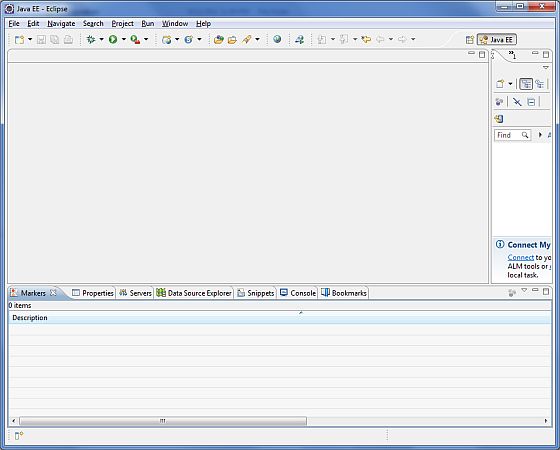
After a successful startup, if everything is fine then it should display the following result −