
Article Categories
- All Categories
-
 Data Structure
-
 Networking
-
 RDBMS
RDBMS
-
 Operating System
-
 Java
Java
-
 MS Excel
-
 iOS
iOS
-
 HTML
HTML
-
 CSS
CSS
-
 Android
-
 Python
-
 C Programming
-
 C++
C++
-
 C#
C#
-
 MongoDB
-
 MySQL
MySQL
-
 Javascript
-
 PHP
PHP
-
 Economics & Finance
How to use the tree command in PowerShell?
Tree command graphically shows the folder structure of the given drive or a path. It is similar to Get−ChildItem or dir recursive command except this shows the graphical structure. For example, the below command will retrieve the folder structure of C:\VMs including
tree c:\VMs
Output
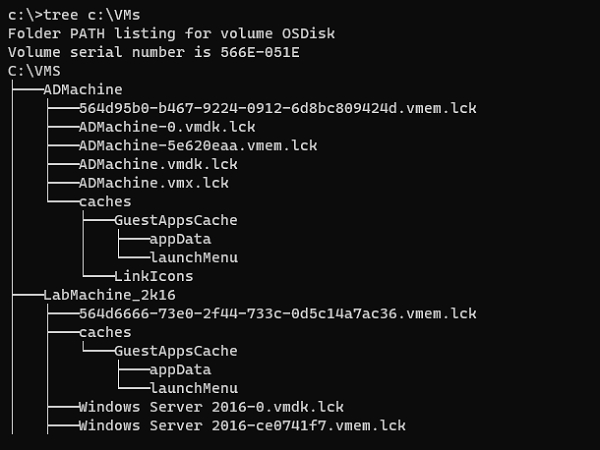
There are also two other switches supported for this command. They will appear in the help section of this command.
c:\>tree /?
Graphically displays the folder structure of a drive or path.

TREE [drive:][path] [/F] [/A]
/F Display the names of the files in each folder.
/A Use ASCII instead of extended characters.
This command is a cmd utility and hence we are using the ‘?’ symbol for the help command.
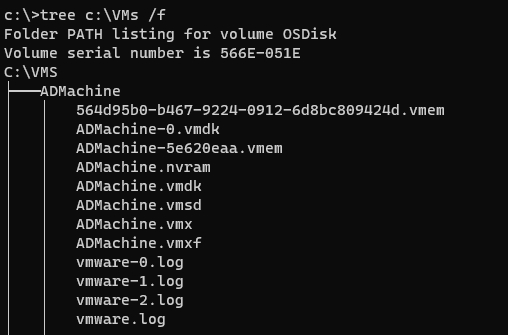
Command with /F switch which displays the name of the files in each folder.
tree c:\VMs /F
Output
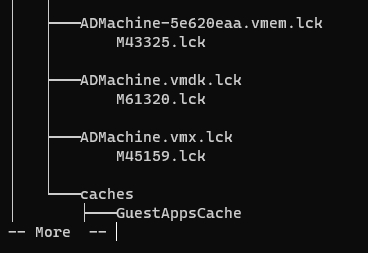
To display the one screen at a time, use the ‘more’ keyword in the pipeline. For example,
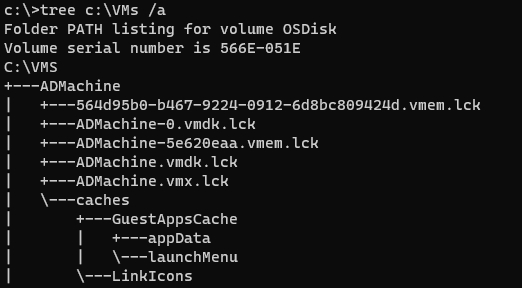
You can use /A switch uses text characters instead of graphical characters to show the line that links to subdirectories.
For example,
tree c:\VMs /a
Output

13K+ Views
