
Article Categories
- All Categories
-
 Data Structure
-
 Networking
-
 RDBMS
RDBMS
-
 Operating System
-
 Java
Java
-
 MS Excel
-
 iOS
iOS
-
 HTML
HTML
-
 CSS
CSS
-
 Android
-
 Python
-
 C Programming
-
 C++
C++
-
 C#
C#
-
 MongoDB
-
 MySQL
MySQL
-
 Javascript
-
 PHP
PHP
-
 Economics & Finance
How To Use TestNG Framework For Creating Selenium Scripts?
We can use the TestNG framework for creating Selenium scripts. TestNG is a testing framework built for the usage of both the developers and testers. The steps to integrate TestNG with Selenium scripts are listed below −
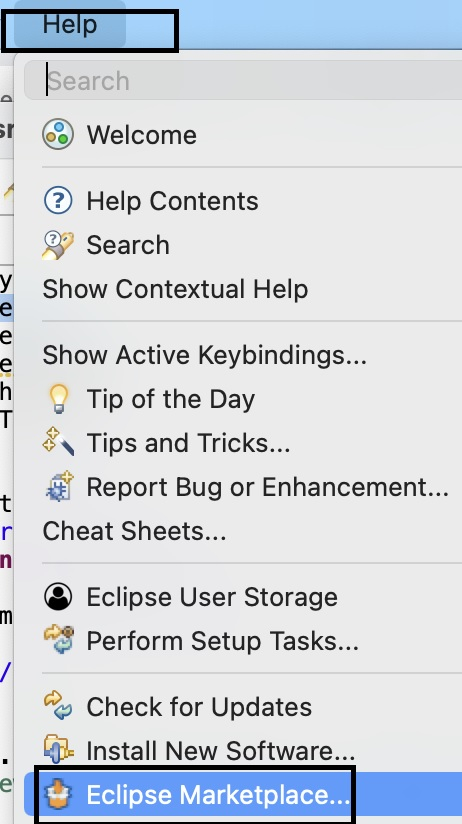
Step1 − Click on the Help menu from Eclipse. Then click on Eclipse Marketplace.
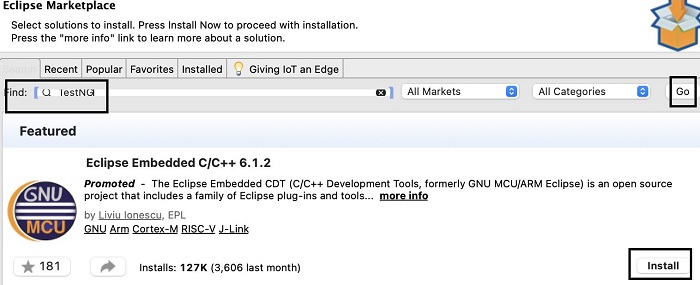
Step 2 − In the Eclipse Marketplace pop-up, input TestNG within the Find field and click on Go. Then click on Install.
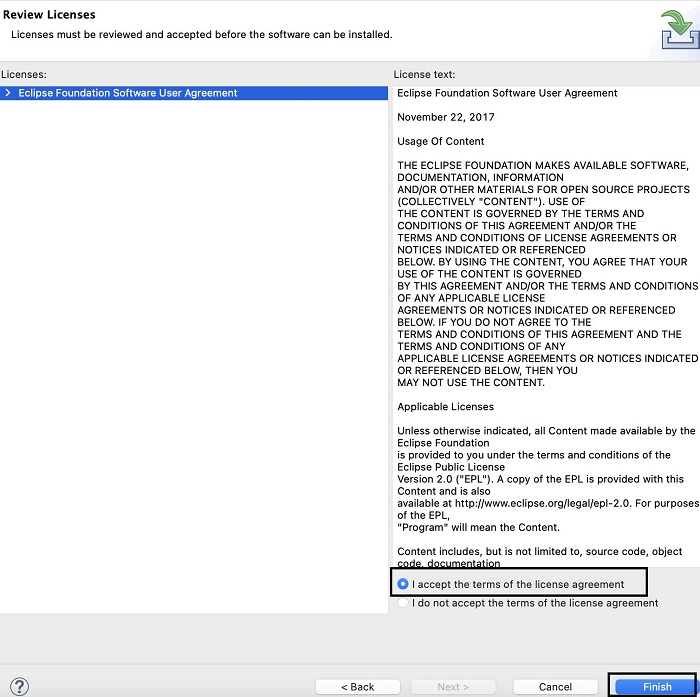
Step 3 − Accept the license agreement radiobutton and then click on Finish.
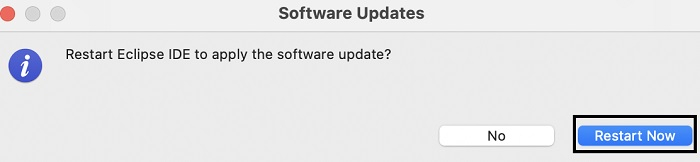
Step 4 − Click on the Restart Now button.
Step5 − Click on the File menu, then click on New. Next, click on the option Java Project.
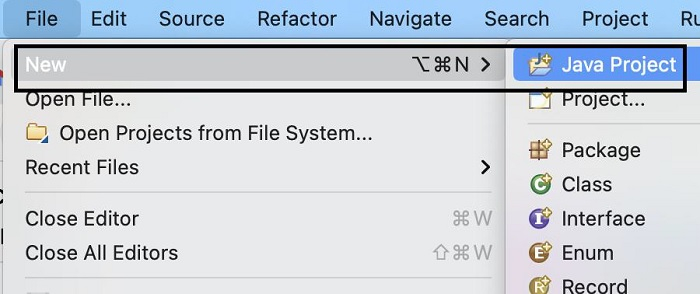
Step 6 − Give a project name and click on Finish.
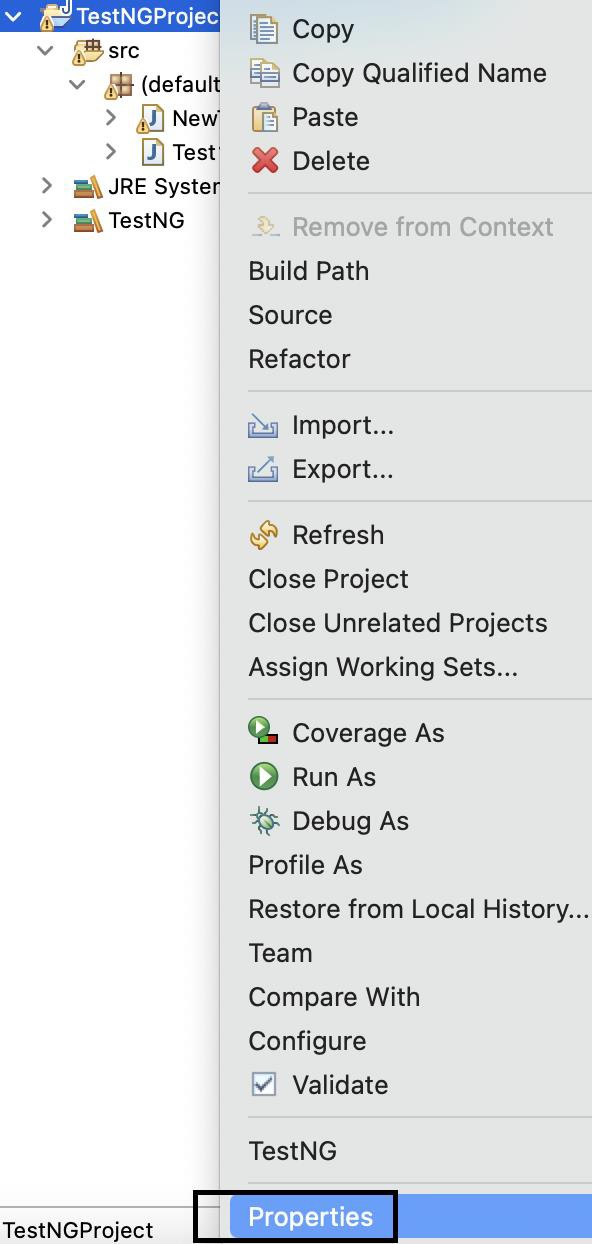
Step 7 − Right-click on the project and select Properties.
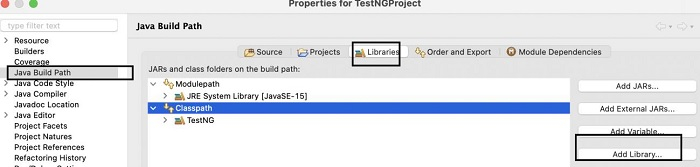
Step 8 − Move to Java Build Path and click on the Libraries tab. Then click on Add Library.
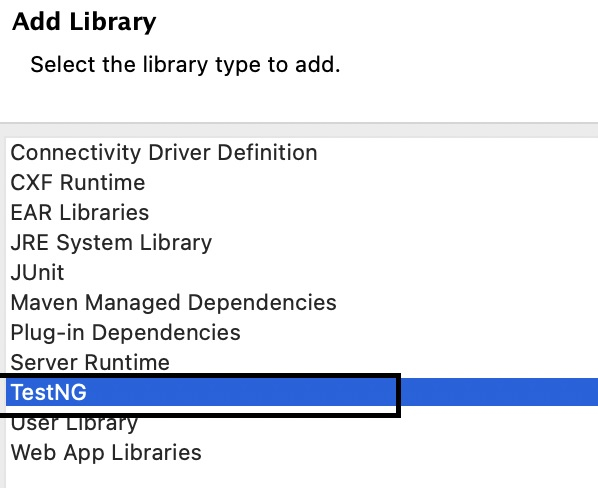
Step 9 − Select TestNG from the Add Library pop-up. Click on Next and proceed further.
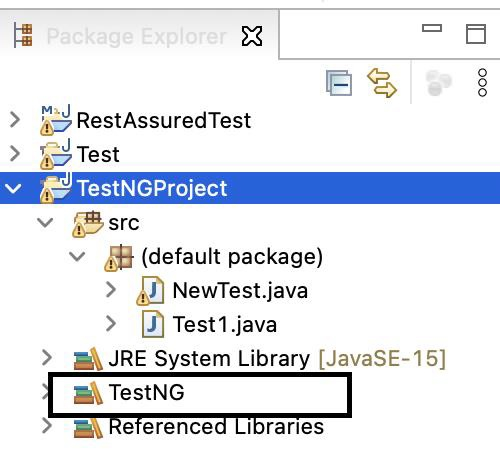
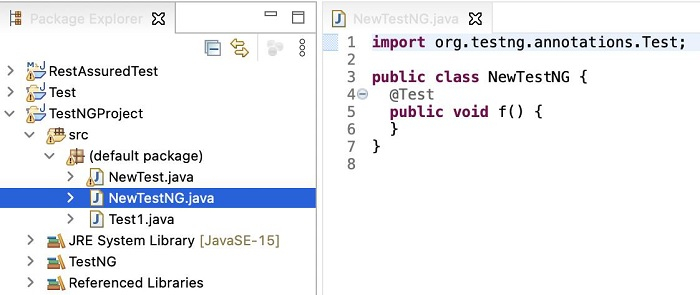
Step 10 − TestNG is now added to the Java Project. On expanding the project all the TestNG libraries can be seen in the Package explorer.
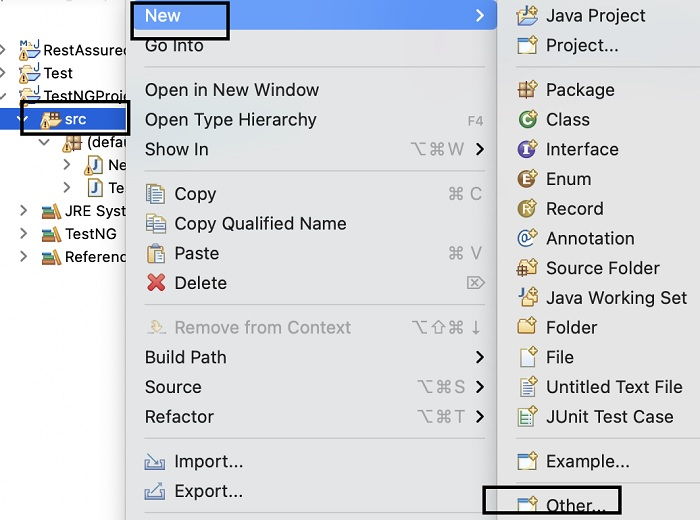
Step 11 − Right-click on the src folder and click New-->Other.
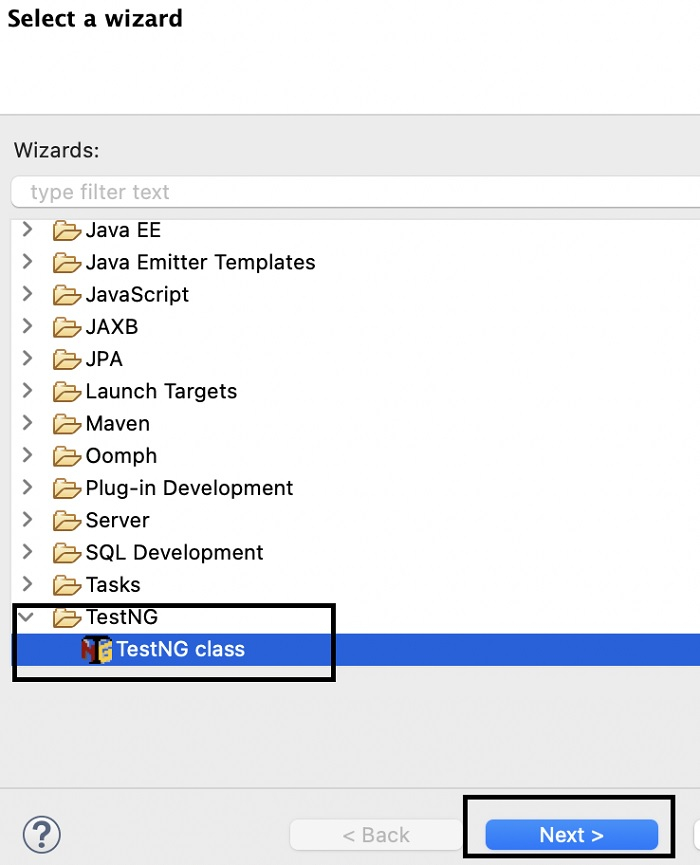
Step 12 − Select TestNG class then click on Next.
Step 13 − Browser and add the Source folder and Package name. Enter a Class name. We may choose any of the Annotations. Click on Finish.
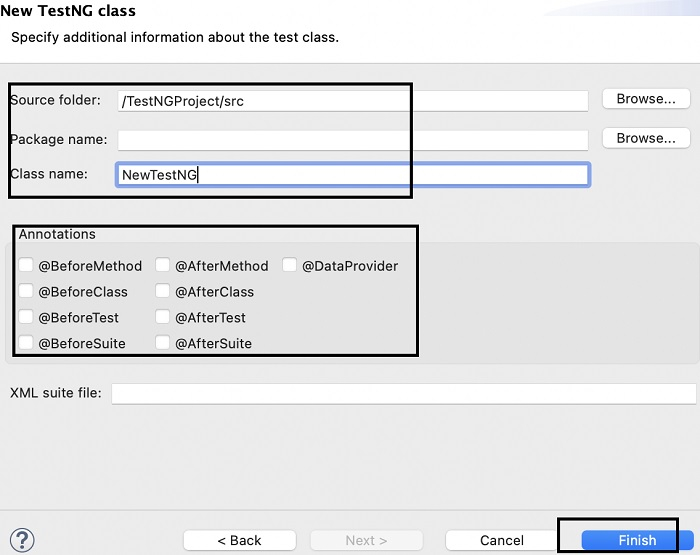
Step 14 − The class NewTestNG.java gets created along with some code generated by default.
Example
Code Implementation
import java.util.concurrent.TimeUnit;
import org.openqa.selenium.WebDriver;
import org.openqa.selenium.chrome.ChromeDriver;
import org.testng.annotations.Test;
public class NewTestNG {
   @Test
   public void f() {
      System.setProperty("webdriver.chrome.driver", "chromedriver");
      WebDriver driver = new ChromeDriver();
      //implicit wait
      driver.manage().timeouts().implicitlyWait(5, TimeUnit.SECONDS);
      //URL launch
      driver.get
      ("https://www.tutorialspoint.com/about/about_careers.htm");
      System.out.println("Page title: "+ driver.getTitle());
      //browser quit
      driver.quit();
   }
}
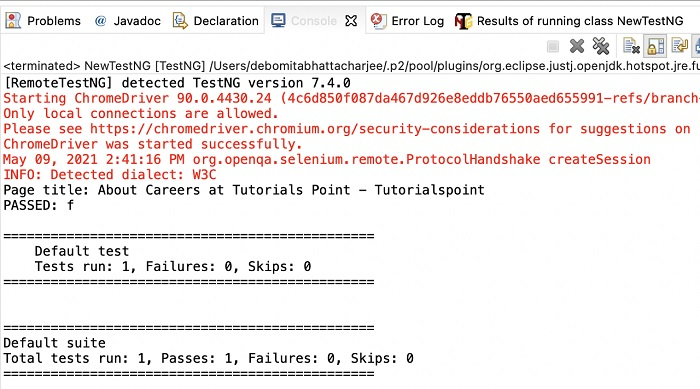
Output

497 Views
