
Article Categories
- All Categories
-
 Data Structure
-
 Networking
-
 RDBMS
RDBMS
-
 Operating System
-
 Java
Java
-
 MS Excel
-
 iOS
iOS
-
 HTML
HTML
-
 CSS
CSS
-
 Android
-
 Python
-
 C Programming
-
 C++
C++
-
 C#
C#
-
 MongoDB
-
 MySQL
MySQL
-
 Javascript
-
 PHP
PHP
-
 Economics & Finance
How to set up Python mode for Processing
Python Mode for Processing is an add-on that enables Python programming within the Processing IDE, a development environment designed for visual arts and creative coding. This mode allows developers to leverage Python's simplicity while creating interactive visual programs and animations.
System Requirements
| Component | Minimum Requirement |
|---|---|
| RAM | 4GB (8GB recommended) |
| CPU | 64-bit processor |
| Disk Space | 2GB free space |
| Screen Resolution | 1024 x 768 or higher |
| Operating System | Windows, macOS, Linux, Raspberry Pi |
Installation Steps
Step 1: Download Processing
Visit the official Processing website at processing.org and navigate to the download section. Select the version compatible with your operating system.

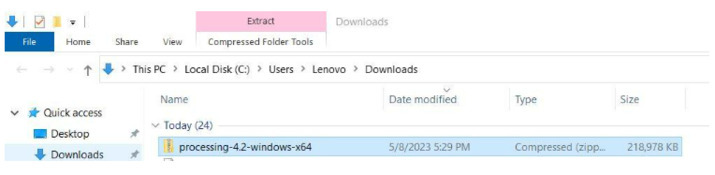
Step 2: Extract and Run Processing
Extract the downloaded ZIP file to your desired location and run the processing.exe file (Windows) or the appropriate executable for your system.
Step 3: Install Python Mode
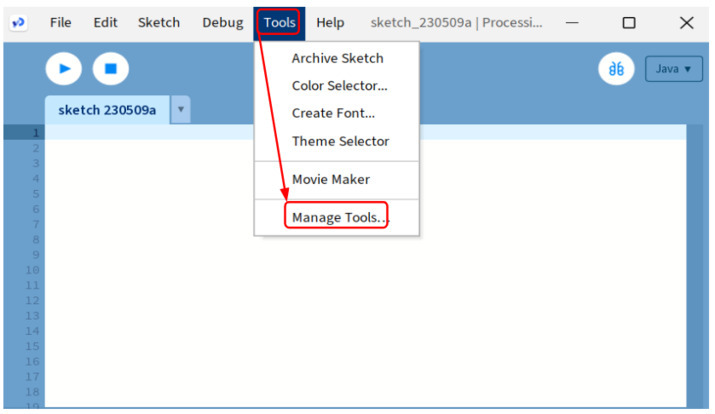
In the Processing IDE, go to Tools ? Add Tool... to open the Contribution Manager. Click on the Modes tab and search for "Python Mode for Processing".
Step 4: Activate Python Mode
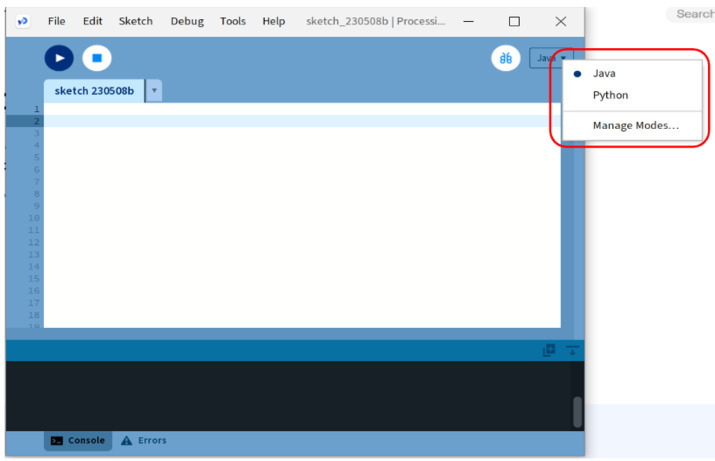
After installation, click the mode selector (usually shows "Java") in the top-right corner of the IDE and select Python from the dropdown menu.
Basic Python Example
Here's a simple Python program to demonstrate basic arithmetic operations ?
a = 5
b = 6
c = a + b
print("The addition of two numbers:", c)
The addition of two numbers: 11
Visual Programming Example
Processing excels at creating visual programs. Here's an example that creates animated circles with random colors and positions ?
def setup():
    size(400, 400)
    colorMode(RGB)
    noStroke()

def draw():
    fill(17, 17, 17, 30)
    rect(0, 0, width, height)
    fill(frameCount % 255, 255, 255)
    ellipse(random(0, width), random(0, height), 40, 40)
How It Works
- setup() Runs once at the beginning to set canvas size and drawing properties
- draw() Runs continuously in a loop to create animation
- size() Sets the canvas dimensions
- fill() Sets the color for shapes
- ellipse() Draws circular shapes
Key Features
- Visual Programming Create graphics, animations, and interactive applications
- Python Syntax Use familiar Python syntax and libraries
- Real-time Execution See your code results immediately
- Built-in Functions Access Processing's drawing and interaction functions
Conclusion
Python Mode for Processing combines Python's simplicity with Processing's visual capabilities, making it perfect for creative coding projects. The installation process is straightforward: download Processing, install the Python Mode add-on, and switch to Python mode to start creating visual programs with familiar Python syntax.

660 Views
