
Article Categories
- All Categories
-
 Data Structure
-
 Networking
-
 RDBMS
RDBMS
-
 Operating System
-
 Java
Java
-
 MS Excel
-
 iOS
iOS
-
 HTML
HTML
-
 CSS
CSS
-
 Android
-
 Python
-
 C Programming
-
 C++
C++
-
 C#
C#
-
 MongoDB
-
 MySQL
MySQL
-
 Javascript
-
 PHP
PHP
-
 Economics & Finance
Selected Reading
How to set action command to JButton in Java
With set action command, here we are displaying a message in the console on the click of a button.
Set the button first:
JButton btn = new JButton("Demo Button");
Now, set Action Listener to fire when the button is clicked:
ActionListener actionListener = new ActionListener() {
   public void actionPerformed(ActionEvent event) {
      String str = event.getActionCommand();
      System.out.println("Clicked = " + str);
   }
};
The following is an example to set action command to JButton:
Example
import java.awt.event.ActionEvent;
import java.awt.event.ActionListener;
import javax.swing.JButton;
import javax.swing.JOptionPane;
public class SwingDemo {
   public static void main(final String args[]) {
      JButton btn = new JButton("Demo Button");
      ActionListener actionListener = new ActionListener() {
         public void actionPerformed(ActionEvent event) {
            String str = event.getActionCommand();
            System.out.println("Clicked = " + str);
         }
      };
      btn.setActionCommand("FirstButton");
      btn.addActionListener(actionListener);
      JOptionPane.showMessageDialog(null, btn);
   }
}
Output
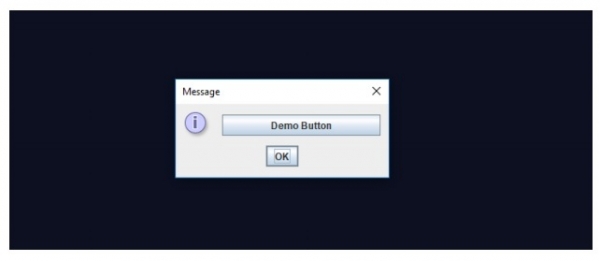
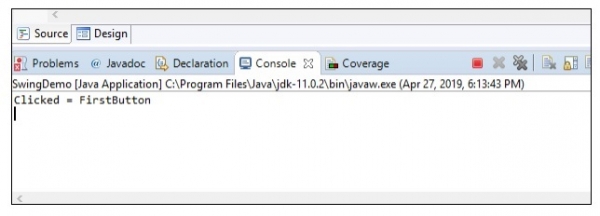
When you will click the “Demo Button” above, the following text would be visible in EclipseIDE output window:

Updated on: 2019-07-30T22:30:26+05:30
5K+ Views

Advertisements