
Article Categories
- All Categories
-
 Data Structure
-
 Networking
-
 RDBMS
RDBMS
-
 Operating System
-
 Java
Java
-
 MS Excel
-
 iOS
iOS
-
 HTML
HTML
-
 CSS
CSS
-
 Android
-
 Python
-
 C Programming
-
 C++
C++
-
 C#
C#
-
 MongoDB
-
 MySQL
MySQL
-
 Javascript
-
 PHP
PHP
-
 Economics & Finance
How to Kill Linux Processes Using 'xkill' Command
Xkill is a utility for forcing the X server to close connections to consumers. This software is very harmful but is priceless for aborting applications.This article explains about-“How to Kill Linux Processes Using ‘xkill’ Command”.
Sample Syntax of Xkill Command
The sample syntax of Xkill command as shown below –
$xkill [-option ...]
Options of Xkill
Options of Xkill are shown below –
usage: xkill [-option ...]
where options include:
-display displayname X server to contact
-id resource resource whose client is to be killed
-frame don't ignore window manager frames
-button number specific button to be pressed to select window
-all kill all clients with top level windows
-version print version and exit
To get the version of Xkill, use the following command –
$ xkill -version
The sample output should be like this –
xkill 1.0.4
To kill a specific process, use the following command –
$ xkill
The sample output should be like this –
Select the root window with button 1....
It will promote the cross-hair cursor. Using the cursor, you can click on any process or icon to kill the process.
Create a keyboard shortcut for xkill
To create a keyboard shortcut for xkill, Search for keyboard and select on shortcut. it will promote a screen as shown below –
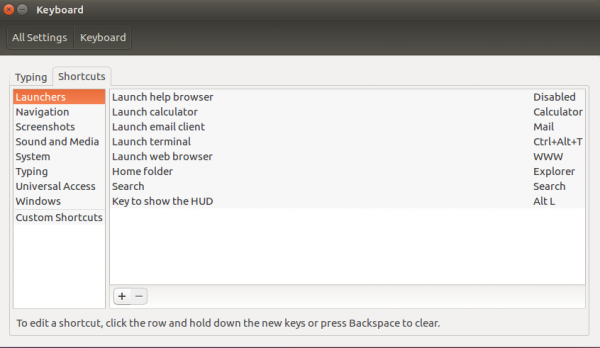
Click on custom shortcuts and + button, it will promote a screen as shown below –

Enter a name for shortcut and command as shown below –

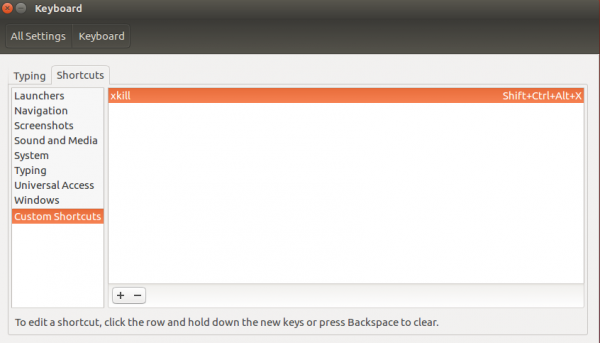
Now click on apply button, Double click on xkill and enter keys which you wants to make xkill shortcuts.Here, we have given Shift+Ctrl+Alt+x as shown below-

1K+ Views
