
Article Categories
- All Categories
-
 Data Structure
-
 Networking
-
 RDBMS
RDBMS
-
 Operating System
-
 Java
Java
-
 MS Excel
-
 iOS
iOS
-
 HTML
HTML
-
 CSS
CSS
-
 Android
-
 Python
-
 C Programming
-
 C++
C++
-
 C#
C#
-
 MongoDB
-
 MySQL
MySQL
-
 Javascript
-
 PHP
PHP
-
 Economics & Finance
How to detect a face and draw a bounding box around it using OpenCV Python?
Face detection is a fundamental computer vision task that can be accomplished using OpenCV and Haar cascade classifiers. A Haar cascade classifier is an effective machine learning approach for object detection that uses pre-trained XML files to identify specific features like faces.
We will use haarcascade_frontalface_alt.xml as our Haar cascade file for detecting frontal faces in images.
Downloading Haar Cascade Files
OpenCV provides pre-trained Haar cascade files on GitHub ?
https://github.com/opencv/opencv/tree/master/data/haarcascades
To download the face detection cascade, click on haarcascade_frontalface_alt.xml, view it in raw format, then right-click and save to your project directory.
Note: Save all Haar cascade XML files in a haarcascades folder for better organization.
Face Detection Process
The face detection workflow involves these steps ?
Import the OpenCV library
Read the input image using
cv2.imread()Convert the image to grayscale for processing
Load the Haar cascade classifier with
cv2.CascadeClassifier()Detect faces using
detectMultiScale()which returns coordinates as(x, y, width, height)Draw bounding rectangles around detected faces using
cv2.rectangle()Display the result
Example 1: Single Face Detection
This example demonstrates detecting and drawing a bounding box around one face ?
import cv2

# Read the input image
img = cv2.imread('people.jpg')

# Convert to grayscale for face detection
gray = cv2.cvtColor(img, cv2.COLOR_BGR2GRAY)

# Load the Haar cascade classifier
face_cascade = cv2.CascadeClassifier('haarcascades/haarcascade_frontalface_alt.xml')

# Detect faces in the image
faces = face_cascade.detectMultiScale(gray, 1.1, 2)
print('Number of detected faces:', len(faces))

# Draw rectangles around detected faces
for (x, y, w, h) in faces:
    cv2.rectangle(img, (x, y), (x+w, y+h), (0, 255, 255), 2)

# Display the result
cv2.imshow('Face Detection', img)
cv2.waitKey(0)
cv2.destroyAllWindows()
Input Image:

The output shows the number of detected faces ?
Number of detected faces: 1
Output Image:
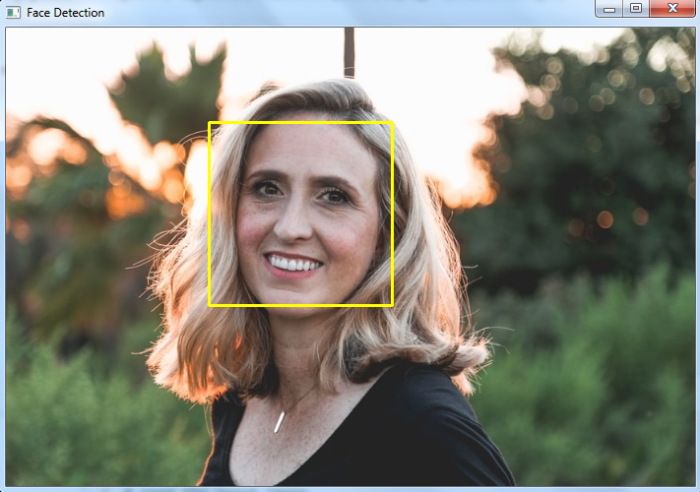
The face is highlighted with a yellow bounding box.
Example 2: Multiple Face Detection
This example shows detecting multiple faces in a group photo ?
import cv2

# Read the input image
img = cv2.imread('group_photo.jpg')

# Convert to grayscale
gray = cv2.cvtColor(img, cv2.COLOR_BGR2GRAY)

# Load the Haar cascade classifier
face_cascade = cv2.CascadeClassifier('haarcascades/haarcascade_frontalface_alt.xml')

# Detect faces with adjusted parameters for better detection
faces = face_cascade.detectMultiScale(gray, 1.1, 3)
print('Number of detected faces:', len(faces))

# Draw rectangles around all detected faces
for (x, y, w, h) in faces:
    cv2.rectangle(img, (x, y), (x+w, y+h), (0, 255, 255), 2)

# Display the result
cv2.imshow('Multiple Face Detection', img)
cv2.waitKey(0)
cv2.destroyAllWindows()
Input Image:

The output shows multiple detected faces ?
Number of detected faces: 15
Output Image:
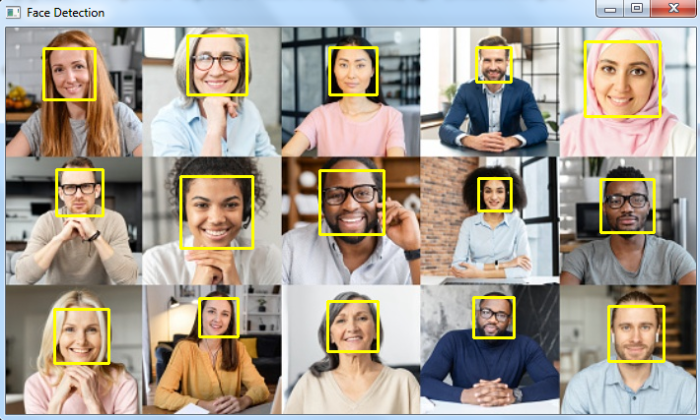
All detected faces are enclosed in yellow bounding boxes.
Key Parameters
The detectMultiScale() method accepts important parameters ?
scaleFactor (1.1): How much the image size is reduced at each scale
minNeighbors (2-5): How many neighbors each face should have to be considered valid
minSize: Minimum possible face size (optional)
maxSize: Maximum possible face size (optional)
Conclusion
OpenCV's Haar cascade classifiers provide an efficient way to detect faces in images. By loading a pre-trained XML file and using detectMultiScale(), you can easily identify and draw bounding boxes around faces, making this technique valuable for various computer vision applications.

6K+ Views
