
Article Categories
- All Categories
-
 Data Structure
-
 Networking
-
 RDBMS
RDBMS
-
 Operating System
-
 Java
Java
-
 MS Excel
-
 iOS
iOS
-
 HTML
HTML
-
 CSS
CSS
-
 Android
-
 Python
-
 C Programming
-
 C++
C++
-
 C#
C#
-
 MongoDB
-
 MySQL
MySQL
-
 Javascript
-
 PHP
PHP
-
 Economics & Finance
How to add moving platforms in PyGame?
In various games that contain platforms, moving platforms are mainly essential elements of the gameplay to make the game more interactive and challenging. PyGame is a popular Python library that is widely used to create 2-dimensional games. In this article, we will discuss how to add moving platforms to a game using PyGame and will see an example program to demonstrate the process.
What are Moving Platforms?
A moving platform is a flat and solid surface on which the player can walk or jump. These platforms are often used in platform games to provide new challenges to players, such as reaching high levels or crossing gaps. They add dynamic elements that require precise timing and coordination.
Steps to Add Moving Platforms in PyGame
Below are the steps we will follow to add moving platforms in PyGame ?
Import pygame module First we need to import the pygame module in our Python file.
Define the moving platform class Create a new sprite class that represents the moving platform by inheriting from the Pygame Sprite class.
Create a Sprite Group Create a sprite group to manage collections of sprites that can be updated and drawn together.
Add the platform to the Sprite Group Create instances of the moving platform class and add them to the sprite group.
Update the Platform's position in the game loop Update the moving platform's position by calling its update method once per frame.
Example
Let's create a complete example with moving platforms ?
import pygame
import sys

# Initialize Pygame
pygame.init()

# Set the screen dimensions
screen_width = 800
screen_height = 600

# Create the screen
screen = pygame.display.set_mode((screen_width, screen_height))
pygame.display.set_caption("Moving Platforms")

# Set up the clock
clock = pygame.time.Clock()

# Define the Moving Platform Class
class MovingPlatform(pygame.sprite.Sprite):
    def __init__(self, x, y, width, height, speed):
        super().__init__()
        self.image = pygame.Surface((width, height))
        self.image.fill((0, 255, 0))  # Set the platform color to green
        self.rect = self.image.get_rect()
        self.rect.x = x
        self.rect.y = y
        self.speed = speed

    def update(self):
        self.rect.x += self.speed
        if self.rect.right >= screen_width or self.rect.left <= 0:
            self.speed = -self.speed

# Create a sprite group for the moving platforms
moving_platforms = pygame.sprite.Group()

# Create some moving platforms and add them to the sprite group
platform1 = MovingPlatform(200, 300, 200, 20, 2)
moving_platforms.add(platform1)

platform2 = MovingPlatform(500, 200, 200, 20, -3)
moving_platforms.add(platform2)

# Start the game loop
while True:
    for event in pygame.event.get():
        if event.type == pygame.QUIT:
            pygame.quit()
            sys.exit()

    # Update the moving platforms
    moving_platforms.update()

    # Draw the moving platforms and other game elements
    screen.fill((255, 255, 255))  # White background
    moving_platforms.draw(screen)

    # Update the screen
    pygame.display.flip()

    # Control the frame rate
    clock.tick(60)
Output
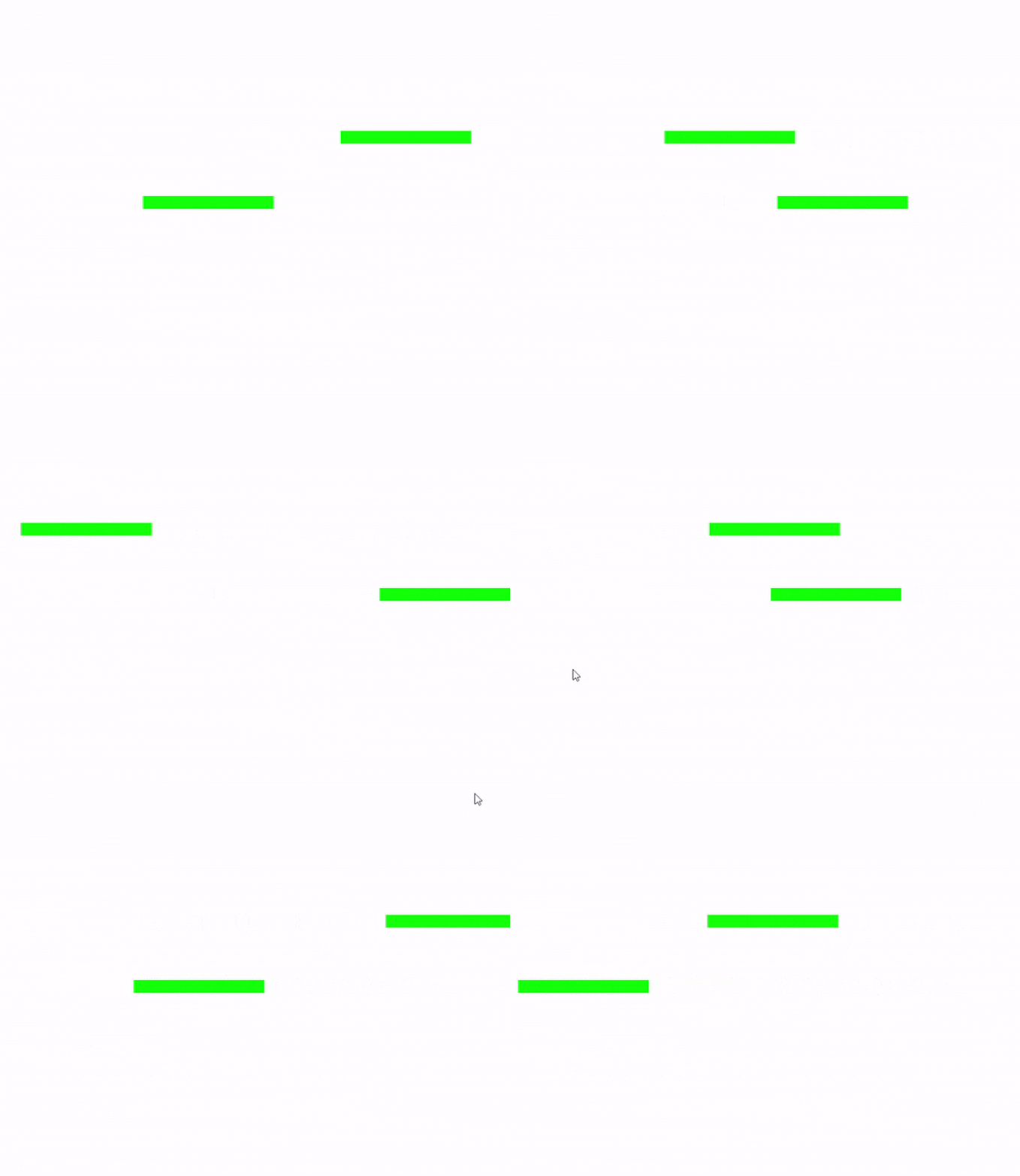
The above code creates two green platforms that move horizontally across the screen, bouncing off the edges ?
How the Code Works
The program first initializes Pygame and sets up the screen dimensions. The MovingPlatform class inherits from pygame.sprite.Sprite and defines the platform's appearance and behavior.
The __init__ method creates a green surface with specified dimensions and sets the initial position and speed. The update() method moves the platform horizontally and reverses direction when it hits screen edges.
In the main game loop, we continuously update platform positions, clear the screen with a white background, draw all platforms, and refresh the display at 60 FPS using clock.tick(60).
Adding Vertical Movement
You can also create platforms that move vertically by modifying the update method ?
class VerticalMovingPlatform(pygame.sprite.Sprite):
    def __init__(self, x, y, width, height, speed):
        super().__init__()
        self.image = pygame.Surface((width, height))
        self.image.fill((255, 0, 0))  # Red color for vertical platforms
        self.rect = self.image.get_rect()
        self.rect.x = x
        self.rect.y = y
        self.speed = speed

    def update(self):
        self.rect.y += self.speed
        if self.rect.bottom >= screen_height or self.rect.top <= 0:
            self.speed = -self.speed
Conclusion
Adding moving platforms to your PyGame project enhances gameplay by introducing dynamic challenges. The sprite class system makes it easy to create, manage, and animate multiple platforms with different behaviors. You can extend this concept by adding collision detection, different movement patterns, or player interactions.

847 Views
