
Article Categories
- All Categories
-
 Data Structure
-
 Networking
-
 RDBMS
RDBMS
-
 Operating System
-
 Java
Java
-
 MS Excel
-
 iOS
iOS
-
 HTML
HTML
-
 CSS
CSS
-
 Android
-
 Python
-
 C Programming
-
 C++
C++
-
 C#
C#
-
 MongoDB
-
 MySQL
MySQL
-
 Javascript
-
 PHP
PHP
-
 Economics & Finance
How to integrate Google AdSense into your webpage?
If your website has sufficient content and good page views, you can start adding advertisements to earn money. Google AdSense is a free and easy way to monetize your website by displaying targeted ads.
Integrating Google AdSense involves both account setup and technical implementation. Let's explore the complete process.
Setting Up Your AdSense Account
Follow these steps to create and configure your AdSense account:
- Go to the official AdSense website and sign in with your Google Account.
- Set up your account with all required details including website information, content language, and country.
- Read and accept the Google AdSense Terms and Conditions. Ensure your website complies with Google Program Policies.
- Submit your website for review. Google will evaluate your site for content quality and policy compliance.

Creating and Configuring Ad Units
Once approved, you can create different types of ad units:
- Select the ad formats you want: Display Ads, Text Ads, In-Article Ads, or Responsive Ads
- Choose appropriate ad sizes (300x250, 728x90, 320x50, etc.)
- Configure ad placement and styling options
- Generate the ad code for each unit

Implementing AdSense Code
Here's how to add AdSense ads to your webpage:
Step 1: Add AdSense Script to Head
<script async src="https://pagead2.googlesyndication.com/pagead/js/adsbygoogle.js?client=ca-pub-XXXXXXXXXX"
     crossorigin="anonymous"></script>
Step 2: Insert Ad Units in HTML
<!-- Display Ad Example -->
<ins class="adsbygoogle"
     style="display:block"
     data-ad-client="ca-pub-XXXXXXXXXX"
     data-ad-slot="YYYYYYYYYY"
     data-ad-format="auto"
     data-full-width-responsive="true"></ins>
<script>
     (adsbygoogle = window.adsbygoogle || []).push({});
</script>
Step 3: Responsive Ad Implementation
<!-- Responsive Ad Unit -->
<ins class="adsbygoogle"
     style="display:block; text-align:center;"
     data-ad-layout="in-article"
     data-ad-format="fluid"
     data-ad-client="ca-pub-XXXXXXXXXX"
     data-ad-slot="YYYYYYYYYY"></ins>
<script>
     (adsbygoogle = window.adsbygoogle || []).push({});
</script>
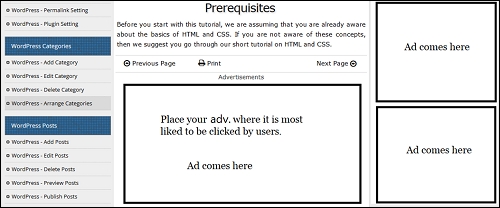
Best Practices for Ad Placement
Strategic ad placement maximizes revenue while maintaining user experience:
- Above the fold: Place one ad unit in the visible area without scrolling
- Within content: Use in-article ads for better integration
- Sidebar: Add responsive ads in sidebars for desktop users
- Footer: Include ads at the bottom of articles
Auto Ads Implementation
Auto ads automatically place and optimize ads across your site:
<script async src="https://pagead2.googlesyndication.com/pagead/js/adsbygoogle.js?client=ca-pub-XXXXXXXXXX"
     crossorigin="anonymous"></script>
<script>
  (adsbygoogle = window.adsbygoogle || []).push({
    google_ad_client: "ca-pub-XXXXXXXXXX",
    enable_page_level_ads: true
  });
</script>
Important Guidelines
- Replace "XXXXXXXXXX" with your actual AdSense publisher ID
- Replace "YYYYYYYYYY" with your specific ad slot ID
- Ensure your website complies with AdSense policies
- Don't click on your own ads or encourage others to do so
- Maintain a good balance between content and advertisements
Conclusion
Google AdSense integration requires account approval followed by proper code implementation. Focus on quality content and strategic ad placement to maximize earnings while providing good user experience.

547 Views
