
Article Categories
- All Categories
-
 Data Structure
-
 Networking
-
 RDBMS
RDBMS
-
 Operating System
-
 Java
Java
-
 MS Excel
-
 iOS
iOS
-
 HTML
HTML
-
 CSS
CSS
-
 Android
-
 Python
-
 C Programming
-
 C++
C++
-
 C#
C#
-
 MongoDB
-
 MySQL
MySQL
-
 Javascript
-
 PHP
PHP
-
 Economics & Finance
How to enable JavaScript in Windows?
JavaScript is a scripting language that makes web pages interactive and dynamic. While most modern browsers have JavaScript enabled by default, you may occasionally need to enable it manually in Microsoft Edge on Windows.
Microsoft Edge is a cross-platform web browser developed by Microsoft. Originally bundled with Windows 10 in 2015, it became available on various platforms including Android, iOS, macOS, and Linux. The current Chromium-based Edge replaced Internet Explorer as the default browser in Windows 11.
JavaScript brings web pages to life by enabling interactive features, animations, form validation, and dynamic content updates. Without JavaScript enabled, many websites may not function properly or display limited functionality.
Why Enable JavaScript?
JavaScript is essential for modern web browsing because it:
- Enables interactive elements like dropdown menus and forms
- Powers single-page applications and dynamic content loading
- Handles user authentication and data validation
- Provides rich media experiences with videos, maps, and animations
Enabling JavaScript in Microsoft Edge
Follow these steps to enable JavaScript in Microsoft Edge on Windows:
STEP 1 ? Launch the Microsoft Edge browser on your computer.
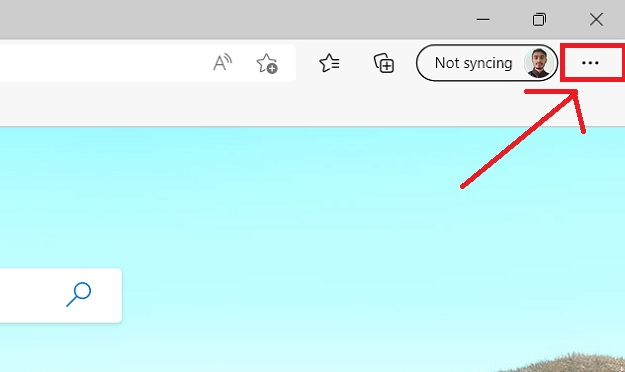
STEP 2 ? Click the Menu symbol (three dots) at the top right of your screen.
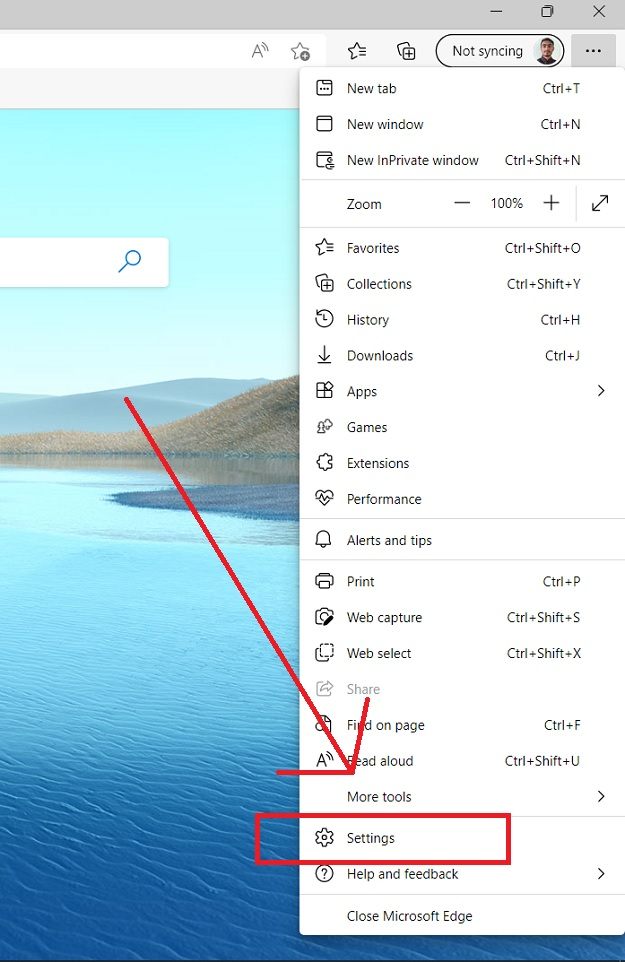
STEP 3 ? Select "Settings" from the dropdown menu.
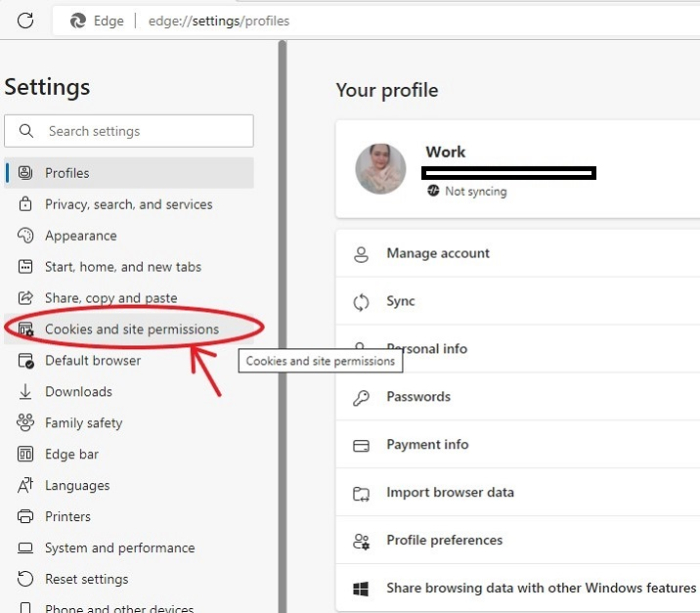
STEP 4 ? Click "Cookies and Site Permissions" from the left sidebar menu.
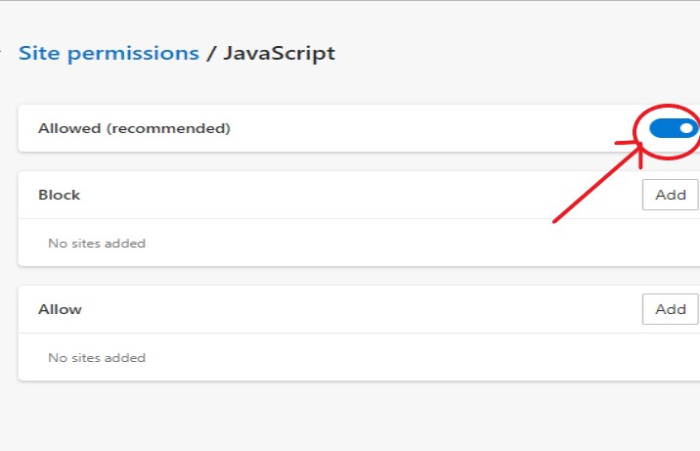
STEP 5 ? Scroll down and click "JavaScript" under the permissions section.
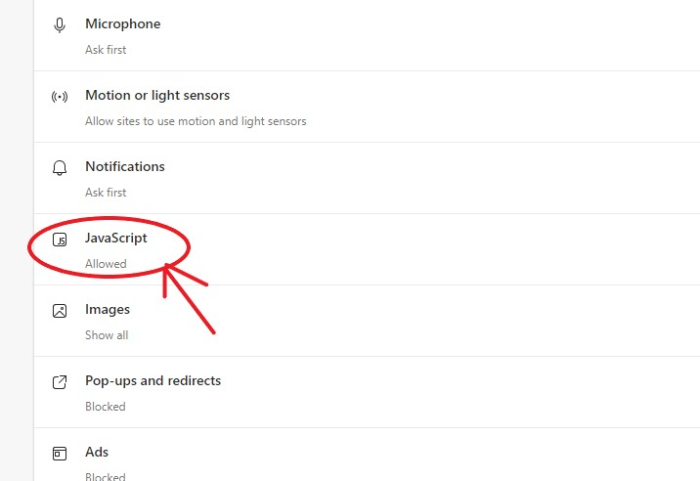
STEP 6 ? Ensure the toggle is blue (enabled). This means JavaScript is active across all sites.
Enable JavaScript for Specific Sites Only
To allow JavaScript only on trusted websites:
STEP 1 ? In the JavaScript settings, click the "Allow" section.
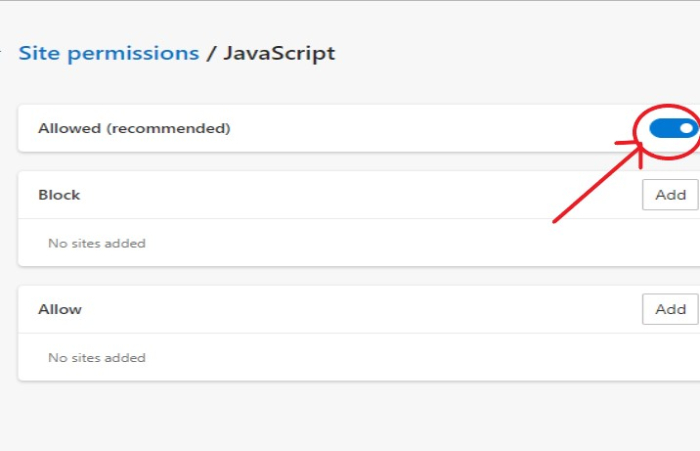
STEP 2 ? Click "Add" and enter the website URL where you want to enable JavaScript.
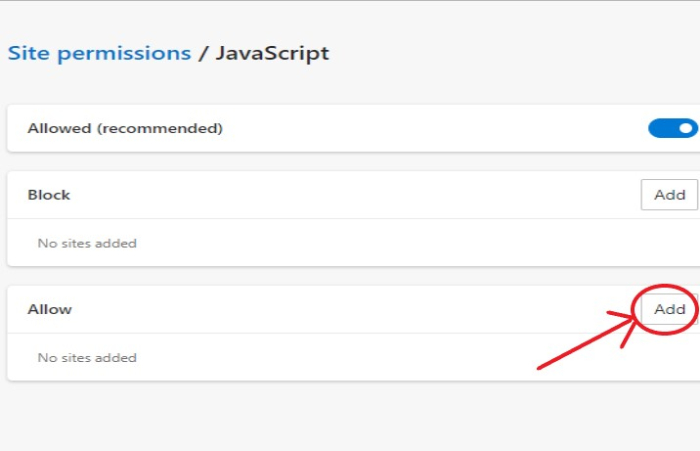
STEP 3 ? Click "Add" to confirm and save the setting.
Verifying JavaScript is Enabled
To test if JavaScript is working:
<!DOCTYPE html>
<html>
<head>
    <title>JavaScript Test</title>
</head>
<body>
    <h1>JavaScript Test Page</h1>
    <button onclick="testFunction()">Click Me</button>
    <p id="result"></p>

    <script>
        function testFunction() {
            document.getElementById("result").innerHTML = "JavaScript is working!";
        }
    </script>
</body>
</html>
If the button displays "JavaScript is working!" when clicked, JavaScript is properly enabled.
Security Considerations
JavaScript capabilities are intentionally limited in browsers for security reasons. The browser prevents malicious scripts from accessing personal data or damaging your system. However, disabling JavaScript entirely can break website functionality.
Conclusion
Enabling JavaScript in Microsoft Edge is straightforward through the browser settings. Most websites require JavaScript for full functionality, so keeping it enabled ensures the best browsing experience while maintaining security.

3K+ Views
