
Article Categories
- All Categories
-
 Data Structure
-
 Networking
-
 RDBMS
RDBMS
-
 Operating System
-
 Java
Java
-
 MS Excel
-
 iOS
iOS
-
 HTML
HTML
-
 CSS
CSS
-
 Android
-
 Python
-
 C Programming
-
 C++
C++
-
 C#
C#
-
 MongoDB
-
 MySQL
MySQL
-
 Javascript
-
 PHP
PHP
-
 Economics & Finance
Word Dictionary using Python Tkinter
In this article, we will create a GUI-based dictionary using PyDictionary and Tkinter modules. This application will allow users to search for word meanings through an intuitive graphical interface.
PyDictionary is a Python module that helps to get meanings, translations, antonyms and synonyms of words. It uses WordNet for getting meanings, Google for translations, and synonym.com for getting synonyms and antonyms. PyDictionary uses BeautifulSoup and Requests modules as dependencies.
Installation
First, install the required module using pip ?
pip install PyDictionary
Creating the Dictionary Application
Here's the complete code to create a word dictionary using Tkinter ?
# Import Required Libraries
from tkinter import *
from PyDictionary import PyDictionary

# Create instances and objects
dictionary = PyDictionary()
win = Tk()

# Define the size of the window
win.geometry("700x400")
win.title("Python Dictionary")

# Define Helper Function to get word meanings
def dict():
    try:
        word_input = word.get().strip()
        if word_input:
            result = dictionary.meaning(word_input)
            if result and 'Noun' in result:
                meaning.config(text=result['Noun'][0])
            else:
                meaning.config(text="No meaning found")
        else:
            meaning.config(text="Please enter a word")
    except:
        meaning.config(text="Error: Unable to fetch meaning")

# Define Labels and Buttons
Label(win, text="Dictionary", font=("Times New Roman", 20)).pack(pady=20)

# Frame 1 - Input section
frame = Frame(win)
Label(frame, text="Type any Word ", font=("Poppins bold", 15)).pack(side=LEFT)
word = Entry(frame, font=("Times New Roman", 15))
word.pack()
frame.pack(pady=10)

# Frame 2 - Output section
frame1 = Frame(win)
Label(frame1, text="Meaning:", font=("Arial", 18)).pack(side=LEFT)
meaning = Label(frame1, text="", font=("Poppins", 15), width=30, wraplength=400, justify=LEFT)
meaning.pack()
frame1.pack(pady=10)

# Search button
Button(win, text="Find", font=("Poppins bold", 15), command=dict).pack()

# Execute Tkinter
win.mainloop()
How It Works
The application creates a Tkinter window with the following components:
- Entry widget - For user input of words to search
- Label widgets - To display instructions and meanings
- Button widget - To trigger the search function
- Frame widgets - To organize layout components
The dict() function handles the core functionality by fetching word meanings from PyDictionary and displaying them in the GUI.
Key Features
- Error handling - Manages cases when words are not found or network issues occur
- Input validation - Checks for empty input before searching
- Text wrapping - Ensures long definitions display properly
- User-friendly interface - Clean layout with proper spacing and fonts
Output
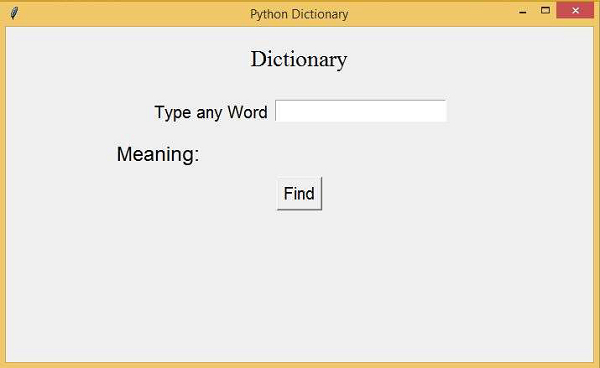
Running the above code will create and display the Dictionary Application. The interface shows an input field where users can type words and get their meanings displayed below.
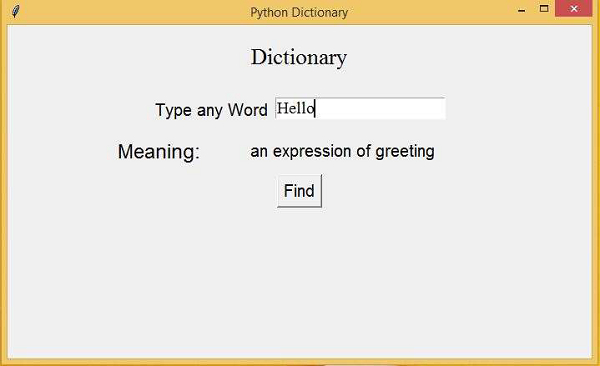
When you type "Hello" in the textbox and click the "Find" button, it will display the meaning of "Hello" from the dictionary.
Possible Enhancements
You can extend this application by adding features like:
- Synonyms and antonyms display
- Multiple word types (Verb, Adjective, etc.)
- Word pronunciation
- Search history
Conclusion
This GUI dictionary application demonstrates how to combine PyDictionary with Tkinter to create a functional word lookup tool. The application provides error handling and a user-friendly interface for searching word meanings.

3K+ Views
