
Article Categories
- All Categories
-
 Data Structure
-
 Networking
-
 RDBMS
RDBMS
-
 Operating System
-
 Java
Java
-
 MS Excel
-
 iOS
iOS
-
 HTML
HTML
-
 CSS
CSS
-
 Android
-
 Python
-
 C Programming
-
 C++
C++
-
 C#
C#
-
 MongoDB
-
 MySQL
MySQL
-
 Javascript
-
 PHP
PHP
-
 Economics & Finance
Moving balls in Tkinter Canvas
Tkinter is a standard Python library used to create GUI-based applications. To create a simple moving ball application, we can use the Canvas widget which allows users to add images, draw shapes, and animate objects.
Key Components
The application consists of the following components ?
A
Canvaswidget to draw the oval or ball in the windowA
move_ball()function that updates the ball's position and handles collision detection with canvas wallsThe
canvas.after()method to schedule regular position updatesSpeed variables to control the ball's movement direction
Creating the Moving Ball Application
Here's how to create a bouncing ball that moves continuously and bounces off the canvas boundaries ?
# Import the required libraries
from tkinter import *

# Create an instance of tkinter frame or window
win = Tk()

# Set the size of the window
win.geometry("700x350")

# Make the window size fixed
win.resizable(False, False)

# Create a canvas widget
canvas = Canvas(win, width=700, height=350, bg="white")
canvas.pack()

# Create an oval or ball in the canvas widget
ball = canvas.create_oval(10, 10, 50, 50, fill="green3")

# Set initial speed for the ball
xspeed = yspeed = 3

def move_ball():
    global xspeed, yspeed

    # Move the ball by the current speed
    canvas.move(ball, xspeed, yspeed)

    # Get current position of the ball
    (leftpos, toppos, rightpos, bottompos) = canvas.coords(ball)

    # Reverse horizontal direction if hitting left or right wall
    if leftpos <= 0 or rightpos >= 700:
        xspeed = -xspeed

    # Reverse vertical direction if hitting top or bottom wall
    if toppos <= 0 or bottompos >= 350:
        yspeed = -yspeed

    # Schedule next movement after 30 milliseconds
    canvas.after(30, move_ball)

# Start the ball movement
canvas.after(30, move_ball)

# Run the application
win.mainloop()
How It Works
The animation works through these steps ?
Ball Creation:
create_oval()creates a circular ball at position (10,10) with size 40x40 pixelsMovement:
canvas.move()shifts the ball by xspeed and yspeed pixelsCollision Detection:
canvas.coords()returns the ball's current boundariesDirection Reversal: Speed variables are negated when hitting canvas edges
Continuous Animation:
canvas.after(30, move_ball)repeats every 30 milliseconds
Output
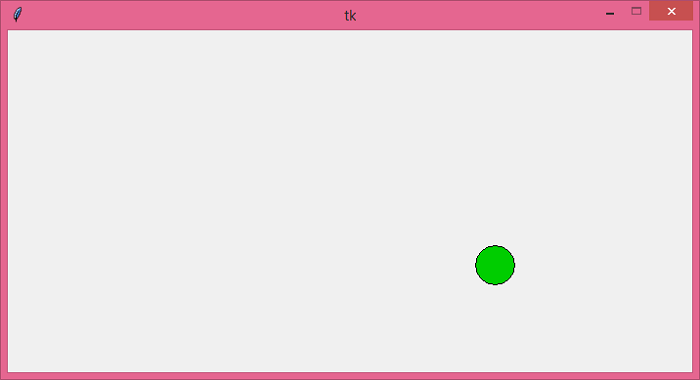
Running the above code will display an application window with a green ball that bounces continuously around the canvas ?
Customization Options
You can modify the following parameters to customize the ball behavior ?
Speed: Change
xspeedandyspeedvalues for faster/slower movementAnimation Rate: Adjust the 30-millisecond delay in
canvas.after()Ball Size: Modify the oval coordinates for different ball sizes
Colors: Change the
fillparameter for different ball colors
Conclusion
This bouncing ball animation demonstrates the basics of Tkinter canvas animation using canvas.move() and canvas.after(). The collision detection ensures the ball bounces realistically off the canvas boundaries.

3K+ Views
