
Article Categories
- All Categories
-
 Data Structure
-
 Networking
-
 RDBMS
RDBMS
-
 Operating System
-
 Java
Java
-
 MS Excel
-
 iOS
iOS
-
 HTML
HTML
-
 CSS
CSS
-
 Android
-
 Python
-
 C Programming
-
 C++
C++
-
 C#
C#
-
 MongoDB
-
 MySQL
MySQL
-
 Javascript
-
 PHP
PHP
-
 Economics & Finance
How to remove text from a label in Python?
Tkinter is Python's standard GUI library for creating desktop applications. Sometimes you need to dynamically remove or clear text from a Label widget during runtime.
To remove text from a label, we can modify the Label's text attribute using the config() method. Let's create a simple application with a button that removes text from a label.
Basic Example
Here's how to create a label with text and a button to remove that text ?
# Import Tkinter Library
from tkinter import *

# Create an instance of tkinter frame
win = Tk()

# Define the size and geometry of the frame
win.geometry("700x400")
win.title("Remove Text from Label")

# Create a function for the Button Command
def remove_text():
    text.config(text="")

# Create a text Label
text = Label(win, text="www.tutorialspoint.com", font=("Poppins", 30))
text.pack(pady=20)

# Create a Button
my_button = Button(win, text="Remove Text", command=remove_text)
my_button.pack(pady=10)

win.mainloop()
How It Works
The remove_text() function uses the config() method to set the label's text to an empty string. When the button is clicked, it triggers this function and clears the label content.
Alternative Methods
Method 1: Using StringVar
You can also use a StringVar to control the label text ?
from tkinter import *

win = Tk()
win.geometry("700x400")

# Create StringVar to control label text
label_text = StringVar()
label_text.set("Original Text")

def remove_text():
    label_text.set("")

# Create label with textvariable
text = Label(win, textvariable=label_text, font=("Arial", 20))
text.pack(pady=20)

my_button = Button(win, text="Clear Text", command=remove_text)
my_button.pack(pady=10)

win.mainloop()
Method 2: Complete Removal
To completely hide the label instead of just clearing text ?
from tkinter import *

win = Tk()
win.geometry("700x400")

def remove_label():
    text.pack_forget()  # Removes the label from view

def restore_label():
    text.pack(pady=20)  # Restores the label

text = Label(win, text="Click to remove me!", font=("Arial", 18))
text.pack(pady=20)

Button(win, text="Remove Label", command=remove_label).pack(pady=5)
Button(win, text="Restore Label", command=restore_label).pack(pady=5)

win.mainloop()
Key Methods
| Method | Purpose | Usage |
|---|---|---|
config(text="") |
Clear text content | Keeps label visible |
StringVar.set("") |
Clear via variable | Better for dynamic updates |
pack_forget() |
Hide entire label | Completely removes from view |
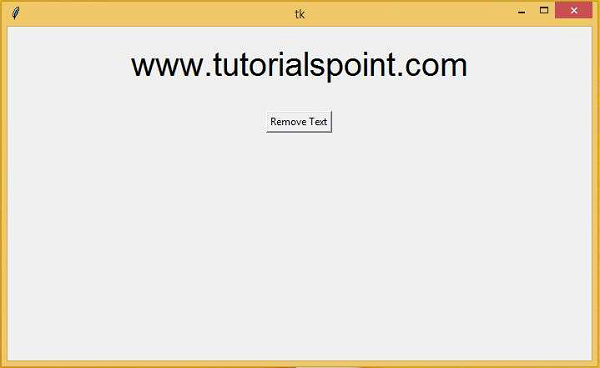
Output
Running the code will create a window with a label containing text and a button. Initially, you'll see the label with text displayed.
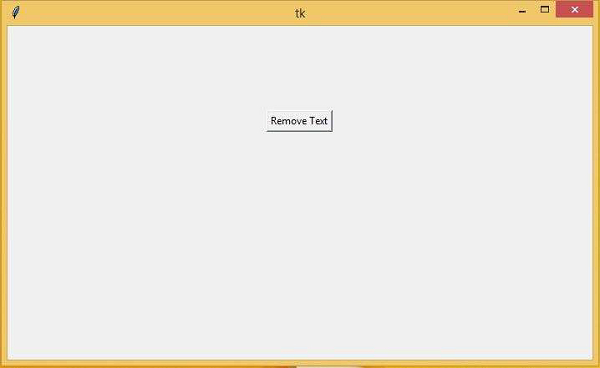
After clicking the "Remove Text" button, the text disappears from the label while the label widget remains in place.
Conclusion
Use config(text="") to clear label text while keeping the widget visible. For dynamic text management, consider using StringVar for better control over label content updates.

3K+ Views
