
Article Categories
- All Categories
-
 Data Structure
-
 Networking
-
 RDBMS
RDBMS
-
 Operating System
-
 Java
Java
-
 MS Excel
-
 iOS
iOS
-
 HTML
HTML
-
 CSS
CSS
-
 Android
-
 Python
-
 C Programming
-
 C++
C++
-
 C#
C#
-
 MongoDB
-
 MySQL
MySQL
-
 Javascript
-
 PHP
PHP
-
 Economics & Finance
How to Print Hard Copy using Tkinter?
Tkinter allows developers to interact with files in the local system. In this article, we will see how to print a hardcopy of a file using Tkinter packages such as filedialog and win32api module.
To use the win32api module, you need to install it first using pip install pywin32.
Required Imports
We need three main imports for this functionality ?
import tkinter as tk
from tkinter import filedialog
import win32api
Complete Example
Here's a complete example that creates a GUI for selecting and printing files ?
# Import the required libraries
import tkinter as tk
from tkinter import filedialog
import win32api

# Create an instance of tkinter frame or window
win = tk.Tk()

win.title('Print Hard Copy')
win.geometry("700x400")

# Define function to print file
def print_file():
    file = filedialog.askopenfilename(
        initialdir="/",
        title="Select any file",
        filetypes=(("Text files", "*.txt"), ("PDF files", "*.pdf"), ("All files", "*.*"))
    )
    if file:
        # Print hard copy using default printer
        win32api.ShellExecute(0, "print", file, None, ".", 0)

# Create a button for printing event
button = tk.Button(win, text="Choose a File to Print", command=print_file)
button.pack(pady=20)

# Keep running the window or frame
win.mainloop()
How It Works
The application works in the following steps ?
-
File Selection: The
filedialog.askopenfilename()opens a dialog box to select files -
Print Command:
win32api.ShellExecute()sends the file to the default printer - GUI Interface: A simple button triggers the file selection and printing process
Key Parameters
The ShellExecute() function takes these parameters ?
-
0? Handle to parent window -
"print"? Operation to perform -
file? Path to the file to print -
None? Parameters (not needed for print) -
"."? Working directory -
0? Show command (hidden)
Output
Running the above code will produce a window like this ?
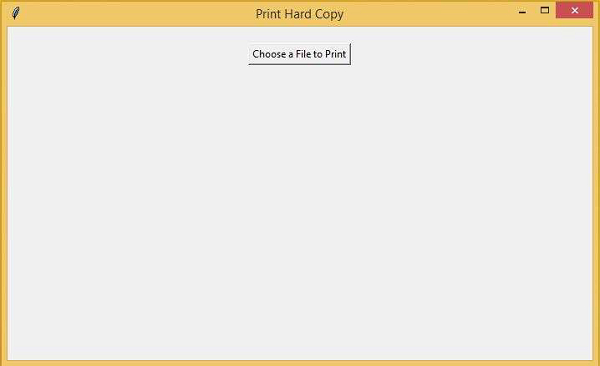
When you click the button, it opens a file dialog where you can select a file to print. The selected file will be sent to your default printer.
Important Notes
- This method works only on Windows systems due to the
win32apidependency - The file will be printed using the system's default printer
- Make sure your printer is properly configured and connected
- Some file types may require appropriate applications to be installed for printing
Conclusion
Using Tkinter with win32api, you can easily create a GUI application for printing files. The filedialog provides file selection while ShellExecute() handles the actual printing process.

1K+ Views
