
Article Categories
- All Categories
-
 Data Structure
-
 Networking
-
 RDBMS
RDBMS
-
 Operating System
-
 Java
Java
-
 MS Excel
-
 iOS
iOS
-
 HTML
HTML
-
 CSS
CSS
-
 Android
-
 Python
-
 C Programming
-
 C++
C++
-
 C#
C#
-
 MongoDB
-
 MySQL
MySQL
-
 Javascript
-
 PHP
PHP
-
 Economics & Finance
How to Install PlayOnLinux
Wine is a compatibility layer that allows you to run Microsoft Windows applications on Linux and other UNIX-based operating systems (macOS, FreeBSD, Solaris). PlayOnLinux is a graphical frontend for Wine that simplifies the installation and configuration of popular Windows applications and games by automatically setting up Wine environments with the correct settings and dependencies.
What is PlayOnLinux
PlayOnLinux provides an intuitive interface that eliminates much of the complexity involved in configuring Wine manually. It includes:
Automated Scripts − Pre-configured installation scripts for hundreds of Windows applications
Multiple Wine Versions − Ability to use different Wine versions for different applications
Virtual Drives − Isolated environments preventing applications from interfering with each other
Easy Management − Simple interface for installing, running, and removing Windows software
Installing PlayOnLinux
PlayOnLinux can be installed from the default repositories on most Linux distributions. For Ubuntu and Debian-based systems, use the following command:
$ sudo apt-get install playonlinux
The installation process will download PlayOnLinux and its dependencies:
Reading package lists... Done
Building dependency tree
Reading state information... Done
The following extra packages will be installed:
mesa-utils
Suggested packages:
scrot
The following NEW packages will be installed:
mesa-utils playonlinux
0 upgraded, 2 newly installed, 0 to remove and 0 not upgraded.
Need to get 2,045 kB of archives.
After this operation, 8,847 kB of additional disk space will be used.
Do you want to continue? [Y/n] y
Launching PlayOnLinux
Once installed, launch PlayOnLinux from the command line:
$ playonlinux
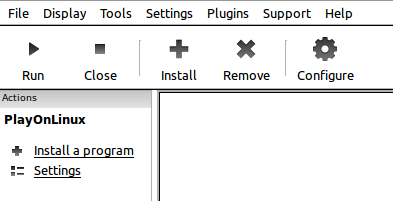
The PlayOnLinux main window will appear, showing your installed applications and available options:
Installing Windows Applications
To install a Windows application through PlayOnLinux:
Step 1: Access Installation Menu
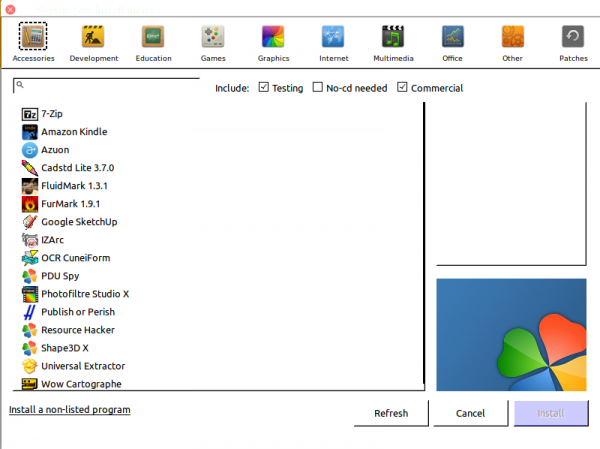
Click the Install button (+ icon) in the main window. This opens the installation wizard showing categories of available applications:
Step 2: Search and Select Application
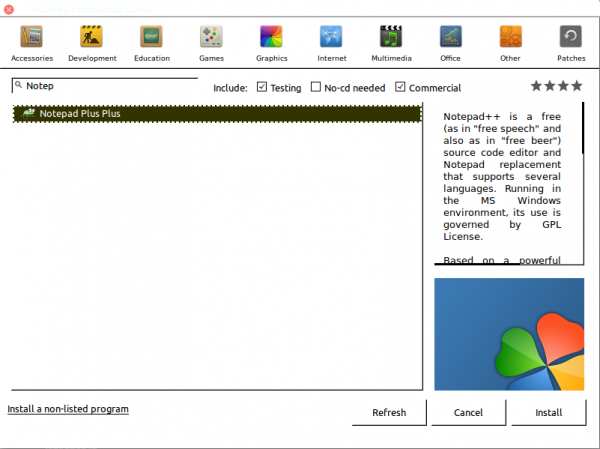
Use the search function to find your desired application. For example, searching for "Notepad++" will display the available installation script:
Step 3: Run Installation Script
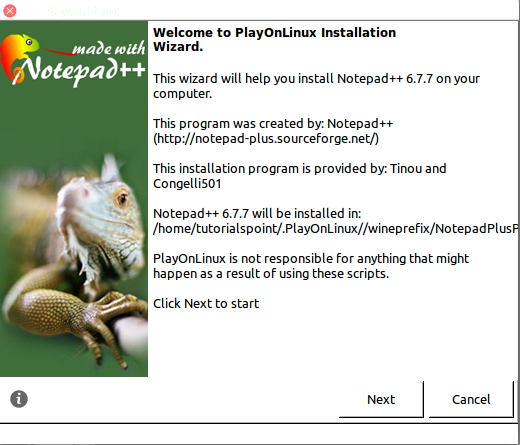
Select the application and click Install. PlayOnLinux will automatically configure Wine and guide you through the installation:
Step 4: Complete Installation
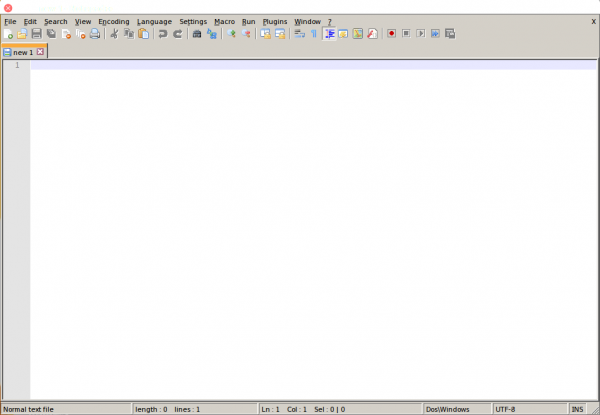
Follow the standard Windows installation procedure. PlayOnLinux handles the Wine configuration automatically. Once complete, the application will be available in your PlayOnLinux library and can be launched directly:
Key Features
| Feature | Description |
|---|---|
| Script Database | Hundreds of pre-tested installation scripts for popular applications |
| Wine Management | Automatic Wine version selection and configuration per application |
| Virtual Drives | Isolated Windows environments preventing conflicts between applications |
| Easy Uninstall | Simple removal of applications and their associated Wine prefixes |
Conclusion
PlayOnLinux significantly simplifies running Windows applications on Linux by providing automated Wine configuration and management. With its extensive script database and user-friendly interface, it makes Windows software compatibility accessible to Linux users without requiring deep Wine knowledge.

773 Views
