
Article Categories
- All Categories
-
 Data Structure
-
 Networking
-
 RDBMS
RDBMS
-
 Operating System
-
 Java
Java
-
 MS Excel
-
 iOS
iOS
-
 HTML
HTML
-
 CSS
CSS
-
 Android
-
 Python
-
 C Programming
-
 C++
C++
-
 C#
C#
-
 MongoDB
-
 MySQL
MySQL
-
 Javascript
-
 PHP
PHP
-
 Economics & Finance
Selected Reading
How to enable Scrolling Tabs in a JTabbedPane Container
To enable scrolling tabs in a JTabbedPane container, use the setTabLayoutPolicy() method −
tabbedPane.setTabLayoutPolicy(JTabbedPane.SCROLL_TAB_LAYOUT);
Above, we have set the constant to be SCROLL_TAB_LAYOUT, since we want the scroller to be visible when all the tabs won’t fit within a single run.
The following is an example to enable scrolling tabs in a JTabbedPane container −
Example
package my;
import javax.swing.*;
import java.awt.*;
public class SwingDemo {
   public static void main(String args[]) {
      JFrame frame = new JFrame("Devices");
      JTabbedPane tabbedPane = new JTabbedPane();
      JTextArea text = new JTextArea(100,100);
      JPanel panel1, panel2, panel3, panel4, panel5, panel6, panel7, panel8;
      panel1 = new JPanel();
      panel2 = new JPanel();
      panel2.add(text);
      panel3 = new JPanel();
      panel4 = new JPanel();
      panel5 = new JPanel();
      panel6 = new JPanel();
      panel7 = new JPanel();
      panel8 = new JPanel();
      tabbedPane.setBackground(Color.yellow);
      tabbedPane.setForeground(Color.black);
      tabbedPane.addTab("Laptop", panel1);
      tabbedPane.addTab("Desktop ", panel2);
      tabbedPane.addTab("Notebook", panel3);
      tabbedPane.addTab("Echo ", panel4);
      tabbedPane.addTab("Tablet", panel5);
      tabbedPane.addTab("Alexa ", panel6);
      tabbedPane.addTab("Notebook", panel7);
      tabbedPane.addTab("iPad", panel8);
      tabbedPane.setTabLayoutPolicy(JTabbedPane.SCROLL_TAB_LAYOUT);
      frame.add(tabbedPane);
      frame.setDefaultCloseOperation(JFrame.EXIT_ON_CLOSE);
      frame.setSize(400,350);
      frame.setVisible(true);
   }
}
Output
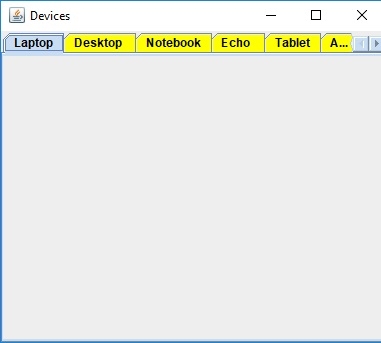
On scrolling and pressing the right navigation, the following is visible. Rest of the tabs are visible now −


Updated on: 2019-07-30T22:30:26+05:30
519 Views

Advertisements