
Article Categories
- All Categories
-
 Data Structure
-
 Networking
-
 RDBMS
RDBMS
-
 Operating System
-
 Java
Java
-
 MS Excel
-
 iOS
iOS
-
 HTML
HTML
-
 CSS
CSS
-
 Android
-
 Python
-
 C Programming
-
 C++
C++
-
 C#
C#
-
 MongoDB
-
 MySQL
MySQL
-
 Javascript
-
 PHP
PHP
-
 Economics & Finance
How to enable JavaScript in Opera?
You will learn how to activate JavaScript in the Opera web browser in this tutorial. JavaScript is essential for modern web functionality, and this guide covers both global and site-specific JavaScript settings in Opera.
About JavaScript
Although it is most famous for being the scripting language for Web pages, JavaScript (commonly abbreviated as JS) is a lightweight, interpreted, object-oriented language with first-class functions that are also utilized in other non-browser applications. It is a dynamic, prototype-based multi-paradigm scripting language that supports imperative, functional, and object-oriented programming paradigms.
JavaScript, which operates on the client side of the web, may be used to plan or program how web pages should act in response to an event. JavaScript is a popular scripting language for modifying the behavior of web pages because it is simple to learn and extremely effective.
About Opera
A few benefits over Mozilla or Microsoft's other browsers may be found with Opera. Opera, which is far more compact, is renowned for being quick and reliable. Opera is available for a variety of operating systems, including BeOS, Symbian OS, Linux, Mac OS, OS/2, Solaris, and Windows. It provides the same features as the more well-known browsers, such as support for JavaScript, cascading style sheets, instant chat, integrated searches, and email.
Enabling JavaScript in Opera
To enable JavaScript on your latest Opera web browser, you need to follow the steps below:
STEP 1 ? Launch Opera on your device and select the "Settings" icon.

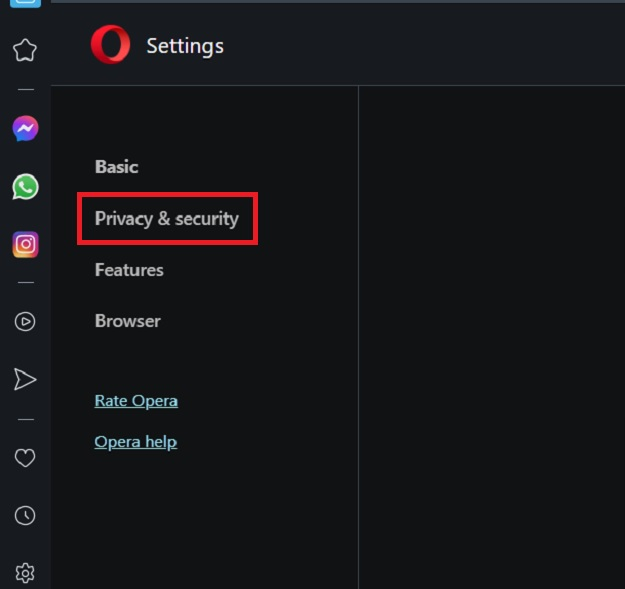
STEP 2 ? After clicking the Settings icon, a page will appear. In this page, select the "Privacy & Security" option.
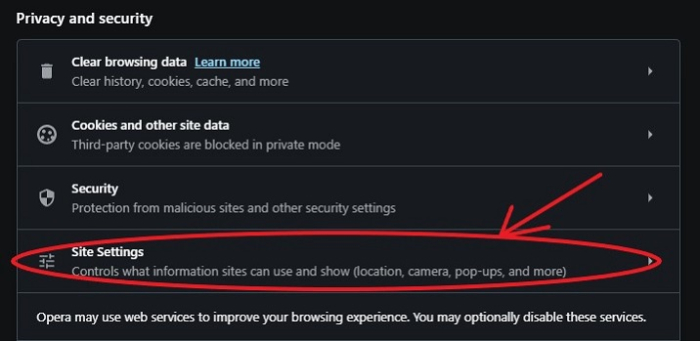
STEP 3 ? From the Privacy and Security page, click on the "Site Settings" option.
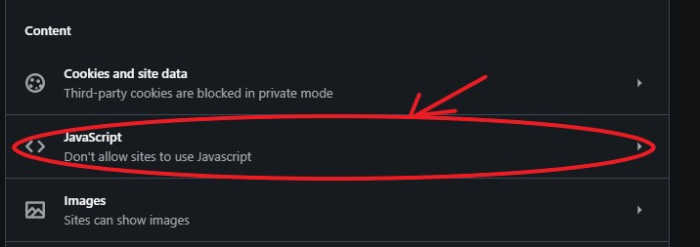
STEP 4 ? From the Site Settings page, we have to select the "JavaScript" option.
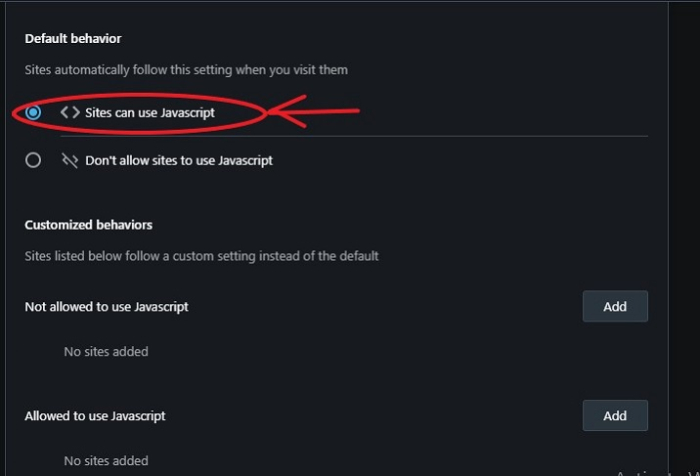
STEP 5 ? Now, choose the "Sites can use JavaScript" option to enable JavaScript for all sites in this browser.
Enabling JavaScript for Specific Sites
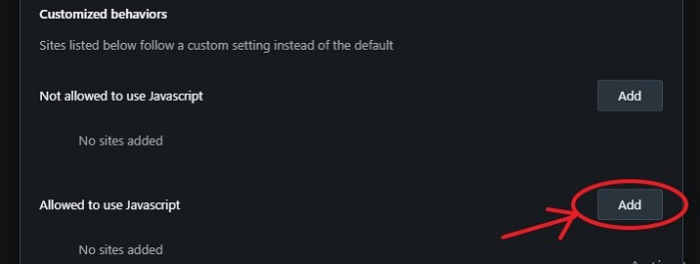
At times, we would need to enable JavaScript only from specific sites. For this, we can use the "Allowed to use JavaScript" section.
Here, click on the "Add" button.
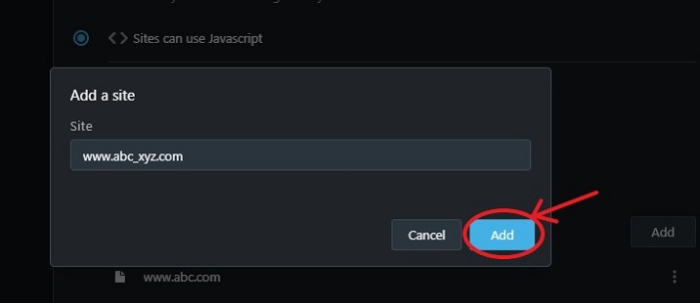
Then add the website URL on which JavaScript needs to be enabled, as shown below.
Why Enable JavaScript?
You need to enable JavaScript in your browser for optimal web functionality. If JavaScript is not enabled, these issues may appear:
-
Broken Website Functionality ? The absence of interactive features, dynamic content updates, and other JavaScript-powered functionality. Websites may become unclear or challenging to navigate.
-
Limited Media Access ? You may lose access to interactive graphics, videos, maps, and other dynamic content that websites provide, reducing your overall browsing experience.
-
Poor User Experience ? JavaScript enables smooth scrolling, form validation, and dynamic content loading. Disabling it may result in clunky navigation requiring multiple page refreshes.
Alternative Method: Quick Settings
You can also quickly toggle JavaScript by typing opera://settings/content/javascript directly in the Opera address bar, which will take you straight to the JavaScript settings page.
Conclusion
Enabling JavaScript in Opera is essential for modern web browsing. Use the global setting for general browsing or configure site-specific permissions for enhanced security while maintaining functionality on trusted sites.

1K+ Views
