
Article Categories
- All Categories
-
 Data Structure
-
 Networking
-
 RDBMS
RDBMS
-
 Operating System
-
 Java
Java
-
 MS Excel
-
 iOS
iOS
-
 HTML
HTML
-
 CSS
CSS
-
 Android
-
 Python
-
 C Programming
-
 C++
C++
-
 C#
C#
-
 MongoDB
-
 MySQL
MySQL
-
 Javascript
-
 PHP
PHP
-
 Economics & Finance
How to Automatically Send Email Based on Cell Value in Excel?
Sending a report from Excel could be a time-consuming and inefficient process if we do it manually. We can automate this process by following the steps below before sending the email. This tutorial will help you understand how we can automatically send email based on cell values in Excel. When the value of the mentioned value follows the condition, then the email application will be opened.
Automatically Send Email Based on Cell Value
Here we will insert VBA code for the worksheet, then open the email application. Let us see an effortless process to see how we can automatically send email based on cell values in Excel. We will be using the help of a VBA application to complete the process, as it cannot be completed directly in Excel.
Step 1
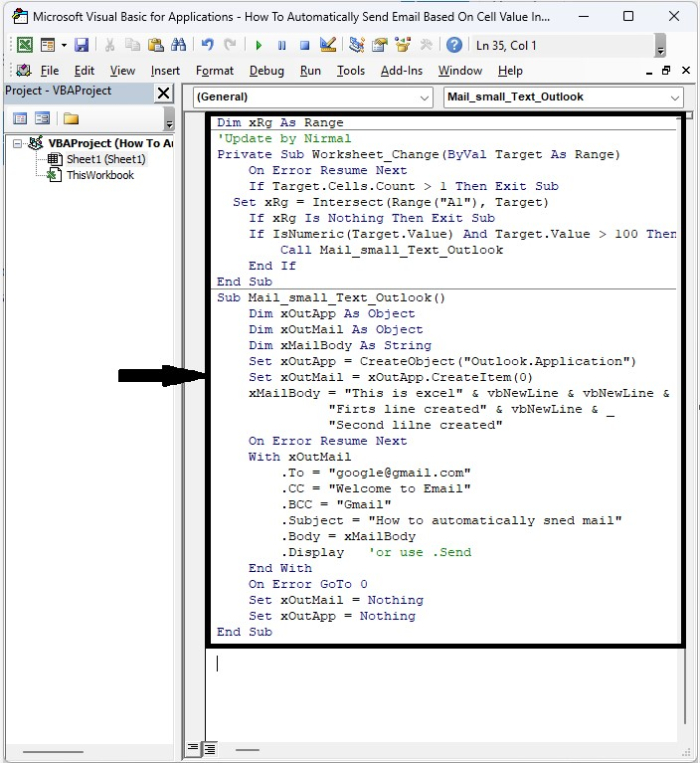
Consider creating a new excel sheet, then right-clicking on the sheet name and selecting view code to open the vba application, and then typing the programme listed below into the text box shown in the image below.
Example
<div class="code-mirror  language-javascript" contenteditable="plaintext-only" spellcheck="false" style="outline: none; overflow-wrap: break-word; overflow-y: auto; white-space: pre-wrap;">Dim xRg As Range
'Update by Nirmal
Private Sub <span class="token function">Worksheet_Change</span><span class="token punctuation">(</span>ByVal Target As Range<span class="token punctuation">)</span>
   On Error Resume Next
   If Target<span class="token punctuation">.</span>Cells<span class="token punctuation">.</span>Count <span class="token operator">></span> <span class="token number">1</span> Then Exit Sub
   Set xRg <span class="token operator">=</span> <span class="token function">Intersect</span><span class="token punctuation">(</span><span class="token function">Range</span><span class="token punctuation">(</span><span class="token string">"A1"</span><span class="token punctuation">)</span><span class="token punctuation">,</span> Target<span class="token punctuation">)</span>
   If xRg Is Nothing Then Exit Sub
   If <span class="token function">IsNumeric</span><span class="token punctuation">(</span>Target<span class="token punctuation">.</span>Value<span class="token punctuation">)</span> And Target<span class="token punctuation">.</span>Value <span class="token operator">></span> <span class="token number">100</span> Then
      Call Mail_small_Text_Outlook
   End If
End Sub
Sub <span class="token function">Mail_small_Text_Outlook</span><span class="token punctuation">(</span><span class="token punctuation">)</span>
   Dim xOutApp As Object
   Dim xOutMail As Object
   Dim xMailBody As String
   Set xOutApp <span class="token operator">=</span> <span class="token function">CreateObject</span><span class="token punctuation">(</span><span class="token string">"Outlook.Application"</span><span class="token punctuation">)</span>
   Set xOutMail <span class="token operator">=</span> xOutApp<span class="token punctuation">.</span><span class="token function">CreateItem</span><span class="token punctuation">(</span><span class="token number">0</span><span class="token punctuation">)</span>
   xMailBody <span class="token operator">=</span> <span class="token string">"This is excel"</span> <span class="token operator">&</span> vbNewLine <span class="token operator">&</span> vbNewLine <span class="token operator">&</span> _
      <span class="token string">"Firts line created"</span> <span class="token operator">&</span> vbNewLine <span class="token operator">&</span> _
      <span class="token string">"Second lilne created"</span>
   On Error Resume Next
   With xOutMail
      <span class="token punctuation">.</span>To <span class="token operator">=</span> <span class="token string">"google@gmail.com"</span>
      <span class="token punctuation">.</span><span class="token constant">CC</span> <span class="token operator">=</span> <span class="token string">"Welcome to Email"</span>
      <span class="token punctuation">.</span><span class="token constant">BCC</span> <span class="token operator">=</span> <span class="token string">"Gmail"</span>
      <span class="token punctuation">.</span>Subject <span class="token operator">=</span> <span class="token string">"How to automatically sned mail"</span>
      <span class="token punctuation">.</span>Body <span class="token operator">=</span> xMailBody
      <span class="token punctuation">.</span>Display   'or use <span class="token punctuation">.</span>Send
   End With
   On Error GoTo <span class="token number">0</span>
   Set xOutMail <span class="token operator">=</span> Nothing
   Set xOutApp <span class="token operator">=</span> Nothing
End Sub
</div>
In the code, the A1 is the cell where we enter the value >100, which is the condition to open the Outlook application, and we can change the email, CC, BCC, subject, and body in the code as we want.
Step 2
Now save the sheet as a macro-enabled workbook, close the vba application using the command "Alt + Q", and every time the value in cell A1 is greater than 100, the Outlook application will be opened.
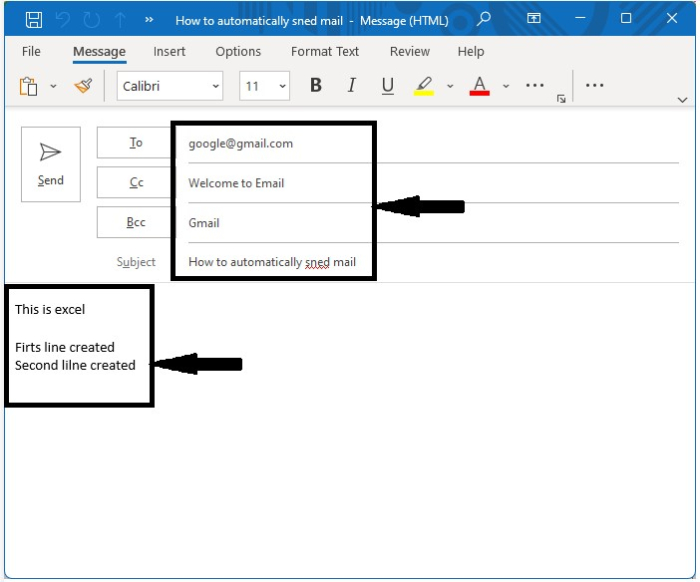
Note ? This code will only work if Outlook is your mail program; otherwise, an error will occur.
Conclusion
In this tutorial, we used a simple example to show how you can use Excel to automatically send email based on cell value.

7K+ Views
