
Article Categories
- All Categories
-
 Data Structure
-
 Networking
-
 RDBMS
RDBMS
-
 Operating System
-
 Java
Java
-
 MS Excel
-
 iOS
iOS
-
 HTML
HTML
-
 CSS
CSS
-
 Android
-
 Python
-
 C Programming
-
 C++
C++
-
 C#
C#
-
 MongoDB
-
 MySQL
MySQL
-
 Javascript
-
 PHP
PHP
-
 Economics & Finance
How to Automatically Save and Close an Excel File after a Certain Idle Time?
When we save the Excel workbook in shared memory, if one person accesses the sheet, other people will be unable to save the sheet; this problem can be solved by automatically closing the sheet after a certain amount of time. This tutorial will help you understand how we can automatically save and close an Excel file after a certain idle time.
Automatically Save and Close an Excel File after a Certain Idle Time
Here we will first insert VBA code for the sheet, then create a VBA module, then run it to complete our task. Let us see a straightforward process to know how we can automatically save and close an Excel workbook after a certain time. We will be using the help of the VBA application to complete our process.
Step 1
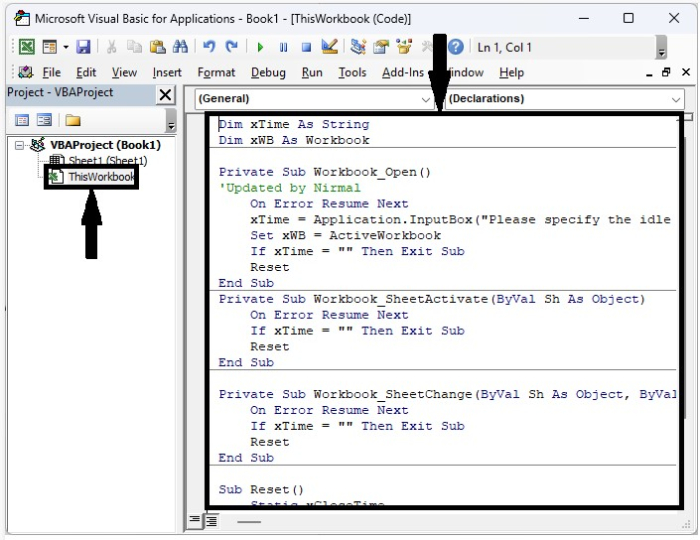
Let us consider any Excel workbook and right-click on the sheet name and select view code to open the vba application. Then, double-click on this workbook and type "Program1" into the text box as shown in the below image.
Example
<div class="code-mirror  language-javascript" contenteditable="plaintext-only" spellcheck="false" style="outline: none; overflow-wrap: break-word; overflow-y: auto; white-space: pre-wrap;">Dim xTime As String
Dim xWB As Workbook

Private Sub <span class="token function">Workbook_Open</span><span class="token punctuation">(</span><span class="token punctuation">)</span>
'Updated by Nirmal
   On Error Resume Next
   xTime <span class="token operator">=</span> Application<span class="token punctuation">.</span><span class="token function">InputBox</span><span class="token punctuation">(</span><span class="token string">"Please specify the idle time:"</span><span class="token punctuation">,</span> <span class="token string">"Plese enter the duration"</span><span class="token punctuation">,</span> <span class="token string">"00:00:30"</span><span class="token punctuation">,</span> <span class="token punctuation">,</span> <span class="token punctuation">,</span> <span class="token punctuation">,</span> <span class="token punctuation">,</span> <span class="token number">2</span><span class="token punctuation">)</span>
   Set xWB <span class="token operator">=</span> ActiveWorkbook
   If xTime <span class="token operator">=</span> <span class="token string">""</span> Then Exit Sub
   Reset
End Sub
Private Sub <span class="token function">Workbook_SheetActivate</span><span class="token punctuation">(</span>ByVal Sh As Object<span class="token punctuation">)</span>
   On Error Resume Next
   If xTime <span class="token operator">=</span> <span class="token string">""</span> Then Exit Sub
   Reset
End Sub

Private Sub <span class="token function">Workbook_SheetChange</span><span class="token punctuation">(</span>ByVal Sh As Object<span class="token punctuation">,</span> ByVal Target As Range<span class="token punctuation">)</span>
   On Error Resume Next
   If xTime <span class="token operator">=</span> <span class="token string">""</span> Then Exit Sub
   Reset
End Sub

Sub <span class="token function">Reset</span><span class="token punctuation">(</span><span class="token punctuation">)</span>
   Static xCloseTime
   If xCloseTime <span class="token operator"><</span><span class="token operator">></span> <span class="token number">0</span> Then
      ActiveWorkbook<span class="token punctuation">.</span>Application<span class="token punctuation">.</span>OnTime xCloseTime<span class="token punctuation">,</span> <span class="token string">"SaveWork1"</span><span class="token punctuation">,</span> <span class="token punctuation">,</span> False
   End If
   xCloseTime <span class="token operator">=</span> Now <span class="token operator">+</span> <span class="token function">TimeValue</span><span class="token punctuation">(</span>xTime<span class="token punctuation">)</span>
   ActiveWorkbook<span class="token punctuation">.</span>Application<span class="token punctuation">.</span>OnTime xCloseTime<span class="token punctuation">,</span> <span class="token string">"SaveWork1"</span><span class="token punctuation">,</span> <span class="token punctuation">,</span> True
End Sub
</div>
Step 2
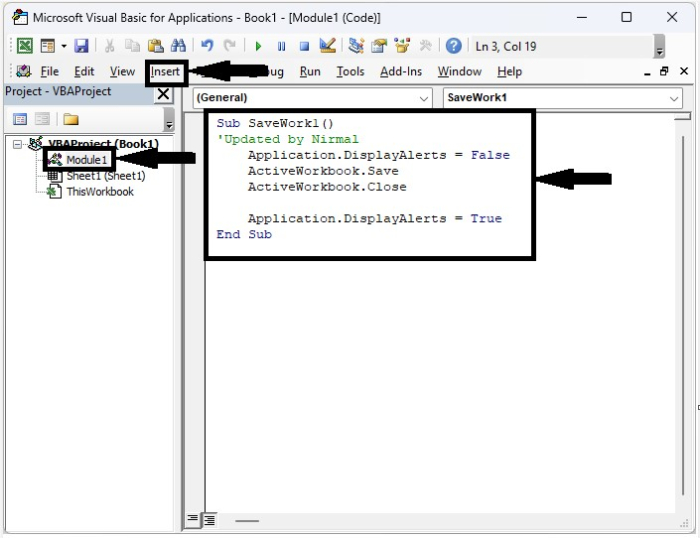
Now click on "Insert," select "Module," and type "Program 2" into the text box as shown in the below image.
Example
<div class="code-mirror  language-javascript" contenteditable="plaintext-only" spellcheck="false" style="outline: none; overflow-wrap: break-word; overflow-y: auto; white-space: pre-wrap;">Sub <span class="token function">SaveWork1</span><span class="token punctuation">(</span><span class="token punctuation">)</span>
'Updated by Nirmal
   Application<span class="token punctuation">.</span>DisplayAlerts <span class="token operator">=</span> False
   ActiveWorkbook<span class="token punctuation">.</span>Save
   ActiveWorkbook<span class="token punctuation">.</span>Close

   Application<span class="token punctuation">.</span>DisplayAlerts <span class="token operator">=</span> True
End Sub
</div>
Step 2
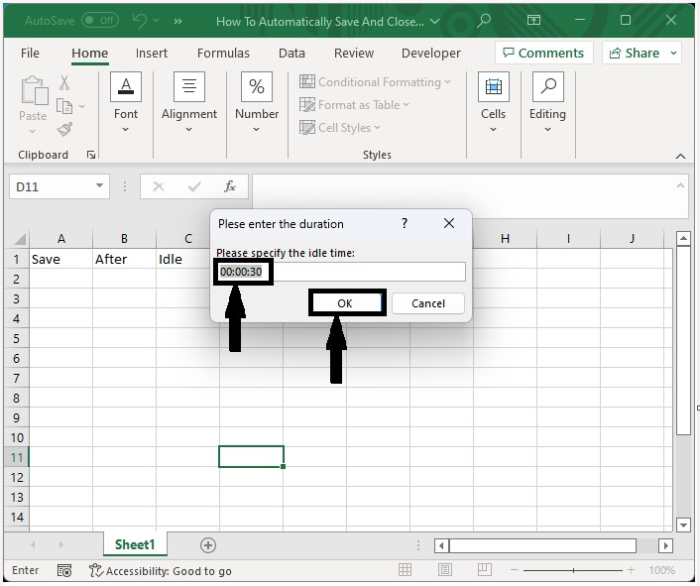
Save the work sheet as a macro-enabled template, close the sheet, and then reopen the sheet. Then click on "Enable code," then enter the time you want your sheet to open, then click "OK."
Conclusion
In this tutorial, we used a simple example to demonstrate how you can automatically save and close an Excel workbook after a certain idle time.

2K+ Views
