
Article Categories
- All Categories
-
 Data Structure
-
 Networking
-
 RDBMS
RDBMS
-
 Operating System
-
 Java
Java
-
 MS Excel
-
 iOS
iOS
-
 HTML
HTML
-
 CSS
CSS
-
 Android
-
 Python
-
 C Programming
-
 C++
C++
-
 C#
C#
-
 MongoDB
-
 MySQL
MySQL
-
 Javascript
-
 PHP
PHP
-
 Economics & Finance
How to add an image in Tkinter?
Adding images to Tkinter applications enhances the user interface and provides visual appeal. You can display images using PIL (Pillow) library with PhotoImage and Label widgets.
Basic Image Display
Here's a simple example that displays a fixed image in a Tkinter window ?
import tkinter as tk
from PIL import Image, ImageTk

# Create main window
root = tk.Tk()
root.title("Image Display")
root.geometry("400x300")

# Load and display image
try:
    # Load image using PIL
    img = Image.open("sample.jpg")

    # Resize image if needed
    img = img.resize((300, 200))

    # Convert to PhotoImage
    photo = ImageTk.PhotoImage(img)

    # Create label with image
    label = tk.Label(root, image=photo)
    label.image = photo  # Keep a reference
    label.pack(pady=20)

except FileNotFoundError:
    tk.Label(root, text="Image not found!").pack()

root.mainloop()
Interactive Image Selection
This example allows users to select and display images using a file dialog ?
import tkinter as tk
from tkinter import filedialog, messagebox
from PIL import Image, ImageTk

class ImageViewer:
    def __init__(self, root):
        self.root = root
        self.root.title("Image Viewer")
        self.root.geometry("600x500")

        # Create UI elements
        self.create_widgets()

    def create_widgets(self):
        # Title label
        title_label = tk.Label(
            self.root,
            text="Click below to select an image",
            font=("Arial", 14, "bold")
        )
        title_label.pack(pady=20)

        # Select button
        select_btn = tk.Button(
            self.root,
            text="Select Image",
            command=self.select_image,
            bg="#4CAF50",
            fg="white",
            font=("Arial", 12),
            padx=20
        )
        select_btn.pack(pady=10)

        # Image display frame
        self.image_frame = tk.Frame(self.root, relief=tk.SUNKEN, bd=2)
        self.image_frame.pack(pady=20, padx=20, fill=tk.BOTH, expand=True)

        self.image_label = tk.Label(
            self.image_frame,
            text="No image selected",
            bg="lightgray"
        )
        self.image_label.pack(fill=tk.BOTH, expand=True)

    def select_image(self):
        # File dialog to select image
        file_path = filedialog.askopenfilename(
            title="Select an Image",
            filetypes=[
                ("Image files", "*.jpg *.jpeg *.png *.gif *.bmp"),
                ("All files", "*.*")
            ]
        )

        if file_path:
            self.display_image(file_path)

    def display_image(self, file_path):
        try:
            # Load and process image
            img = Image.open(file_path)

            # Resize to fit window (max 400x300)
            img.thumbnail((400, 300), Image.Resampling.LANCZOS)

            # Convert to PhotoImage
            photo = ImageTk.PhotoImage(img)

            # Update label
            self.image_label.configure(image=photo, text="")
            self.image_label.image = photo  # Keep reference

        except Exception as e:
            messagebox.showerror("Error", f"Could not load image: {str(e)}")

# Create and run application
if __name__ == "__main__":
    root = tk.Tk()
    app = ImageViewer(root)
    root.mainloop()
Key Points
- PIL/Pillow: Required for handling various image formats beyond GIF and PPM
- PhotoImage: Tkinter-compatible image format created from PIL images
- Reference: Always keep a reference to the image object to prevent garbage collection
-
Resizing: Use
thumbnail()orresize()to fit images in your window - Error handling: Include try-except blocks for file operations
Output
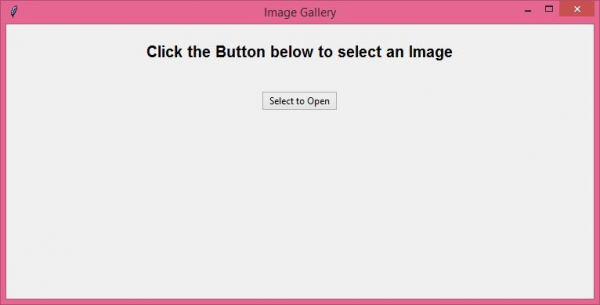
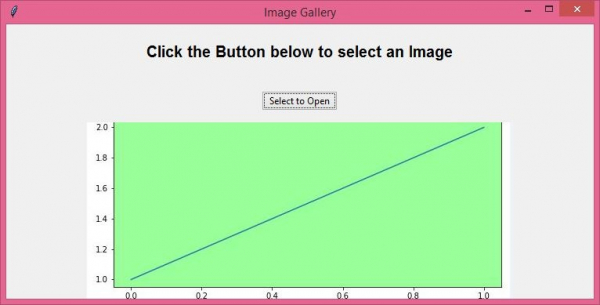
The application creates a window with a button to select images. When you click "Select Image", a file dialog opens allowing you to choose an image file. The selected image is then displayed in the window, automatically resized to fit the available space.
After selecting an image from your local directory, it will be displayed in the application window.
Conclusion
Adding images to Tkinter requires PIL/Pillow for format support and PhotoImage for display. Always maintain image references and handle file errors gracefully for robust applications.

4K+ Views
