
Article Categories
- All Categories
-
 Data Structure
-
 Networking
-
 RDBMS
RDBMS
-
 Operating System
-
 Java
Java
-
 MS Excel
-
 iOS
iOS
-
 HTML
HTML
-
 CSS
CSS
-
 Android
-
 Python
-
 C Programming
-
 C++
C++
-
 C#
C#
-
 MongoDB
-
 MySQL
MySQL
-
 Javascript
-
 PHP
PHP
-
 Economics & Finance
Create a box in Python GTK+ 3
GTK+ 3 is a sophisticated graphical user interface library for creating cross-platform desktop applications. It provides an extensive range of tools and widgets for building interactive and appealing GUIs. Let's explore how to create and use box layouts in GTK+ 3 to organize widgets within a window.
Setup and Installation
For Windows users, install the Windows Subsystem for Linux (WSL) to use Linux commands and PyGObject in Windows environments. This simplifies access to libraries and GObject Introspection bindings.
Install the required packages:
pip install PyGObject
sudo apt install libcairo2-dev python3-gi gir1.2-gtk-3.0 gcc libgirepository1.0-dev gobject-introspection pkg-config python3-dev
The GObject Introspection library provides excellent integration for various programming languages and must be installed before proceeding.
Understanding GTK+ 3 Box Layouts
GTK+ 3 is a cross-platform GUI toolkit primarily designed for desktop applications. It supports multiple programming languages, including Python, and provides various widgets like buttons, labels, and entry fields.
The box layout is a fundamental container that allows widgets to be arranged horizontally or vertically. This creates flexible and dynamic user interface designs. Box layouts use pack_start() and pack_end() methods to position widgets with proper spacing and alignment.
Creating a Custom Box Layout
Example
Here's how to create a window with both horizontal and vertical box layouts ?
import gi
gi.require_version('Gtk', '3.0')
from gi.repository import Gtk

class CustomBox(Gtk.Window):
    def __init__(self):
        Gtk.Window.__init__(self)
        self.set_title("Custom GTK+ 3 Box Layout")
        self.set_default_size(400, 300)
        self.connect("destroy", Gtk.main_quit)

        # Create horizontal box container
        hbox = Gtk.Box(orientation=Gtk.Orientation.HORIZONTAL, spacing=10)
        self.add(hbox)

        # Add labels to horizontal box
        label1 = Gtk.Label(label="TutorialsPoint")
        hbox.pack_start(label1, True, True, 5)

        label2 = Gtk.Label(label="Python GTK")
        hbox.pack_start(label2, True, True, 5)

        # Create vertical box container
        vbox = Gtk.Box(orientation=Gtk.Orientation.VERTICAL, spacing=10)
        hbox.pack_start(vbox, True, True, 5)

        # Add labels to vertical box
        label3 = Gtk.Label(label="GTK+ Tutorial")
        vbox.pack_start(label3, True, True, 5)

        label4 = Gtk.Label(label="Box Layout Example")
        vbox.pack_start(label4, True, True, 5)

# Create and display the window
window = CustomBox()
window.show_all()
Gtk.main()
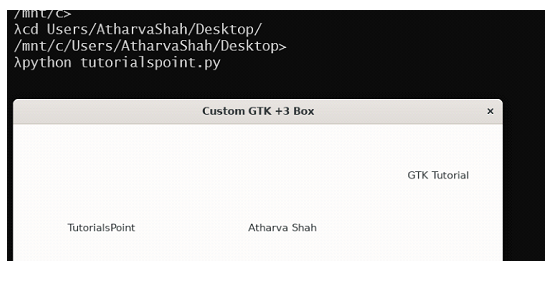
Output
How Box Layouts Work
The code demonstrates several key concepts:
Horizontal Box (hbox): Arranges widgets side by side from left to right
Vertical Box (vbox): Stacks widgets from top to bottom
pack_start(): Adds widgets with specified expansion, fill, and padding parameters
Spacing: Controls the gap between widgets in the container
Key Parameters
The pack_start() method accepts these important parameters:
expand: Whether the widget should expand to fill available space
fill: Whether the widget should fill the allocated space
padding: Additional space around the widget in pixels
Conclusion
GTK+ 3 box layouts provide a powerful way to organize widgets within windows. By combining horizontal and vertical boxes, you can create complex, responsive user interfaces that adapt when users resize windows.

2K+ Views
