
Article Categories
- All Categories
-
 Data Structure
-
 Networking
-
 RDBMS
RDBMS
-
 Operating System
-
 Java
Java
-
 MS Excel
-
 iOS
iOS
-
 HTML
HTML
-
 CSS
CSS
-
 Android
-
 Python
-
 C Programming
-
 C++
C++
-
 C#
C#
-
 MongoDB
-
 MySQL
MySQL
-
 Javascript
-
 PHP
PHP
-
 Economics & Finance
Selected Reading
How to use JOptionPane with Array Elements in Java?
Let us first create and array and add elements −
String[] sports = { "Football", "Cricket", "Squash", "Baseball", "Fencing", "Volleyball", "Basketball" };
Now, set the above array elements to the JOptionPane −
String res = (String) JOptionPane.showInputDialog(null, "Which sports you play the most?", "Sports",
   JOptionPane.PLAIN_MESSAGE, null, sports, sports[0]);
Above, we have also set the initial value i.e. sports(0).
The following is an example to use JOptionPane with array elements in Java −
Example
package my;
import javax.swing.JOptionPane;
public class SwingDemo {
   public static void main(String[] args) {
      String[] sports = { "Football", "Cricket", "Squash", "Baseball", "Fencing", "Volleyball", "Basketball" };
      String res = (String) JOptionPane.showInputDialog(null, "Which sports you play the most?", "Sports",
         JOptionPane.PLAIN_MESSAGE, null, sports, sports[0]);
      switch (res) {
         case "Football":
            System.out.println("I Love Football");
         break;
         case "Cricket":
            System.out.println("I Love Cricket");
         break;
         case "Squash":
            System.out.println("I Love Squash");
         break;
         case "Baseball":
            System.out.println("I Love Baseball");
         break;
         case "Fencing":
            System.out.println("I Love Fencing");
         break;
         case "Volleyball":
            System.out.println("I Love Volleyball");
         break;
         case "Basketball":
            System.out.println("I Love Basketball");
         break;
      }
   }
}
Output
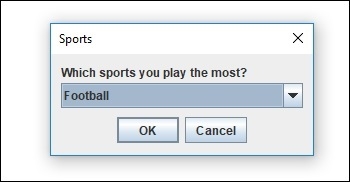
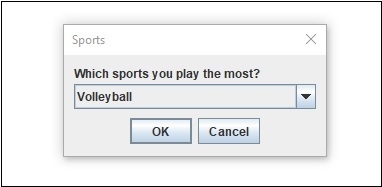
Now select any of the item from above and click OK to display the selected item in the Console. We selected “Volleyball” −
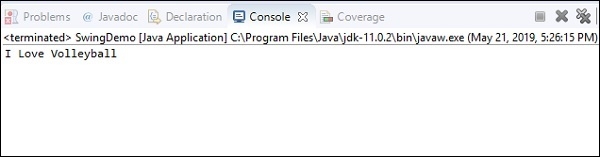
The option selected above visible in Console −

Updated on: 2019-07-30T22:30:26+05:30
1K+ Views

Advertisements